What Is Google “Workspace Guests” Feature and How to Share Guest Account Contacts

External collaboration has always been a gray area in Google Workspace. Sharing a Drive document with a contractor, looping a vendor into a Chat thread, or sending sensitive numbers to a partner who happens to use Outlook – every one of those moments forced admins to choose between convenience and control. Google’s new Workspace Guests feature is built to finally address the issue. It gives external collaborators a real, manageable presence inside your organization’s domain without giving them an actual Workspace license.
If your company uses Google Workspace, this feature is worth understanding. If you run a team that works with freelancers, agencies, or clients on a regular basis, it’s about to make your life easier. And if your team relies on having those external contacts at their fingertips, there’s one practical wrinkle worth solving – contact sharing – which we’ll get to at the end.
What Are Google Workspace Guests?
Workspace Guests are lightweight, admin-managed accounts for people who collaborate with users in Google Workspace but aren’t part of it. These may be contractors who use a different email system, agency partners on Microsoft 365, or clients you’re swapping encrypted documents with. Instead of those people being treated as anonymous external email addresses, Google Workspace now spins up a guest identity for them inside your domain – with a unique account ID, a clear audit trail, and a security perimeter that you, as the administrator, control.
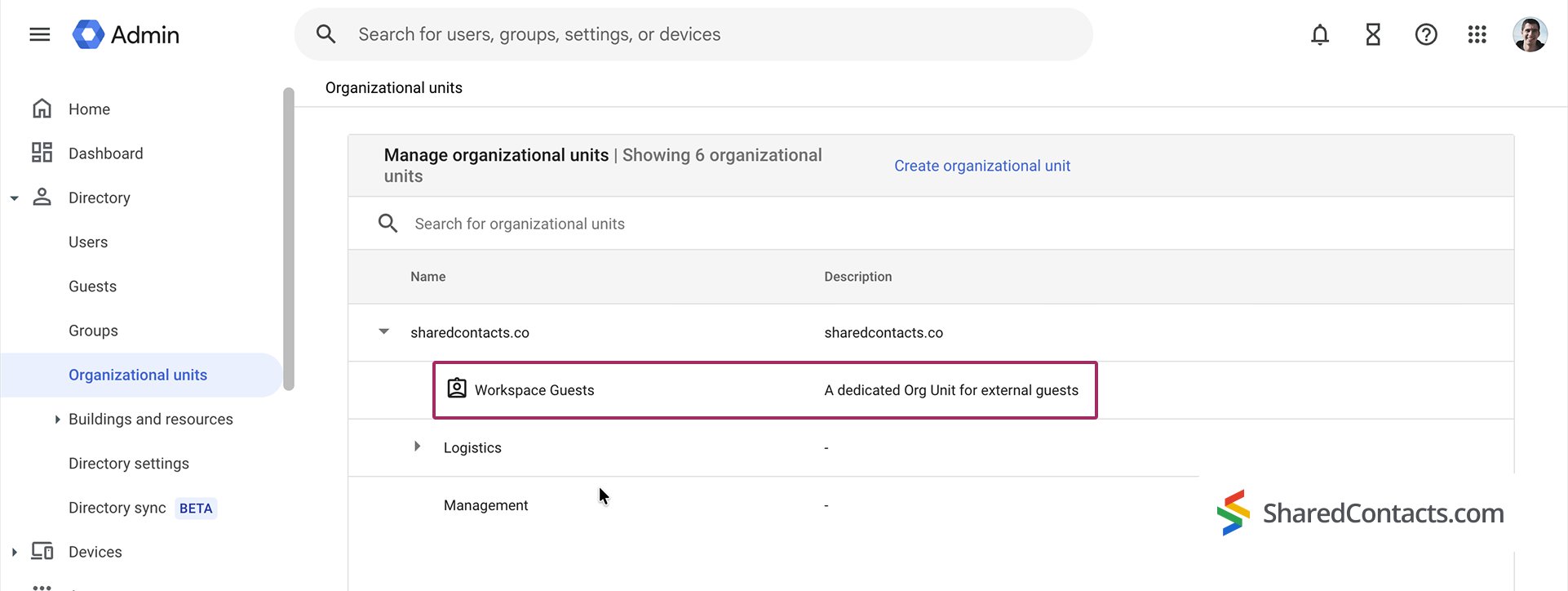
These accounts live in a dedicated “Workspace Guests” Organizational Unit (OU) in your domain. They start with a deliberately conservative security baseline: no directory visibility, no third-party app access, and no single sign-on. From there, you can apply your own policies such as two-step verification, context-aware access, password rules, and so on – exactly the way you’d shape policy for a regular user.
How Workspace Guest Accounts Are Created
Creation is almost automatic. In the current edition of the feature, you can invite guests either when a user in your organization sends an end-to-end encrypted Gmail message to an external address or when a user invites a non-Workspace contact into a Google Chat direct message or Space. The moment one of those happens, Google Workspace creates a guest account, assigns it a unique identifier, and sends the recipient an invitation to set up their account. The guest acknowledges Google’s Workspace Terms of Service and confirms that any data they access belongs to your organization. After that, they can read, reply, and collaborate – all inside your domain’s security boundary. Let’s see how it works.
How to Invite an External User to Your Workspace
Here’s what a Workspace administrator needs to do to invite a user to their domain:
- Open Google Chat and click Yeni sohbet.
- Enter the account you want to turn into a guest.
- Tıklayın Start chat.
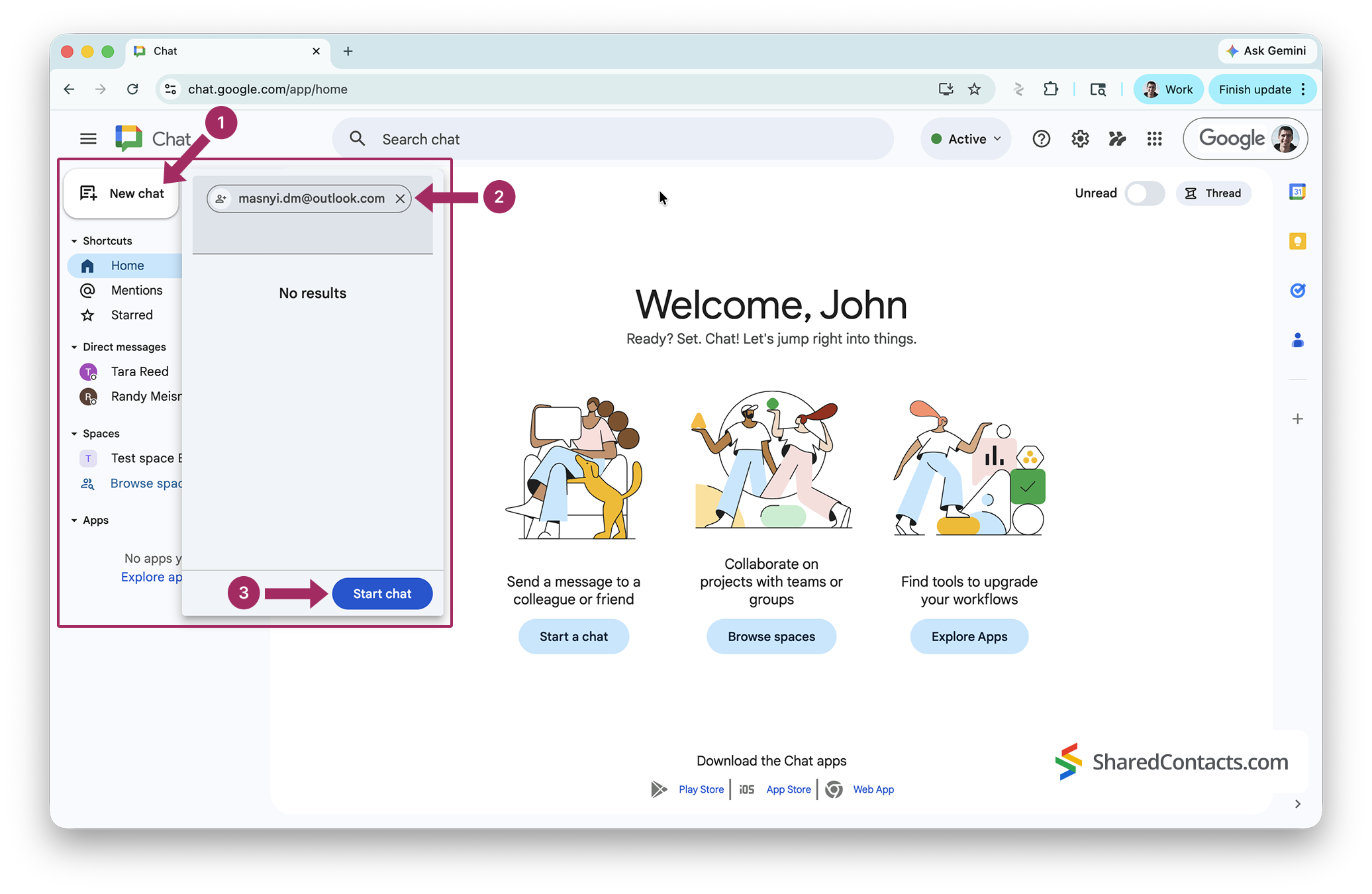
At this point, the invitee will already appear in the Workspace Guests section of your console – but with a status of Invited. That means the account owner hasn’t yet accepted your invitation and can’t use the guest profile just yet.
How to Activate a Google Workspace Guest Account
- An invitation notification will arrive at the invitee’s email address. Click Join conversation.
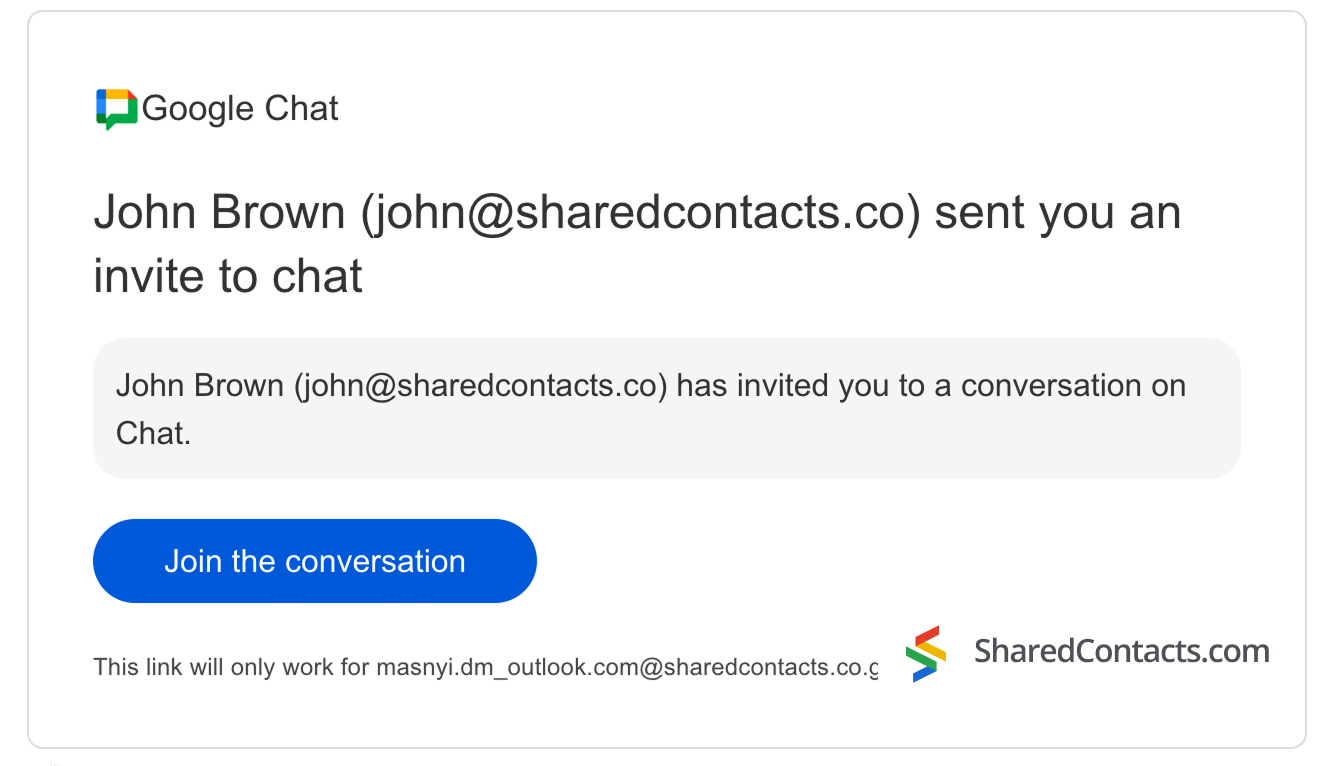
- In the next screens, you’ll be asked to verify your non-Google account. Check your inbox and enter the verification code.
- In the following screen, fill in the personal details for your newly created Workspace Guest account.
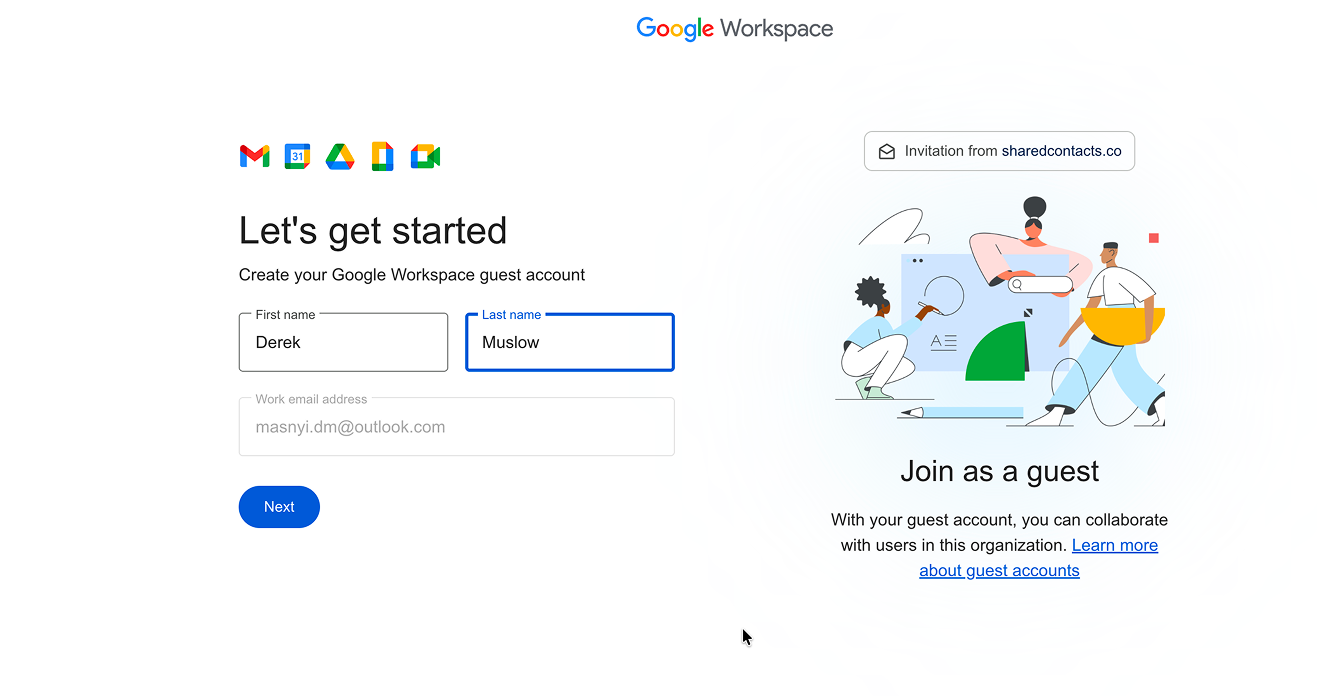
After this, your guest gets access to Google Chat and other Workspace products, and you will see a notification that the guest account has been activated, meaning you can start collaborating in full.
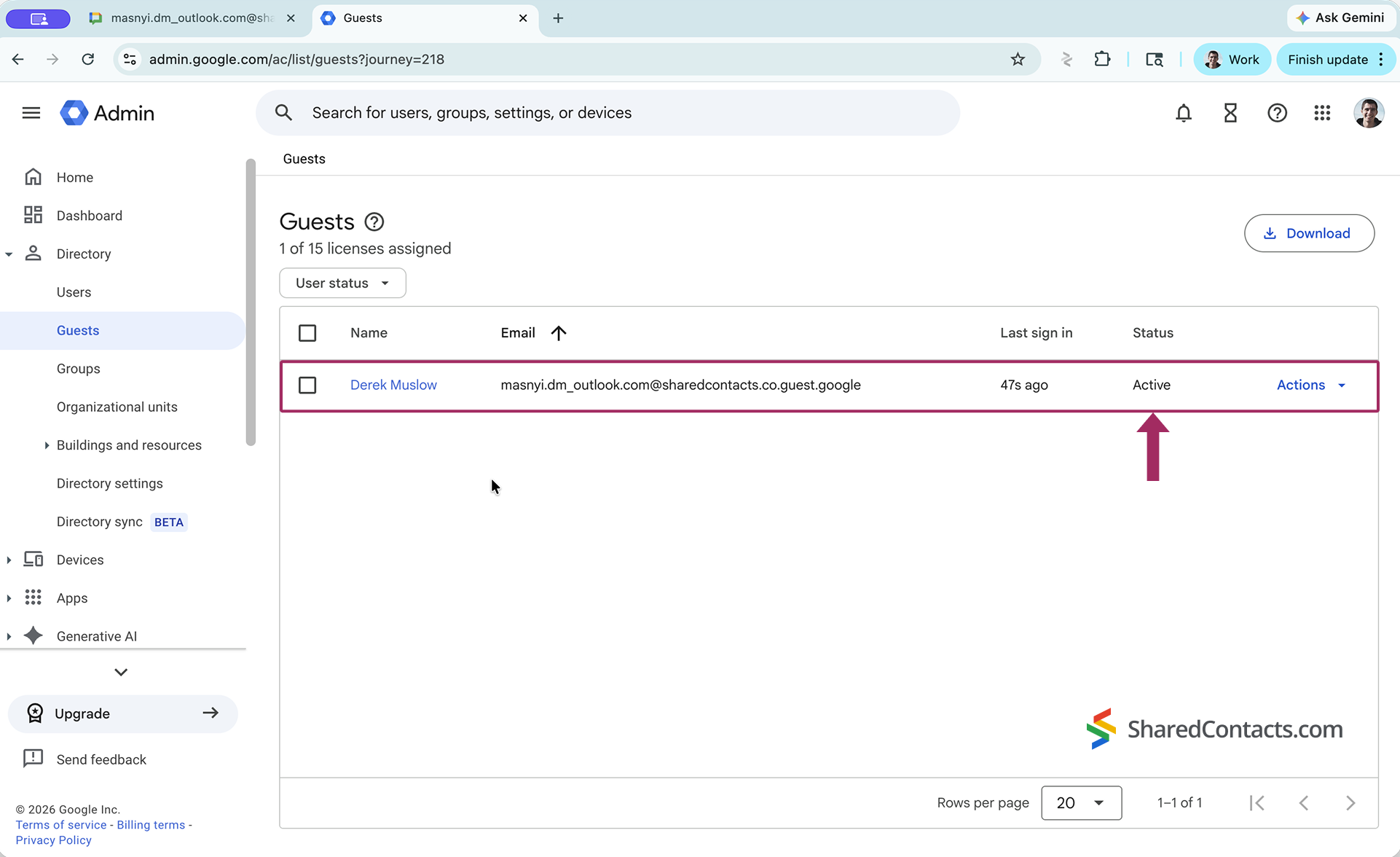
Managing Workspace Guests
Once guests start showing up, they’re easy to manage because they’re all in one place. Sign in as the Workspace administrator and head to the Workspace Guests OU. From there, you can update guest profile information, control which Workspace services each guest can access, apply password and 2-step verification requirements, layer on context-aware access rules (for example, requiring a managed device or a specific location), and deactivate or delete the account when the engagement ends.
One important constraint: for security reasons, guest accounts cannot be moved into your regular OUs. They stay siloed. That’s a feature, not a bug. It prevents an external account from accidentally inheriting employee-level privileges. It also means that this Workspace Guests OU should be treated as its own little policy zone, with rules tuned for short-term, low-trust collaboration rather than your standard internal posture.
Workspace Guest: Capabilities and Limitations
Guest accounts are powerful enough to make collaboration feel native, but they come with deliberate guardrails. Here’s the practical breakdown.
Workspace tools available to guests
- Google Chat: Guests can join 1:1 messages, group conversations, and Spaces they’ve been invited to.
- Gmail (encrypted): guests can receive and reply to client-side encrypted and end-to-end encrypted messages from your organization. They use a guest-specific inbox view, not a full Google mailbox in your domain.
- Google Drive (shared content): guests can open, comment on, and modify Drive files that have been explicitly shared with their guest identity, including CSE-protected files.
- Google Docs, Sheets, and Slides: full collaborative editing inside files shared with them, subject to the permission level granted.
- Google Meet: guests can join Meet calls launched from a Chat conversation or shared invite.
- Google Calendar: guests can be invited to events and respond to invitations, though they don’t get a managed calendar of their own inside your org.
Workspace tools not available to guests
- No full Gmail account in your domain. Guests don’t get a @yourcompany.com mailbox; they work via their existing email plus the encrypted-message workflow.
- No personal Drive storage in your tenant. They can work with shared files, but can’t create or store their own content under your org.
- No Google Sites, Forms, Keep, or AppSheet authoring privileges by default.
- No Google Voice or other licensed Workspace add-ons.
- No third-party Marketplace apps connected via OAuth, unless explicitly enabled for the Workspace Guests OU.
- No Admin console access, and no ability to manage other users – regardless of what privileges their inviter holds.
- No directory visibility – they don’t appear in autocomplete, the global address list, or Contacts directory searches across your org.
Basically, a guest account is a tightly scoped contractor badge. It opens specific doors – Chat, encrypted mail, shared Drive content – leaves a clear paper trail, and can be revoked the moment the engagement ends, without ever giving the guest a foothold inside the rest of your Workspace.
The Catch: Workspace Guests Aren’t in Your Directory
Here’s the wrinkle most teams might discover a week or two after they start using guest accounts. By design, Workspace Guests have no directory visibility. They don’t appear in autocomplete when you type a name in Gmail. They don’t show up in Google Contacts searches. They aren’t part of the Global Address List that Workspace admins normally use to share an internal contact list across the org.
That’s intentional from a security standpoint – you don’t want an external contractor’s address book entry leaking around your company. But it creates a real, practical headache: every individual on your team who needs to email or invite that guest has to add them as a personal contact, one at a time. Updates to the guest’s title, phone number, or company go unpropagated. New hires are onboarded without any visibility into the partners and contractors the team already works with. Multiply that across dozens of guests, and you’ve quietly recreated the contact-management mess that drove you to Workspace in the first place.
How to Share Workspace Guests’ Contacts With Your Team
This is exactly the gap that SharedContacts.com is built to fill. The app syncs every organizational unit in your domain – including the Workspace Guests OU – and surfaces them in its dashboard. What used to be just a list of guest accounts buried in the Workspace Admin console becomes a usable resource inside the SharedContacts.com interface: a new section of your company’s contact database that you can share with anyone on your team.
To share Workspace Guests’ contact details with your team:
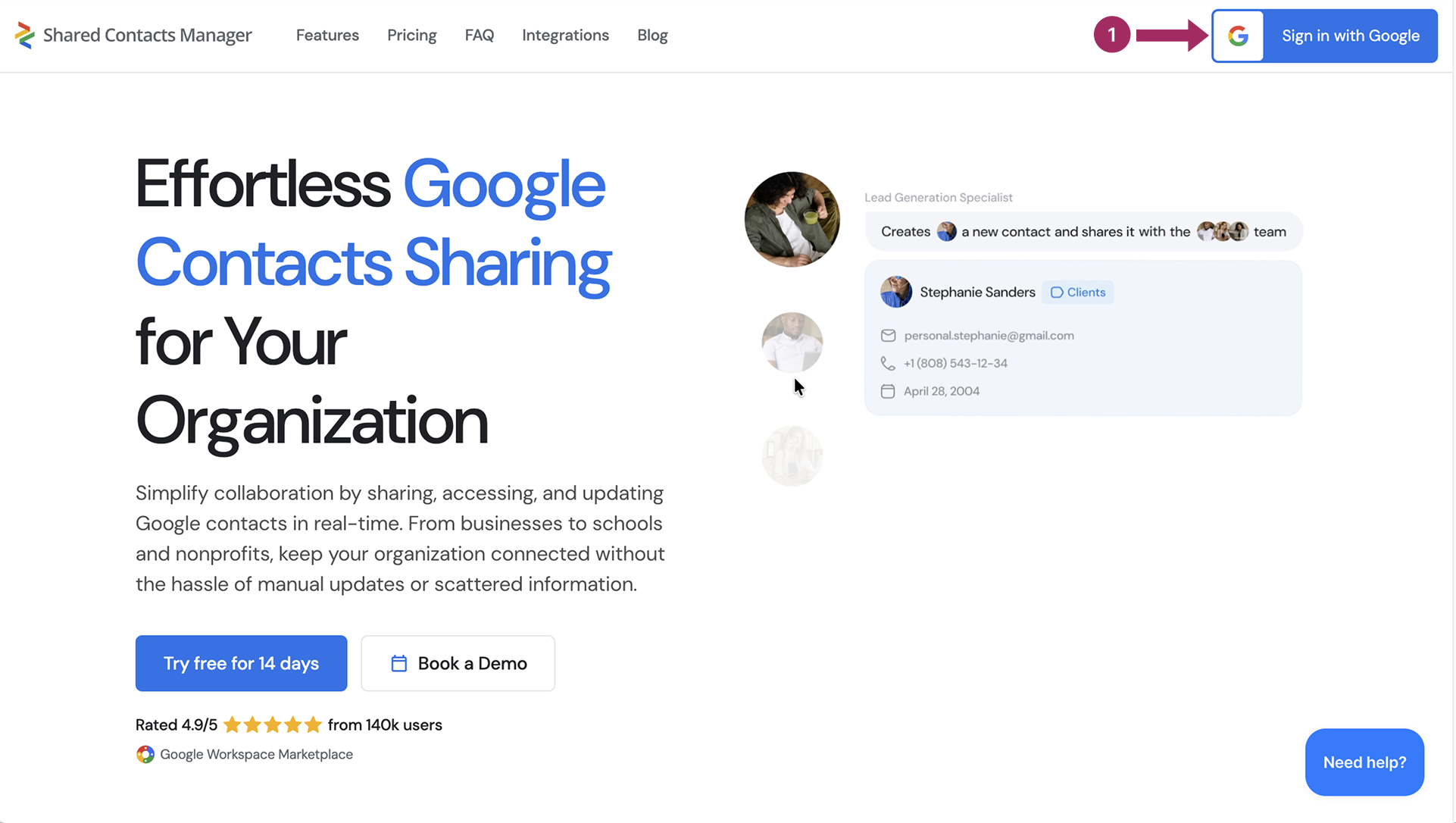
- Giriş yapmak SharedContacts.com with your administrator account. Go to the website and click Google ile oturum açın.
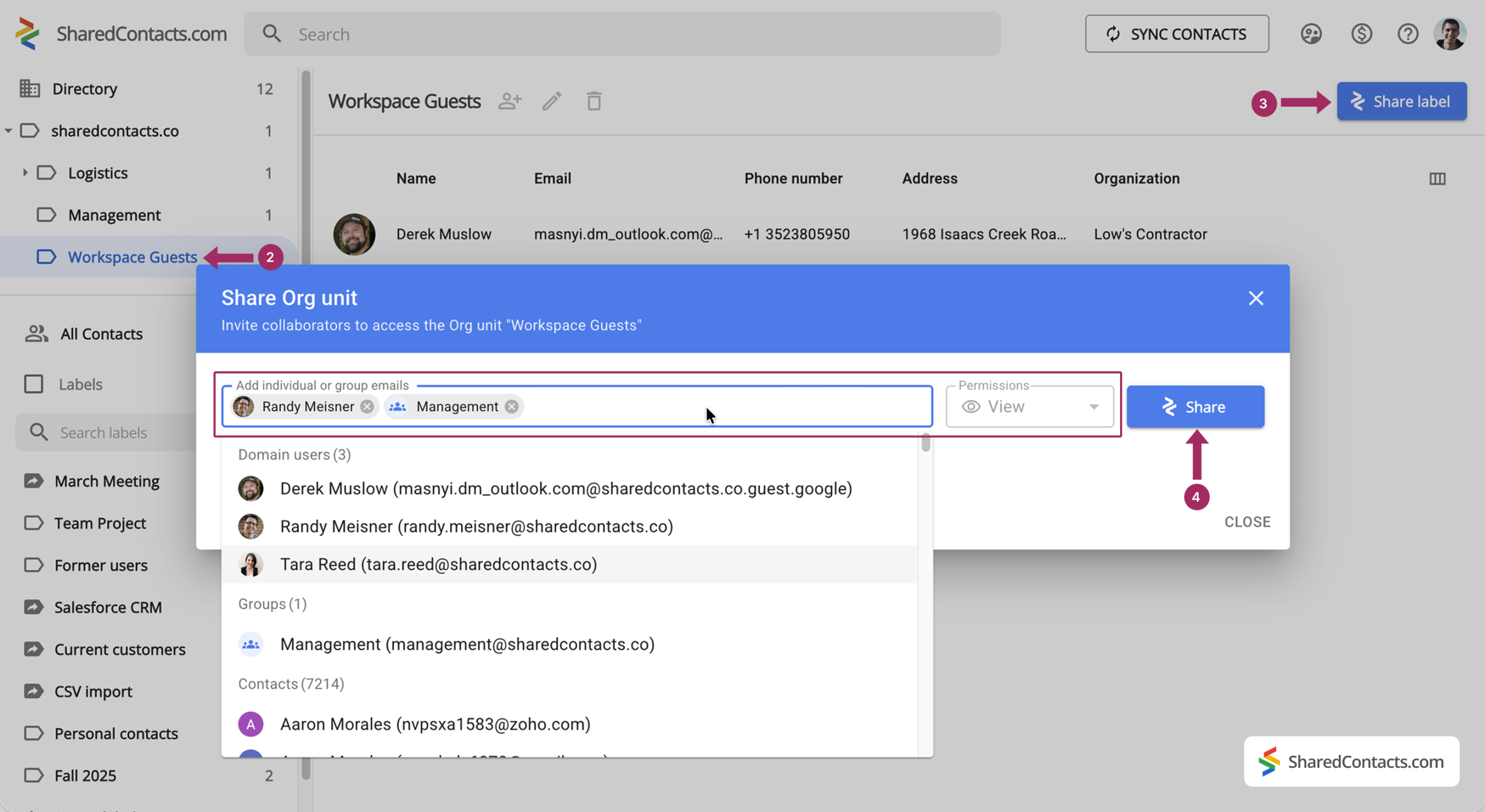
- In the list of organizational units, find Workspace Guests – that’s where every invited account is gathered.
- Tıklayınız Etiket paylaşın icon and enter the colleagues you want to share this contact label with. Because Workspace Guests is a special category that only an admin has permission to update the contacts, the available access level is limited to Görünüm.
- Tıklayın Etiket paylaşın.
Yararlı ipucu
If you don’t see your domain’s org structure, it means you’re either signed in with a non-admin account or you haven’t connected your directory contacts yet. Click Sync directory contacts in the left menu to pull in all of the org units in your domain.
The shared contacts synchronize instantly across every device and every Google app your team already uses, so a freelancer added on Monday morning is auto-completing in everyone’s Gmail by Monday afternoon. With this single workflow, SharedContacts.com meaningfully extends what Workspace Guests can do, taking your company’s collaborative flexibility to a new level by making every external partner, contractor, and client your team works with instantly visible to everyone who needs them.
Install SharedContacts.com from the Google Workspace Marketplace, sign in at SharedContacts.com, and your Workspace Guests become a first-class part of your team’s address book.
İlgili makaleler
WhatsApp Kişileri Nasıl Dışa Aktarılır
How to Delete Contacts on Android – Complete Guide for 2026
Yorum yok