How to Share Google Contacts from Gmail

As the cornerstone of Google Workspace, Gmail is the most widely used business email platform in the world, with millions of companies relying on it every single day to communicate, collaborate, and grow. Yet for all the power Gmail puts at your fingertips, a surprising number of teams aren’t using it to its full potential. One of the most overlooked capabilities is contact management and sharing. Most Gmail users are sitting on a goldmine of business connections – leads, clients, partners, prospects – that live in individual accounts and never get shared across the team. This guide will show you how to save, organize, and share Google Contacts from Gmail without ever leaving your inbox.
How to Manage Google Contacts from Gmail
Before you can share contacts, you need to save and organize them correctly. The good news is that Google makes this remarkably easy. Whenever a new business connection lands in your inbox, it only takes a few clicks to save them to the right contact label, and that label becomes the foundation for everything that follows. Here is how to manage your Google Contacts using the built-in Google Contacts extension for Gmail.
- Συνδεθείτε στο Λογαριασμός Gmail and open your Gmail inbox.
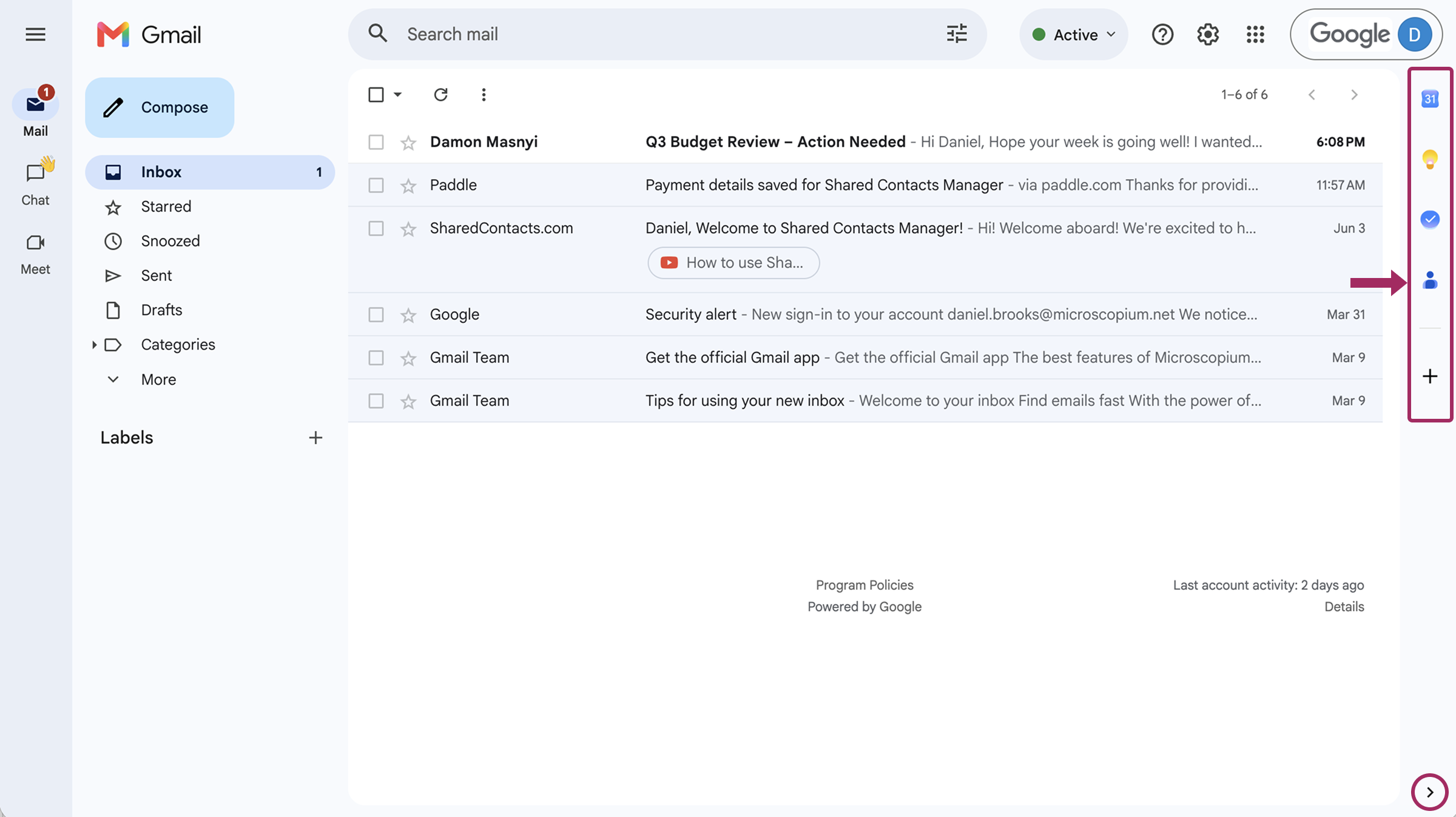
- On the right side of the Gmail interface, look for the vertical icon bar. Click the Google Contacts extension icon.
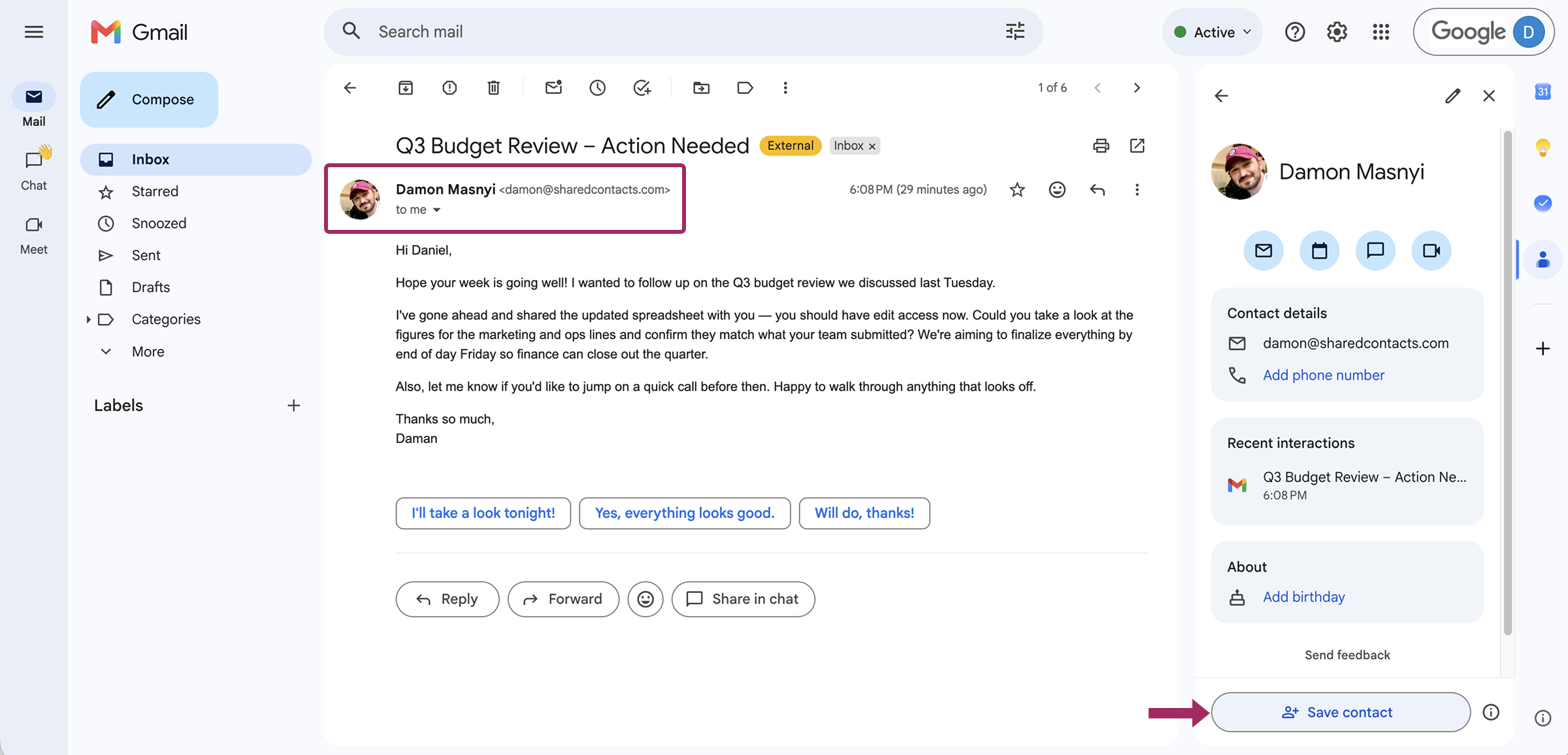
- Find an email from a new business connection in your inbox. Open it, then click on the sender’s name or email address in the message header. The side panel on the right will automatically populate with whatever information Google already has about that person.
- In the Google Contacts side panel, click the “Save contact” button to add this person to your Google Contacts. If the contact already exists, you’ll see an option to update their details instead.
- Click “Edit” in the side panel to open the full contact editor. Fill in any additional details, company, phone number, and job title, and then find the “Label” button. Assign the contact to a specific contact label, such as “Clients,” “Partners,” or whatever category fits your workflow. This label is how you’ll later share the contact with your entire team automatically. Once you save, the contact is organized and ready to be shared.
How to Share Google Contacts from Gmail Interface
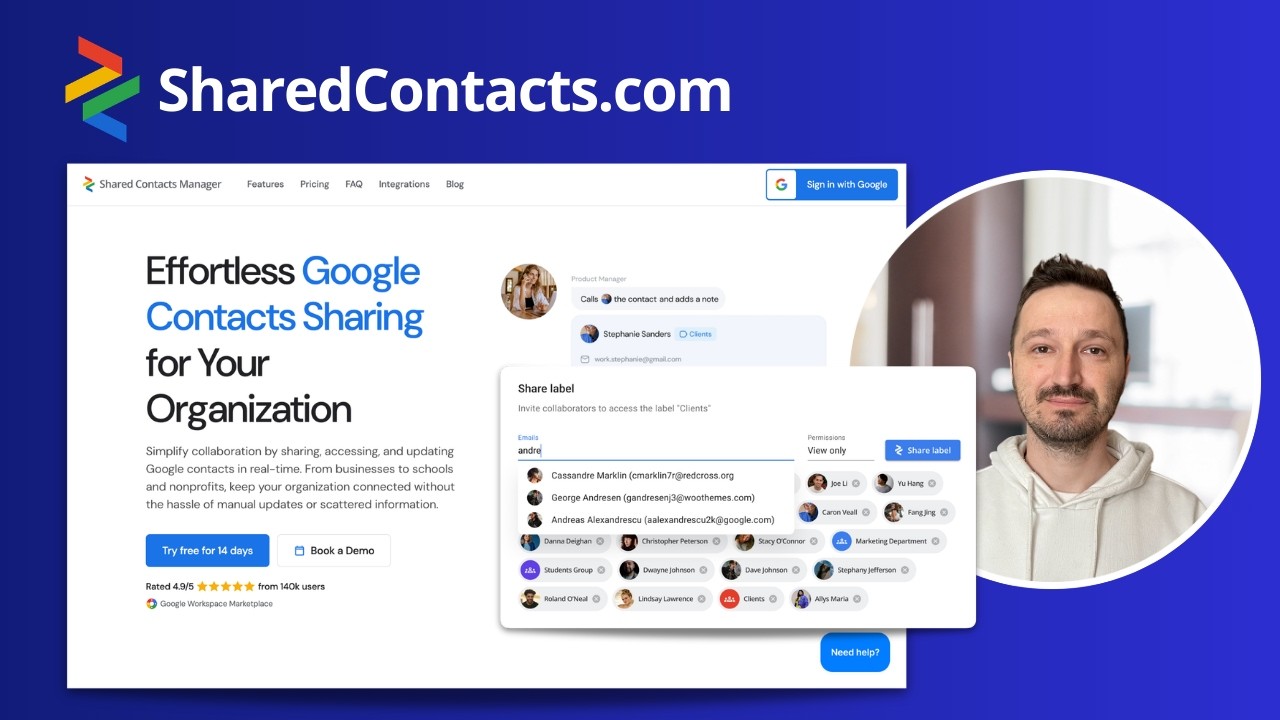
Now that your new contact is saved and assigned to a label, it’s time to share it with your team. Gmail doesn’t have a built-in contact sharing feature, but SharedContacts.com was built to bridge this gap, and it integrates into the Google Workspace environment you’re already using. SharedContacts.com is a Google Workspace app that lets you share entire contact labels with any Gmail or Google Workspace user, inside or outside your organization. Shared contacts automatically appear in Gmail’s autocomplete, Google Calendar invite suggestions, and file-sharing fields in Drive, so your whole team always has the latest information in easy access on a device they are using.
Head to the Google Workspace Marketplace and install SharedContacts.com. It only takes a minute, and no technical setup is required. Once installed, it appears as a standalone app accessible and synchronized with your Google account.
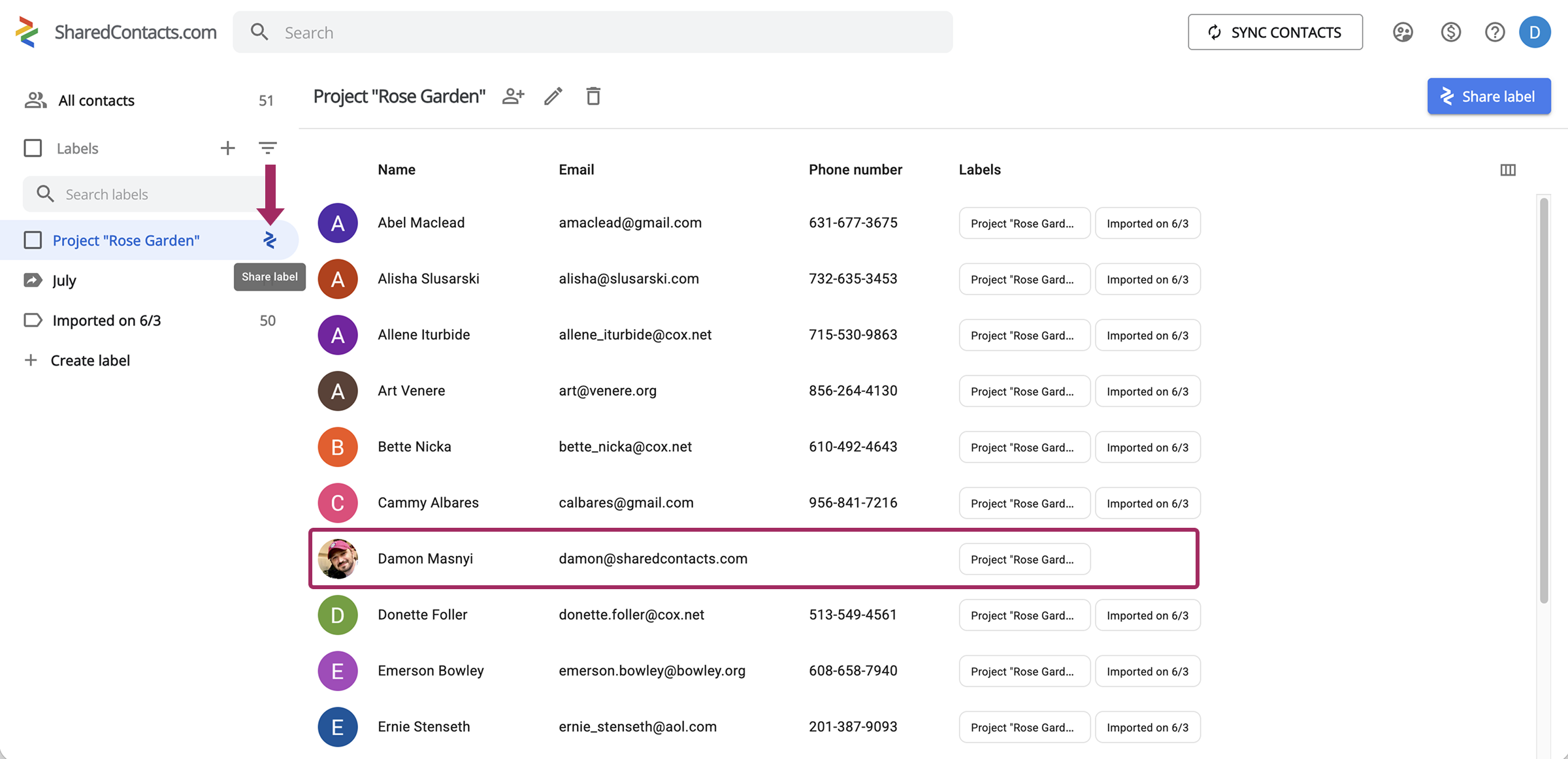
- Open SharedContacts.com and find the contact label where you saved your new business connection.
- Click the “Share label” button next to that label. This is where the sharing workflow begins.
- In the sharing dialog, type or select from a dropdown the email addresses of the colleagues, team members, or external collaborators you want to share this contact label with. You can share with multiple users at once, regardless of whether they belong to your Google Workspace domain.
- Select access permissions and click Share.
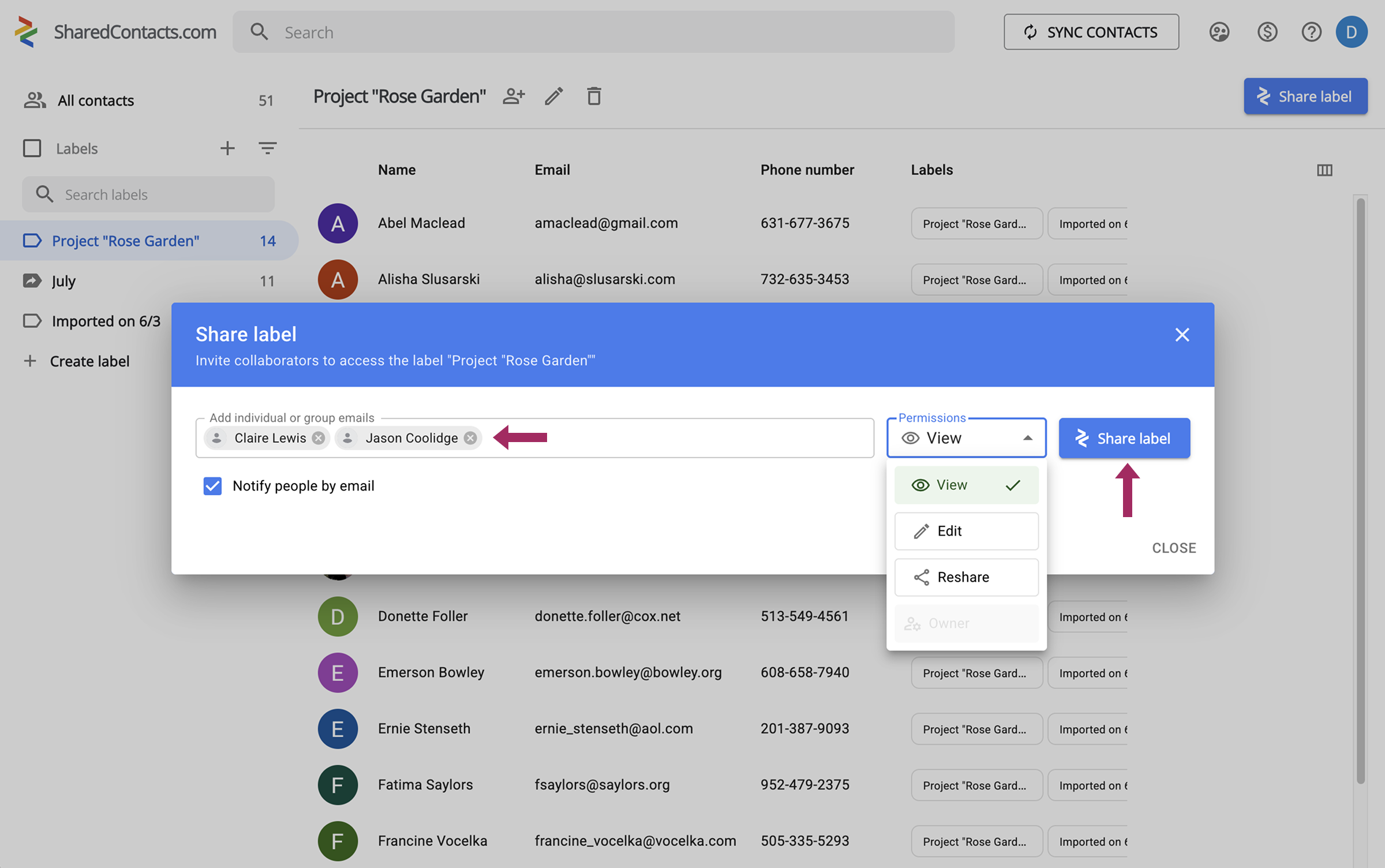
The contact label is now live and synced across all selected accounts. From this point on, the workflow becomes almost entirely automatic. Whenever you save a new contact to this label directly from Gmail, it is instantly added to the shared contact list and synced across all accounts with access.
Συμπέρασμα
With the right approach to contact management, Gmail can also become your team’s central address book. By using the Google Contacts extension within the Gmail side panel, you can save and label any new connection in seconds without leaving your inbox. Pair that with SharedContacts.com, and you unlock true contact sharing for Google Workspace teams. Shared labels sync automatically, access permissions keep sensitive information secure, and every team member always has the right contacts in their Gmail autocomplete exactly when they need them. It’s a simple workflow with a big payoff: less time hunting for contact details, fewer duplicates, and a contact list that actually stays up to date across your organization.
Σχετικά άρθρα
What Is Google “Workspace Guests” Feature and How to Share Guest Account Contacts
Πώς να εξαγάγετε τις επαφές WhatsApp
Δεν υπάρχουν σχόλια