Zoho 연락처를 팀의 Google 계정과 공유하여 CRM 비용을 절감하세요.

주요 요점:
- Zoho 연락처를 Google과 동기화하여 팀원들이 연락처 정보를 즉시 공유하고 업데이트할 수 있습니다.
- 설정 프로세스는 간단하고 직관적이어서 기업들이 빠르게 통합을 구성하고 혜택을 누릴 수 있습니다.
- SharedContacts.com provides a budget-friendly alternative to purchasing additional Zoho licenses.
- 연락처 동기화 및 업데이트를 자동화함으로써 팀은 보다 전략적인 업무에 집중하여 전반적인 생산성을 향상시킬 수 있습니다.
Zoho는 기업용 클라우드 소프트웨어 제품군으로, 고객 관계 관리 솔루션이 인상적입니다. 하지만 일반 중소기업이 비용을 지불하지 않고도 팀 전체에서 Zoho CRM 구독을 효율적으로 활용할 수 있을까요? 막대한 비용 for each user? With SharedContacts.com, teams can seamlessly complete a CRM to Google integration and share contacts between their members, even if they don’t have a Zoho CRM subscription for all users. By creating a SharedContacts.com account and connecting it with Google contacts, businesses can optimize their resources and reduce operational costs significantly while giving everyone in the company an opportunity to benefit from Zoho’s powerful contact management features. It takes only three short steps to get there and benefit from using Zoho business connections as Google의 공유 연락처:
- Google 주소록에서 라벨 만들기
- Zoho CRM 연락처를 Google 연락처와 동기화하기
- Share the label with your co-workers using SharedContacts.com
Google 주소록에서 라벨 만들기
Zoho와 동기화되고 공유 가능한 연락처 세부 정보가 포함된 연락처 폴더(이하 "레이블"이라 함)를 만들어 보겠습니다.
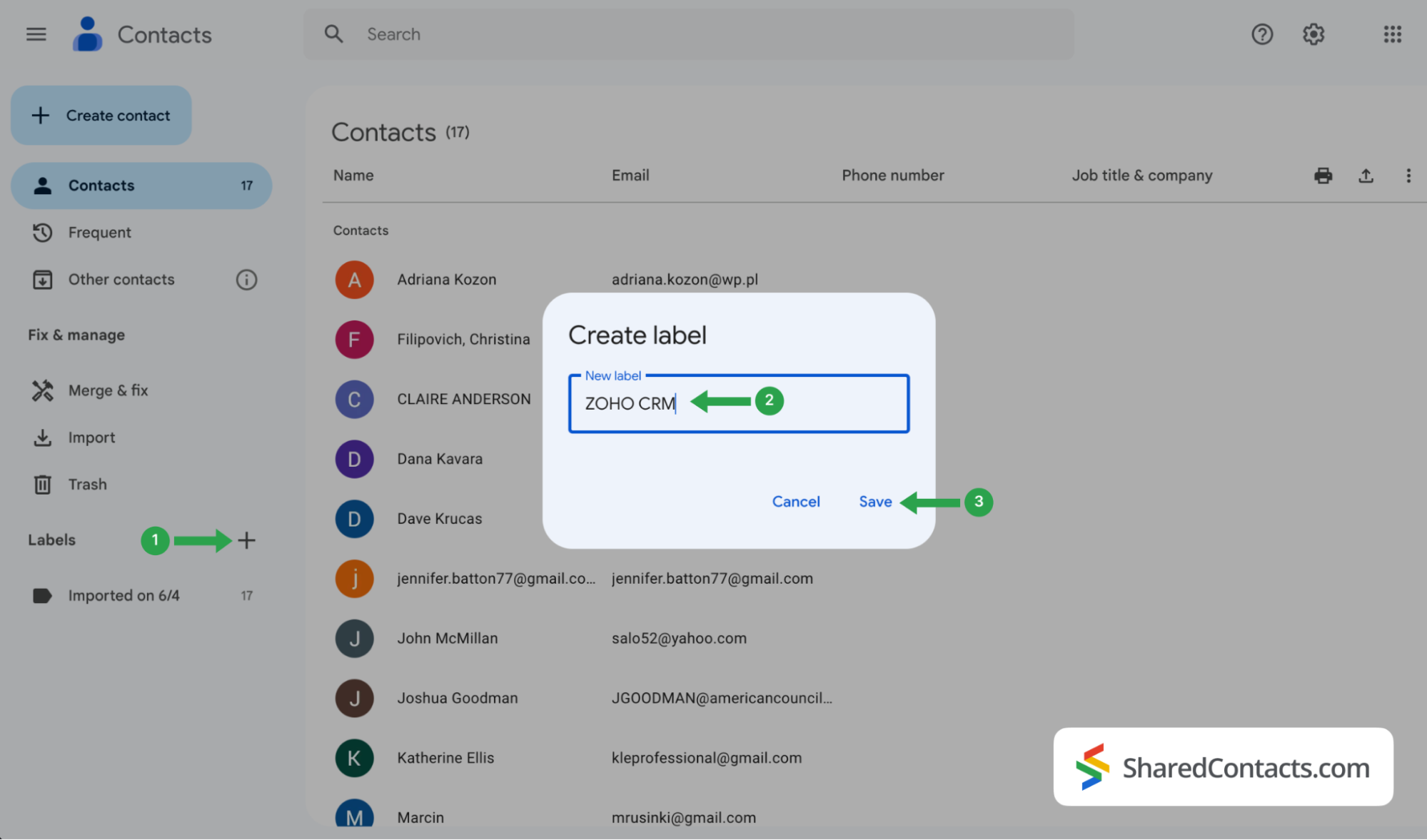
- Google 연락처에 로그인하고 '+' 아이콘을 클릭합니다..
- 에서 라벨 만들기 창에서 라벨의 이름을 입력합니다. 연락처의 출처를 쉽게 참조하고 즉시 표시할 수 있도록 편리한 이름(예: Zoho CRM)을 선택하세요.
- 클릭 저장 를 클릭하여 레이블을 만듭니다.
Zoho CRM 연락처를 Google 연락처와 동기화하기
이제 CRM 시스템의 연락처 목록을 Google 주소록에 통합하려고 합니다.
- Zoho 계정에 로그인한 후 설정 아이콘을 클릭합니다.
- 마켓플레이스를 찾아서 선택하고 Google.
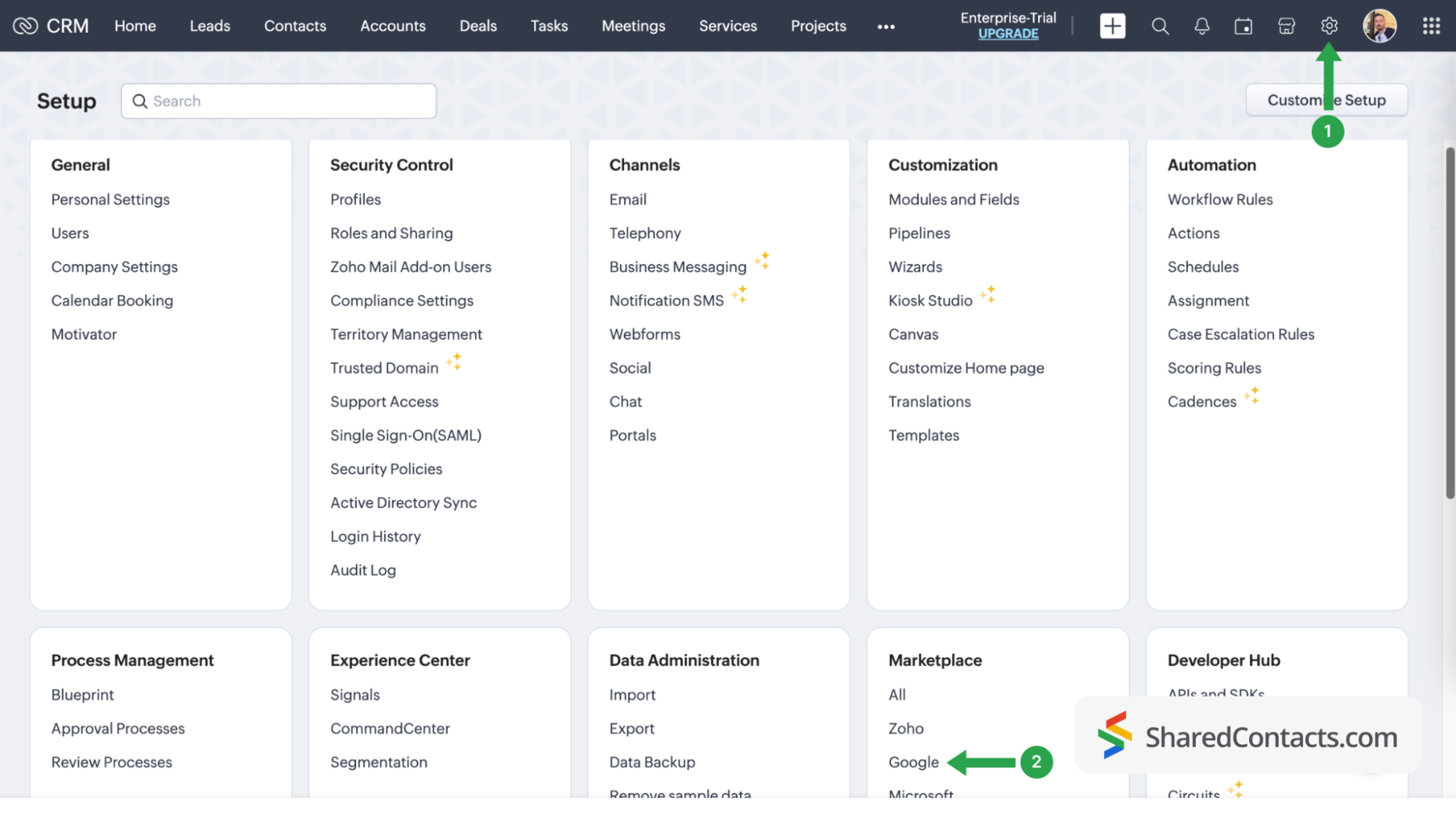
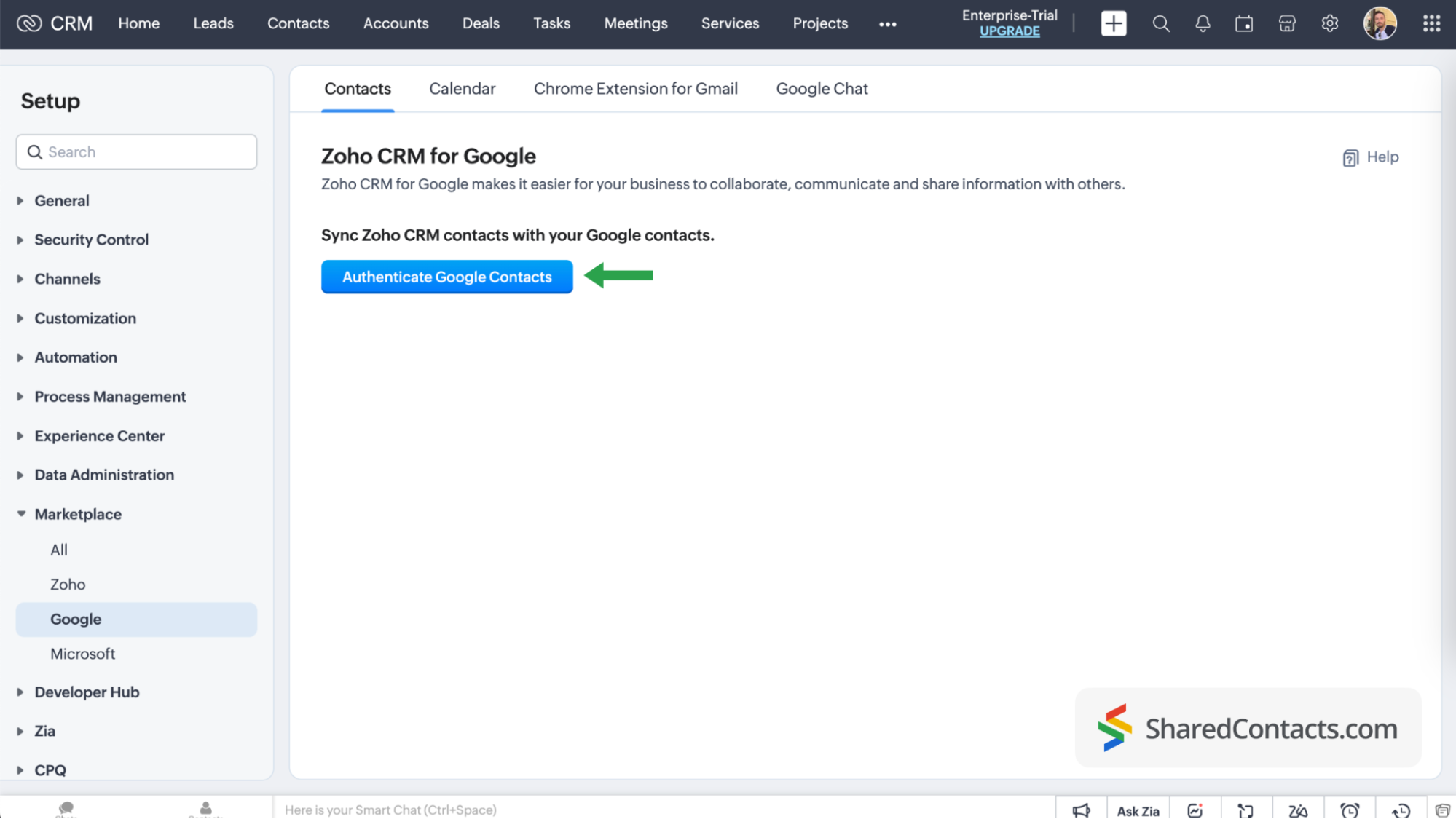
를 클릭합니다. Google 연락처 인증 를 클릭하고 화면의 모든 지시에 따라 시스템에 필요한 액세스 권한을 부여합니다.
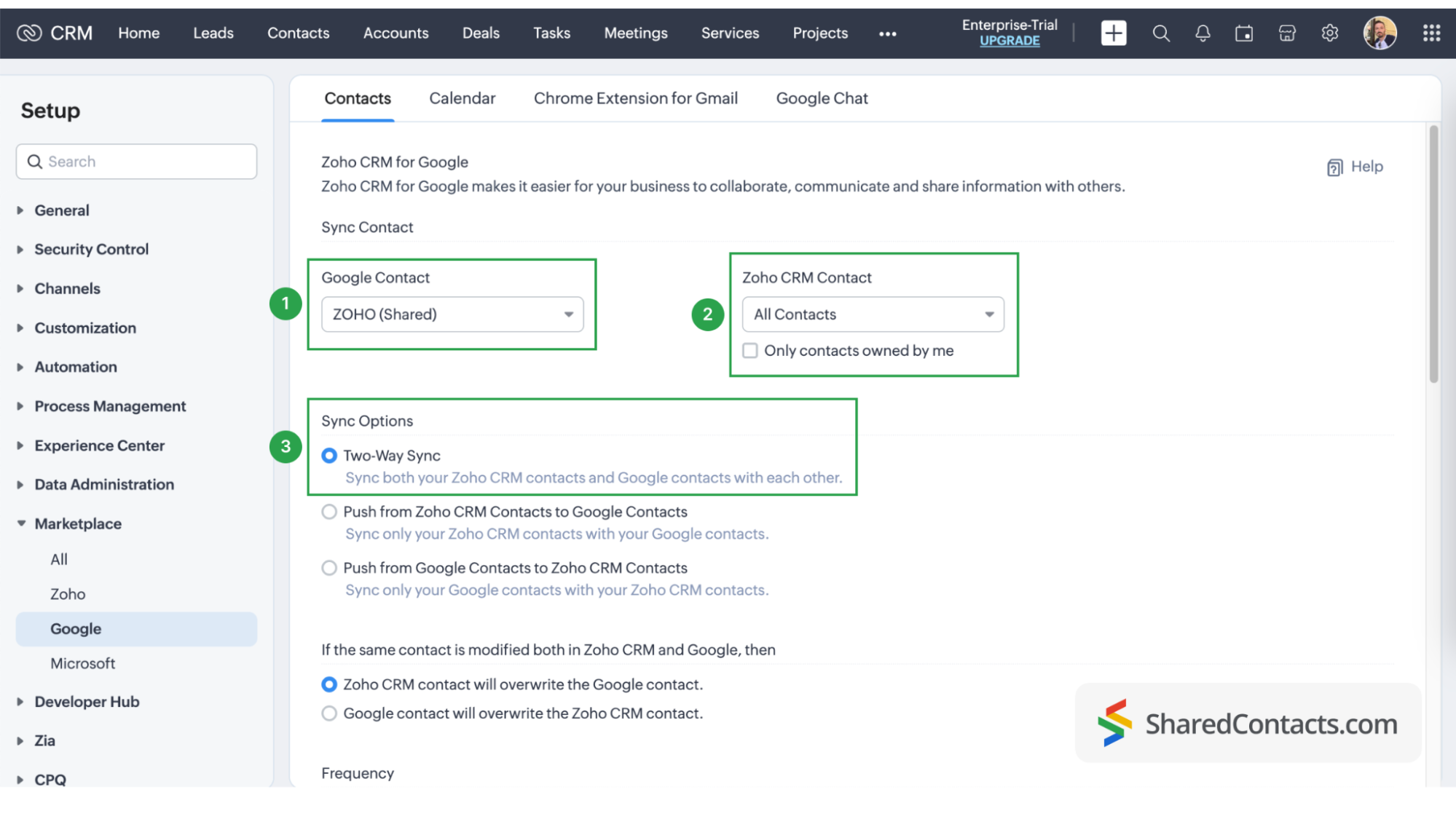
연락처 동기화 페이지에서 다음 단계를 계속 진행합니다:
- 를 선택하고 ZOHO CRM Google 연락처 아래에 있습니다.
- Zoho CRM 연락처에서 드롭다운 메뉴를 클릭하고 Google 연락처 레이블과 동기화할 CRM 연락처를 선택합니다. 선택 모든 연락처 를 클릭하세요.
- 동기화 옵션의 경우 양방향 동기화. This is necessary if you plan to provide non-licensed users with Can Edit permission in SharedContacts.com.
The final step in your Google contacts sync process is field mapping in Google and Zoho CRM. Customizing your fields allows you to decide which data from the CRM will be pulled into specific fields in Google Contacts and SharedContacts.com. Click the ‘Map More Fields’ link to add and map additional fields.
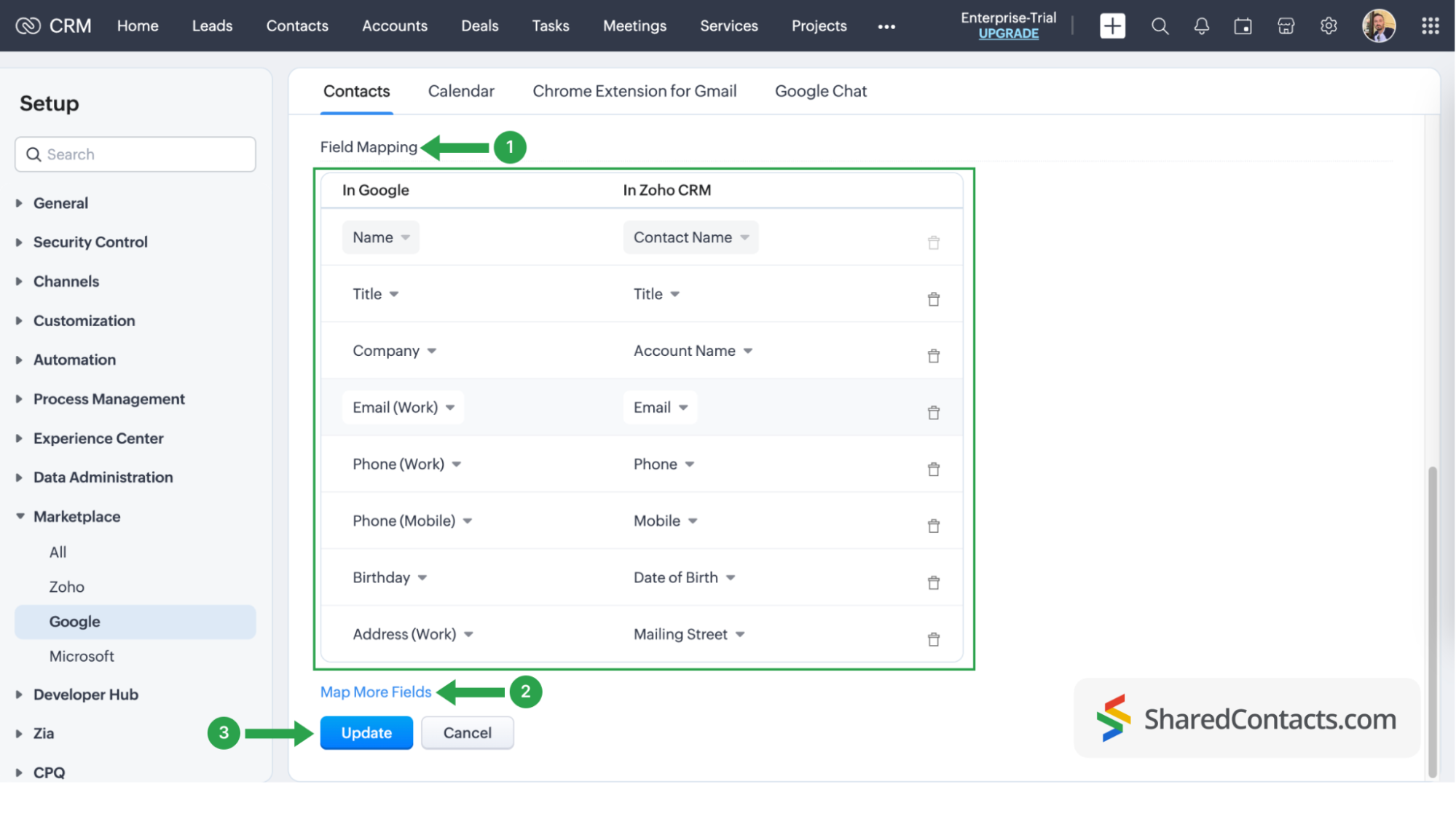
이 시점에서 CRM의 연락처가 Google 주소록과 완전히 통합되었습니다. 언제든지 CRM 시스템 설정으로 돌아가서 동기화를 삭제하거나 새 동기화를 시작하거나 연락처의 동기화를 조정할 수 있다는 점을 기억하세요.
Share Your Zoho contacts using SharedContacts.com
Log into your SharedContacts.com account. If you don’t have the app yet, click 여기 를 클릭하여 설치합니다.
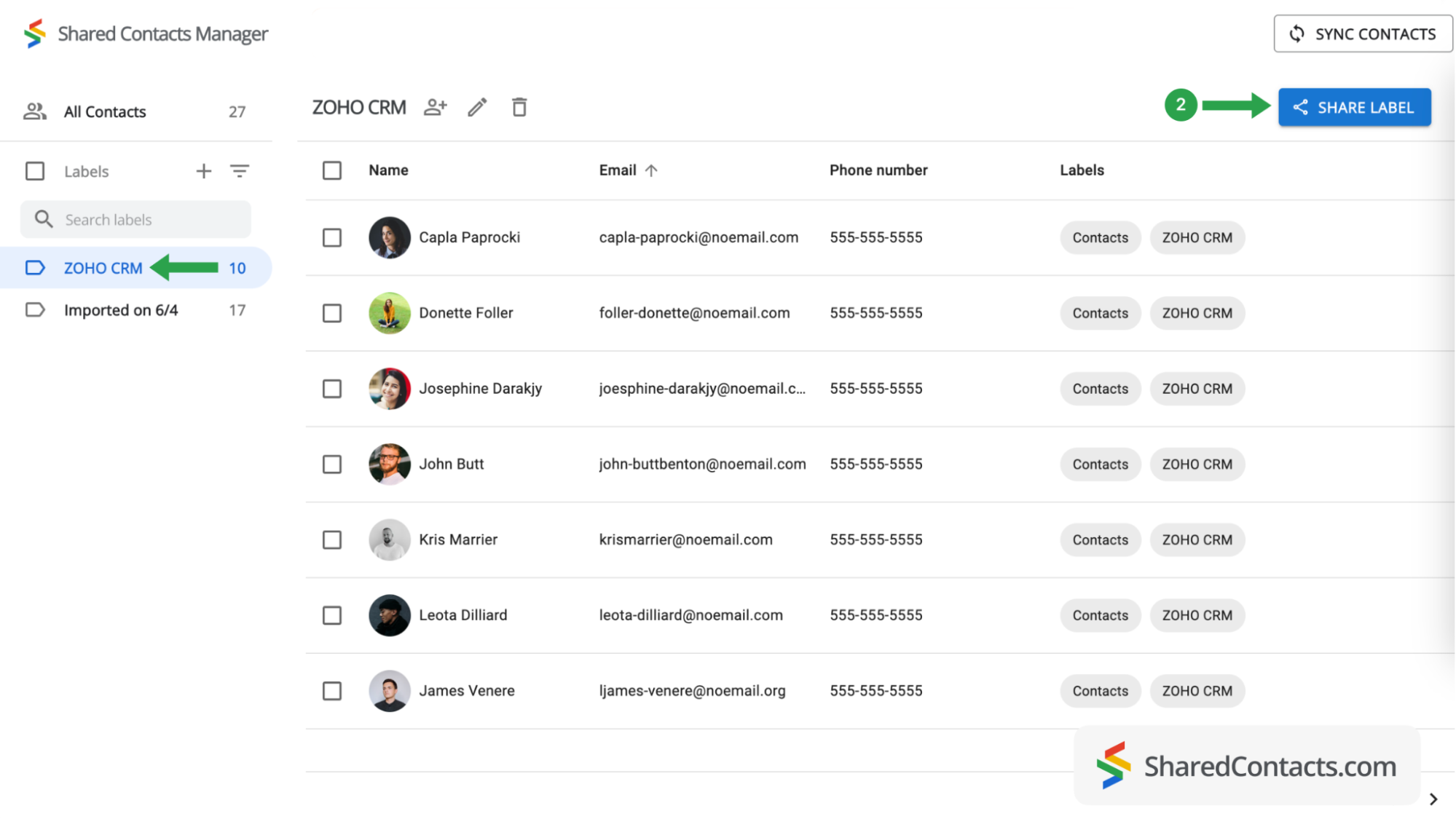
왼쪽 사이드바의 연락처 목록에서 이미 CRM 시스템의 연락처가 포함된 Google 계정과 통합된 Zoho CRM을 찾을 수 있습니다. 이 연락처에 액세스해야 하는 동료와 공유하기만 하면 됩니다.
- 연락처를 보려면 ZOHO CRM 레이블을 선택합니다.
- 레이블 공유를 클릭합니다.
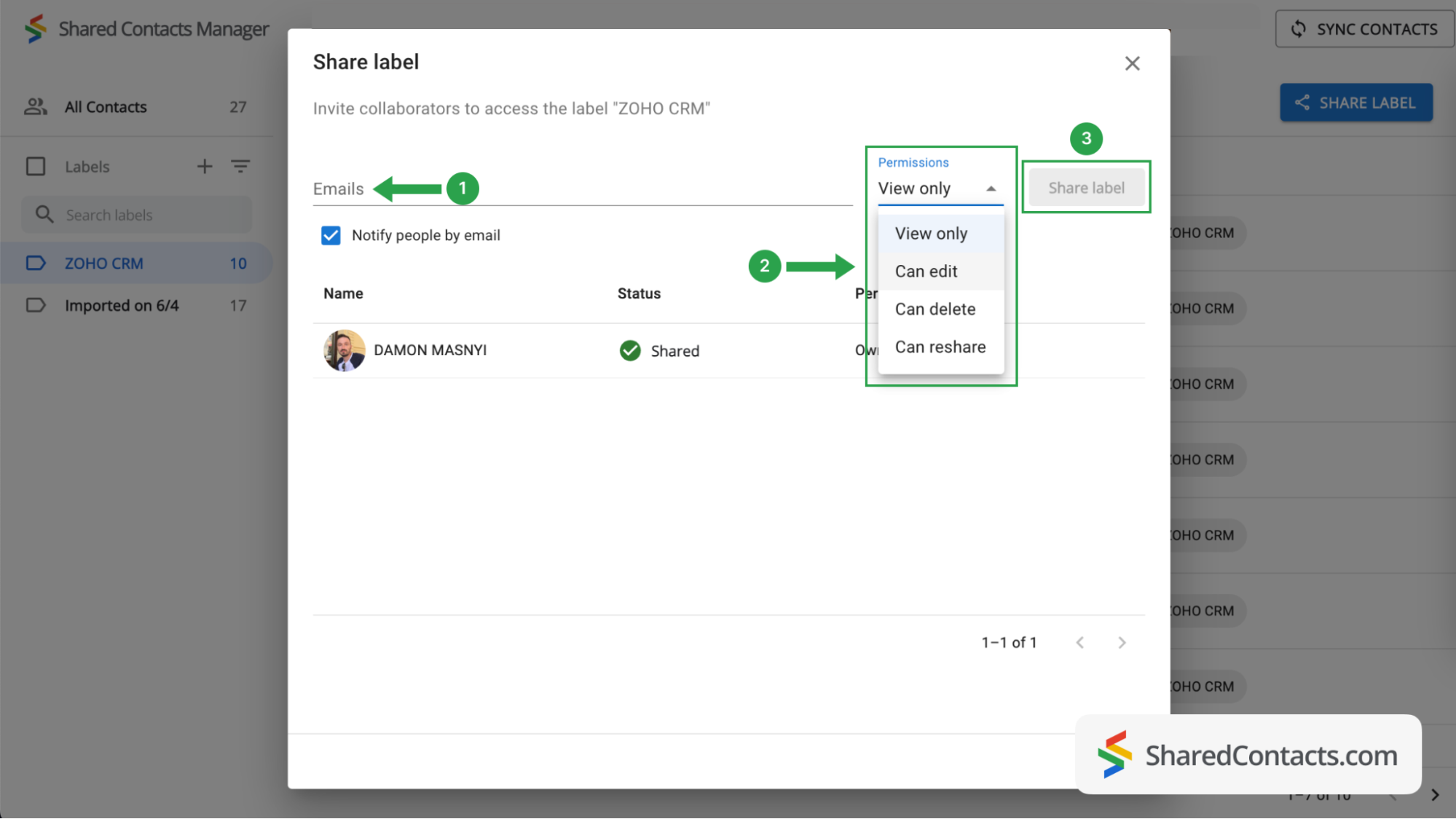
이제 해당 그룹의 연락처에 대한 액세스 권한을 제공할 대상과 해당 권한 수준을 선택할 차례입니다.
- 사람을 선택하려면 이메일 필드에 이메일 주소를 입력하거나 붙여넣습니다. 동료의 수는 무제한이며 나중에 사용자를 더 추가할 수 있습니다.
- Set a permission level by selecting one of the choices available. To get the most out of SharedContacts.com, we recommend giving your colleagues the Edit permission, which allows them to perform various actions with contacts. Their updates will sync across all team members and display the most relevant information.
- 라벨 공유를 클릭하면 이 연락처 그룹에 액세스 권한을 부여한 모든 사람에게 부여된 권한에 따라 라벨 내의 연락처와 상호 작용할 수 있음을 알리는 이메일 알림이 전송됩니다. 레이블에 공동 작업자를 추가하면 '레이블 공유' 버튼이 활성화됩니다.
Now your Zoho CRM contacts are fully integrated, and thanks to SharedContacts.com, your selected co-workers have access to them. They can edit your contacts according to their assigned permission level.
결론
Integrating Zoho CRM with SharedContacts.com offers a simple and cost-effective solution for team collaboration and productivity. This integration allows businesses to share and update contact information easily, providing everyone access to the most current data without expensive additional CRM licenses.
관련 문서
Pipeliner CRM 연락처를 Google과 동기화하고 거의 무료로 완벽한 연락처 통합의 혜택을 누리세요.
Google 워크스페이스를 통해 Zendesk 연락처를 동기화 및 공유하여 CRM 비용을 절감하고 워크플로우를 간소화하세요.
댓글 없음