Google 연락처 통합을 사용하여 팀과 통찰력 있게 CRM 연락처 공유

소규모 스타트업과 대기업은 업무 프로세스를 촉진 및 최적화하고, 팀 간의 협업과 커뮤니케이션을 촉진하며, 전반적인 수익성을 향상시킨다는 공통된 목표를 공유합니다. 전통적으로 이를 달성하기 위한 핵심은 다양한 채널을 관리하고 고객과의 커뮤니케이션 일정을 잡기 위해 Insightly와 같은 강력한 CRM 시스템을 도입하는 것이었습니다. 그러나 이러한 복잡한 소프트웨어는 종종 어려움을 수반합니다. 직원 교육, 서비스 복잡성, 그리고 가장 중요한 것은 높은 라이선스 비용 큰 장애물이 될 수 있습니다. 그렇다면 각 팀원을 위한 CRM 시스템의 추가 비용 없이 효과적인 연락처 관리 솔루션이 주로 필요한 기업을 위한 대안이 있을까요?
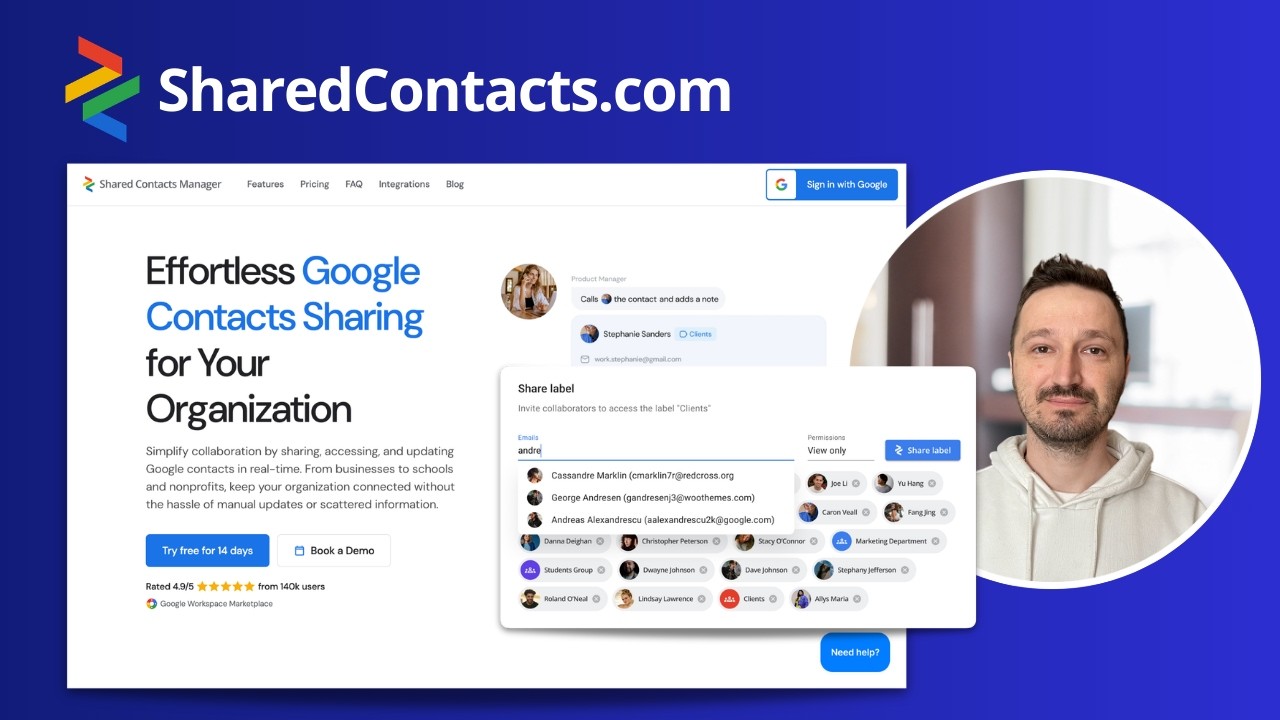
SharedContacts.com is an extremely convenient application that uses the extensive capabilities of Google Workspace. The tool synchronizes with Google contacts, creates separate groups, such as data from Insightly, and allows contact owners to share them with anyone else within their domain or outside of it. Connect Insightly to Google, provide access to your contacts with SharedContacts.com, and start leveraging the benefits of this great tool.
Insightly CRM과 Google 연락처의 연락처 동기화
연락처 연동을 시작하려면 Insightly 계정에 로그인하세요.
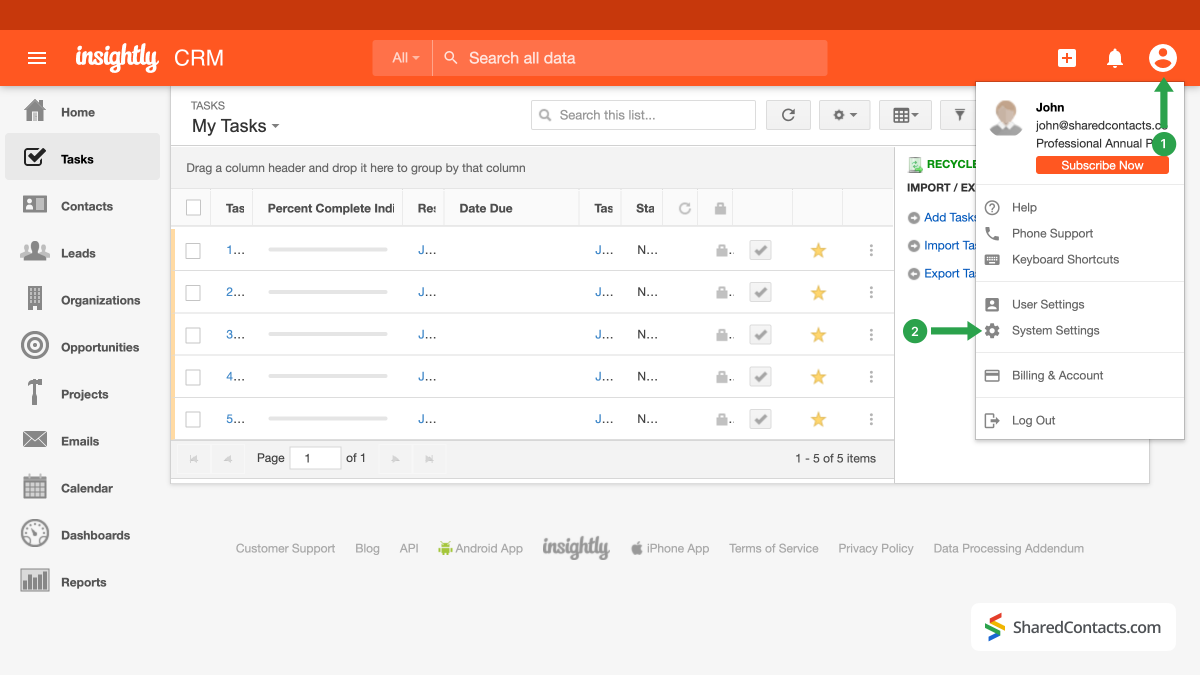
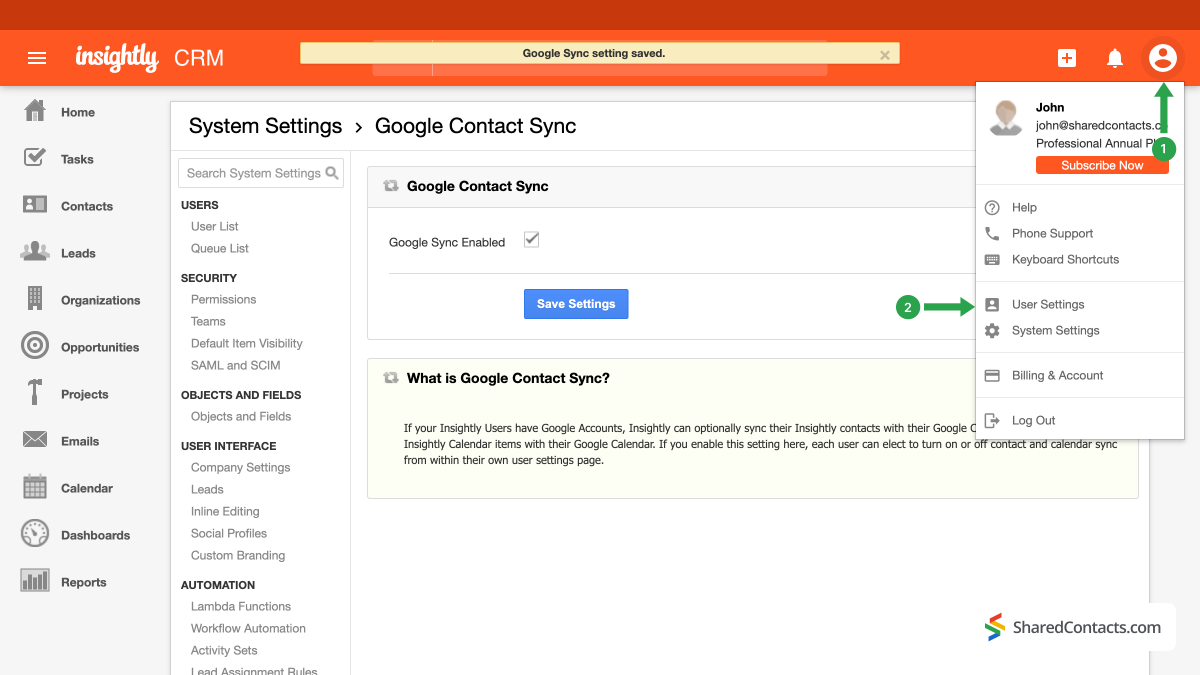
- 계정 아이콘을 클릭합니다.
- 선택 시스템 설정 드롭다운 메뉴에서 클릭합니다.
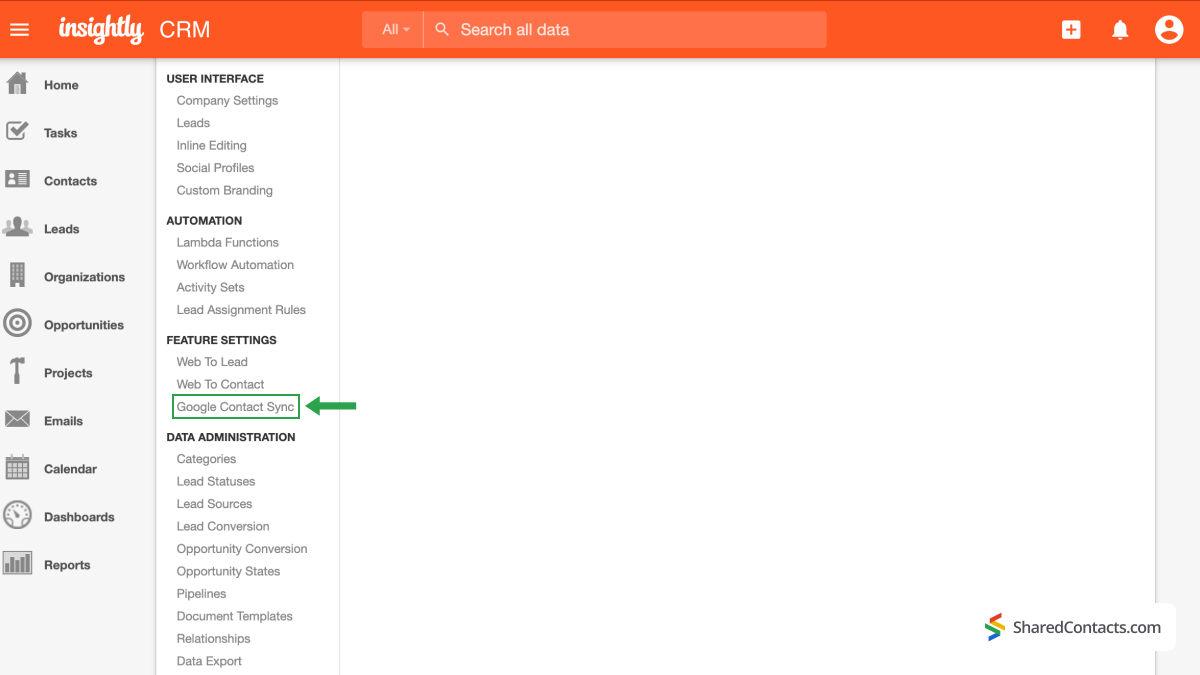
왼쪽 메뉴에서 다음을 찾아 클릭합니다. Google 연락처 동기화 기능 설정 아래를 클릭합니다.
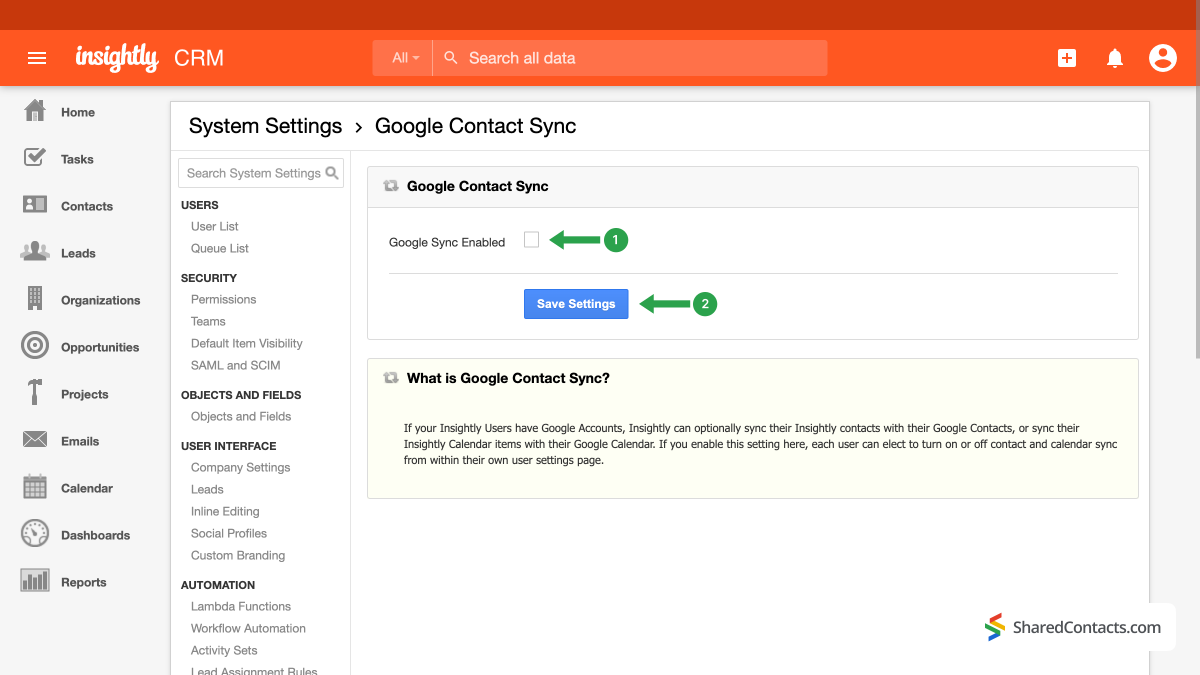
- 다음으로 Google 동기화 확인란 가 선택되어 있습니다.
- 를 누릅니다. 설정 저장 버튼을 눌러 구성을 저장합니다.
더욱 즉각적인 동기화와 간편한 연락처 관리를 위해 CRM 플랫폼을 Google 계정과 연결하여 Insightly와 Google 통합을 계속해 보세요.
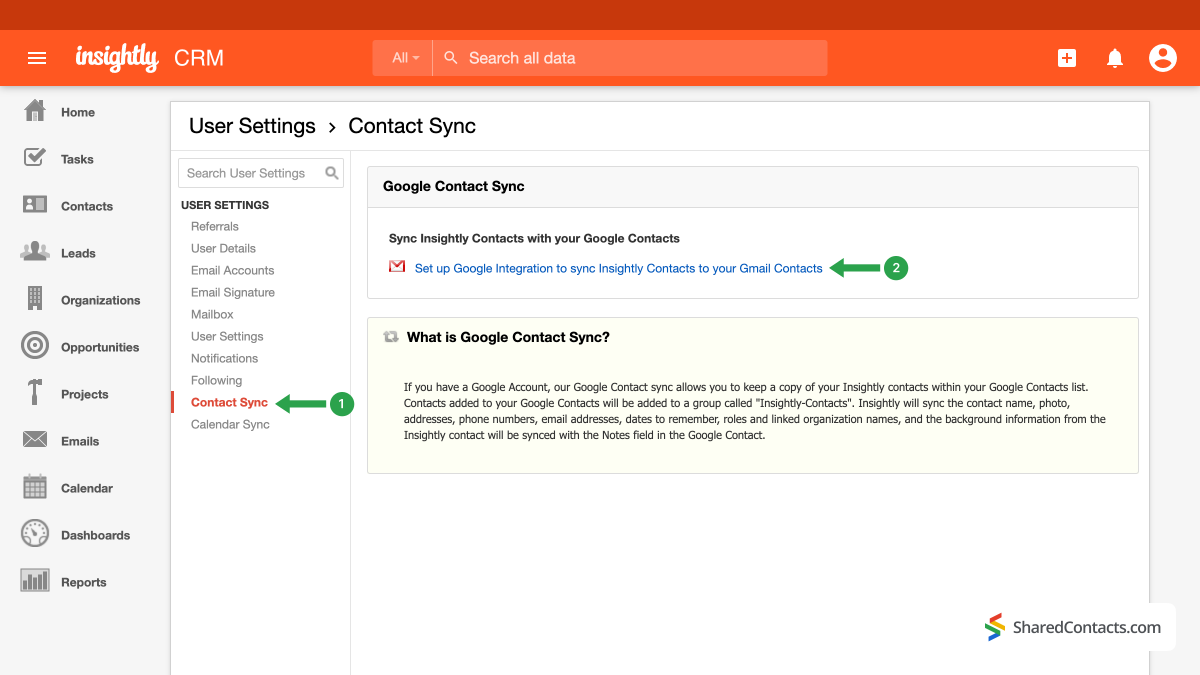
- 다시 한 번 계정 아이콘으로 이동합니다.
- 를 클릭합니다. 사용자 설정.
- 사용자 설정에서 다음을 선택합니다. 연락처 동기화.
- 를 클릭합니다. 구글 통합을 설정하여 인사이트 연락처를 Gmail 연락처에 동기화하기.
다음 팝업 창이 나타나면 Google 계정에 로그인하고 연락처 목록으로 수행할 수 있는 작업에 대해 알려주며 해당 작업에 대한 권한을 요청합니다.
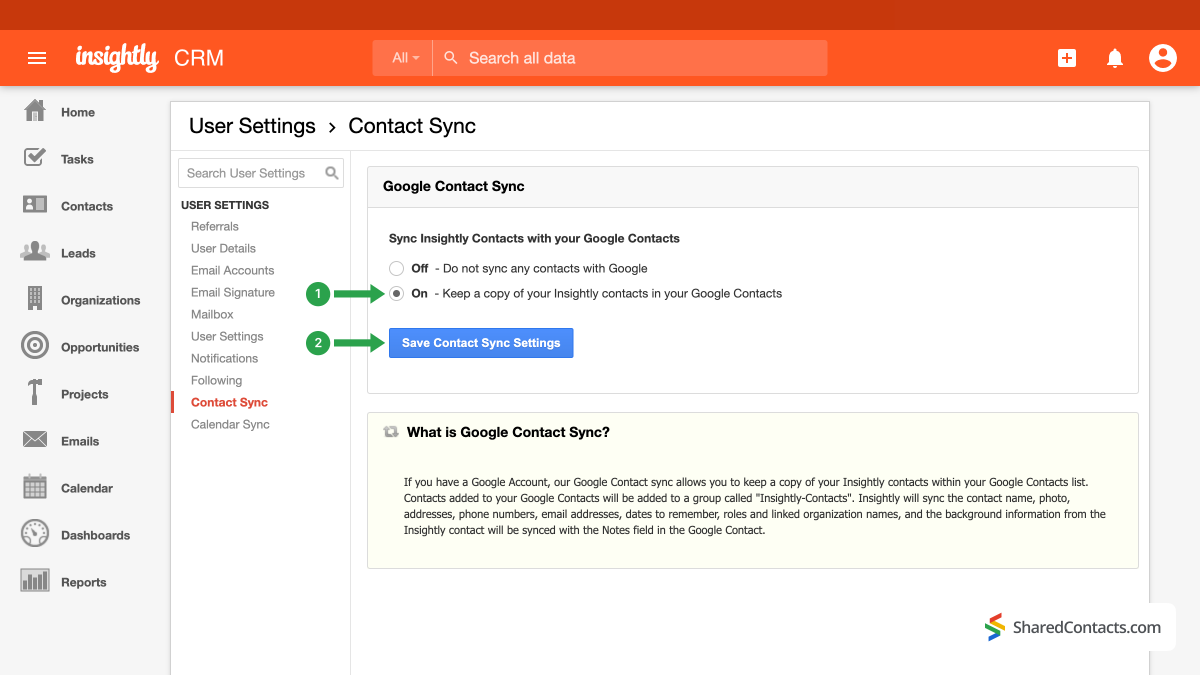
- 다음 창에서 라디오 버튼을 누릅니다. 켜짐 을 클릭해 구글 연락처에 연락처 사본을 보관하세요.
- 변경 사항을 저장합니다.
시스템이 모든 변경사항을 적용하고 Insightly와 Google 연락처 연동을 완료할 때까지 몇 분 정도 기다리세요.
Use SharedContacts.com to Share Insightly Customer Contacts With Your Team Members
Everything is ready for you to share your client data with co-workers automatically and improve customer relationship management. To get started, log in to your SharedContacts.com. If you haven’t used the tool before, go 여기 를 클릭하여 설치합니다.
SharedContacts.com is an extremely convenient application that uses the extensive capabilities of Google Workspace. The tool synchronizes with Google contacts, creates separate groups, such as data from Insightly, and allows contact owners to share them with anyone else within their domain or outside of it. Connect Insightly to Google, provide access to your contacts with SharedContacts.com, and start leveraging the benefits of this great tool. If you’ve ever wondered how to make the most out of Gmail의 공유 연락처, this is where the app can become your great asset.
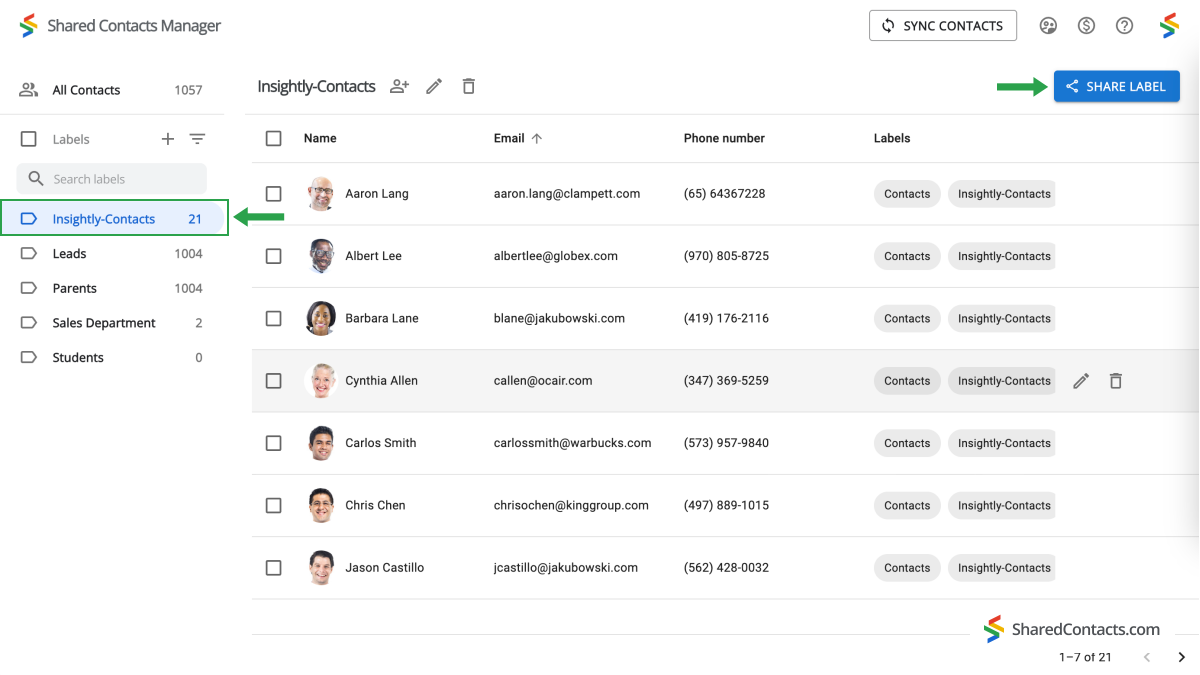
In the left-hand menu, there is now a new category of contacts that has been merged with Insightly and has all of the contact information for your leads, customers, suppliers, and other users. To share this group, select “Share.” You can do this in two ways: hover your cursor over the label name and select the “Share” symbol, or use the large button on the right side of the SharedContacts.com screen.
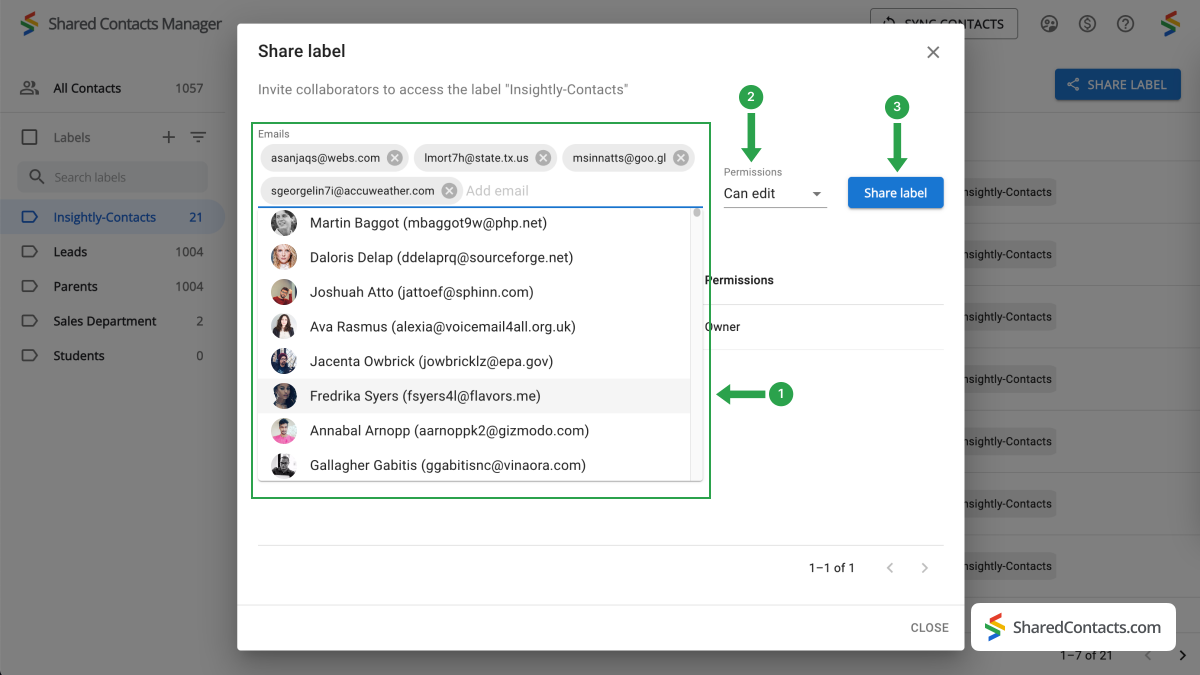
이제 공유 설정 창이 표시됩니다. 동료에게 액세스 권한을 부여하려면 다음 단계를 따르세요:
- 액세스 권한을 부여할 개인을 추가합니다. 이메일 주소를 직접 입력하거나, 드롭다운 목록에서 이름과 사진으로 팀원을 선택하거나, 그냥 이름을 입력하는 등 다양한 옵션이 있습니다. '이메일 추가' 섹션을 클릭하여 이 중 한 가지 방법으로 사람을 추가하세요.
- 필요한 사람을 선택한 후 필요한 권한을 부여합니다. 편집 액세스 권한은 모든 사람이 연락처 정보를 효과적으로 모니터링하고 변경하여 목록을 최신 상태로 유지할 수 있으므로 가장 유용합니다. 권한을 클릭하고 사용 가능한 옵션 중 하나를 선택합니다.
- 모든 설정을 완료하면 라벨 공유를 클릭합니다.
Insightly 연락처 통합 및 공유에 대한 결론
Now, thanks to Google Workspace and SharedContacts.com, everyone you’ve shared the label with can easily manage and edit the Insightly contact data. This makes customer interactions super easy, promotes cooperation, increases productivity, and ensures process consistency across your team’s duties. Best of all, it offers more than an affordable opportunity compared to purchasing a full CRM license for each employee. What else would one expect from a simple and intuitive customer management solution for their business?
관련 문서
Pipeliner CRM 연락처를 Google과 동기화하고 거의 무료로 완벽한 연락처 통합의 혜택을 누리세요.
Google 워크스페이스를 통해 Zendesk 연락처를 동기화 및 공유하여 CRM 비용을 절감하고 워크플로우를 간소화하세요.
댓글 없음