使用谷歌通讯录集成功能与团队共享 Insightly CRM 联系人信息

小型初创企业和大型企业都有一个共同的目标:促进和优化工作流程,促进团队之间的协作与沟通,提高整体盈利能力。传统上,实现这一目标的关键是采用强大的客户关系管理系统(如 Insightly)来管理各种渠道并安排客户沟通。然而,这种复杂的软件往往伴随着挑战。人员培训需求、服务复杂性,以及最重要的 许可证费用高昂 会成为主要障碍。那么,对于那些主要需要有效的联系人管理解决方案而又不需要为每个团队成员支付 CRM 系统额外费用的企业来说,是否有其他选择呢?
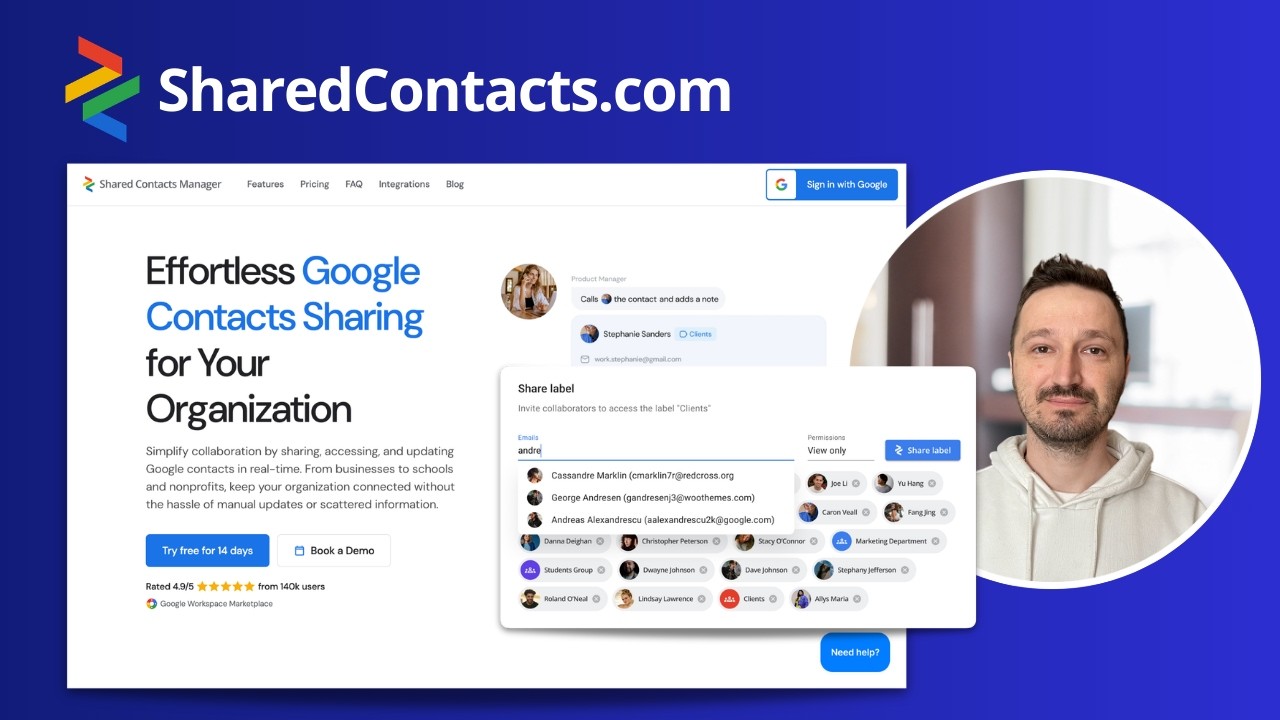
SharedContacts.com is an extremely convenient application that uses the extensive capabilities of Google Workspace. The tool synchronizes with Google contacts, creates separate groups, such as data from Insightly, and allows contact owners to share them with anyone else within their domain or outside of it. Connect Insightly to Google, provide access to your contacts with SharedContacts.com, and start leveraging the benefits of this great tool.
同步 Insightly CRM 和谷歌通讯录中的联系人
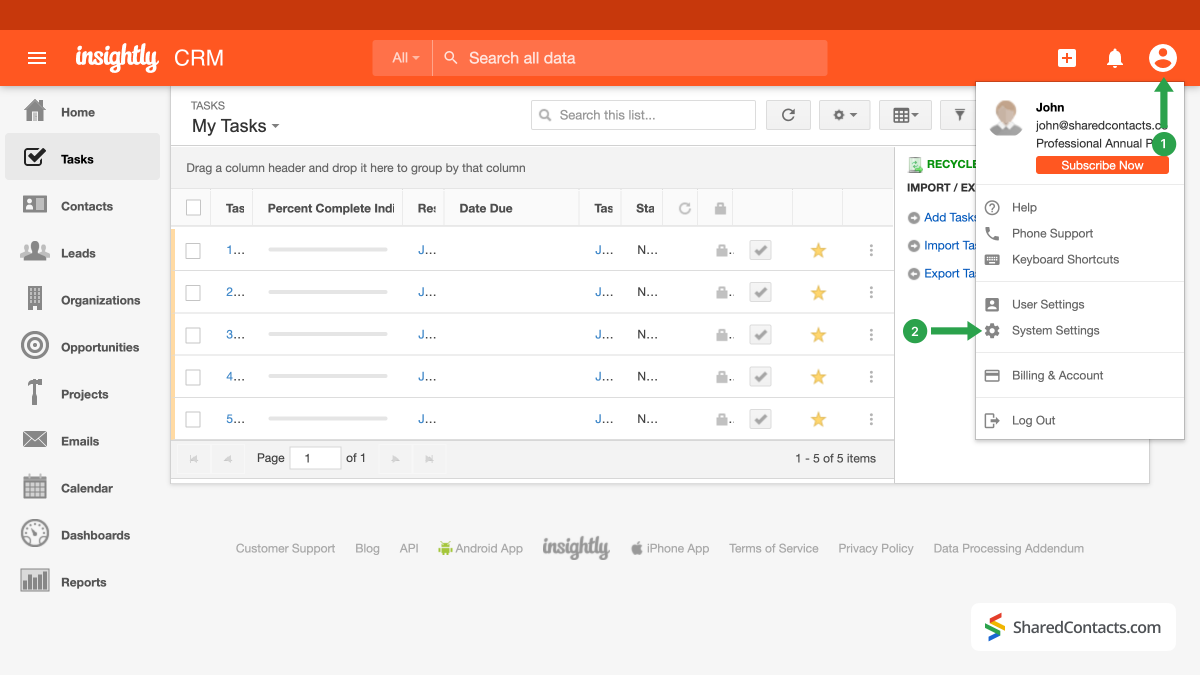
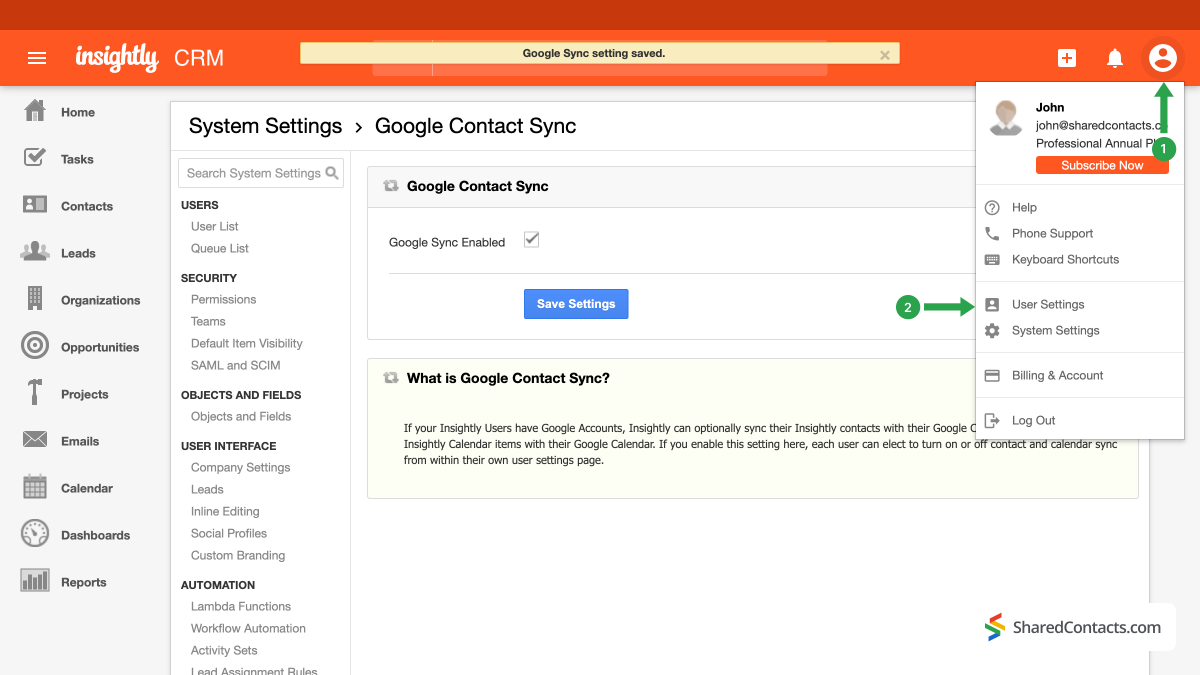
要开始联系人集成,请登录您的 Insightly 账户。
- 点击账户图标。
- 选择 系统设置 下拉菜单。
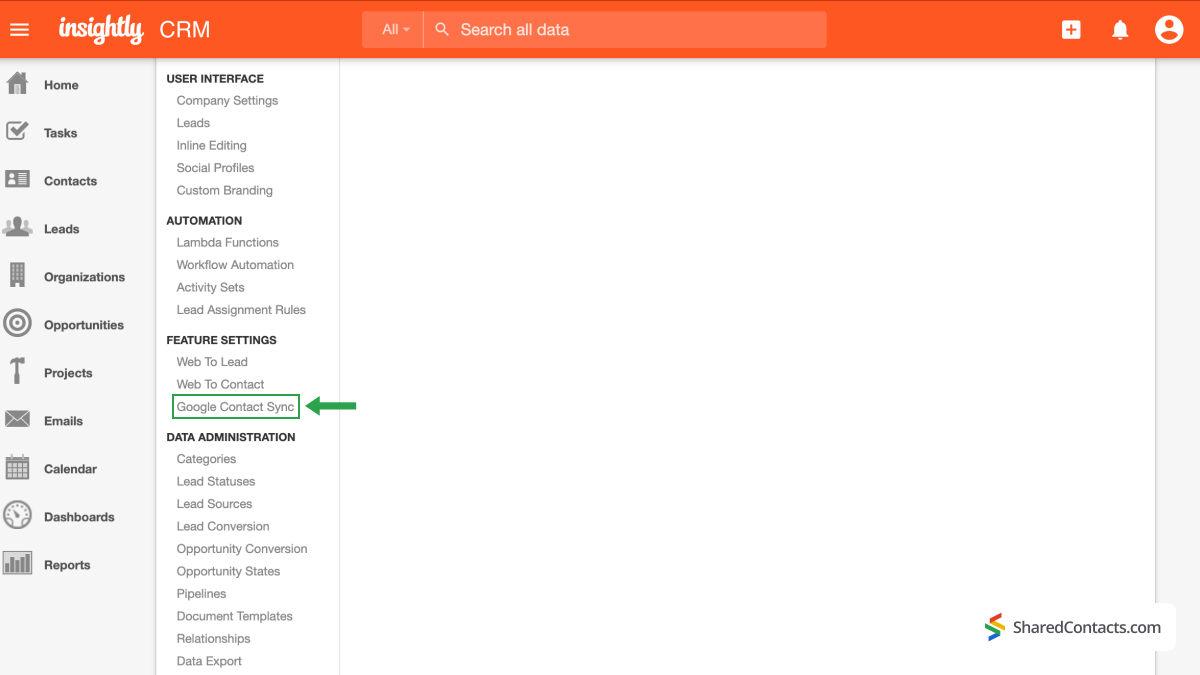
在左侧菜单中找到并点击 谷歌联系人同步 下的功能设置。
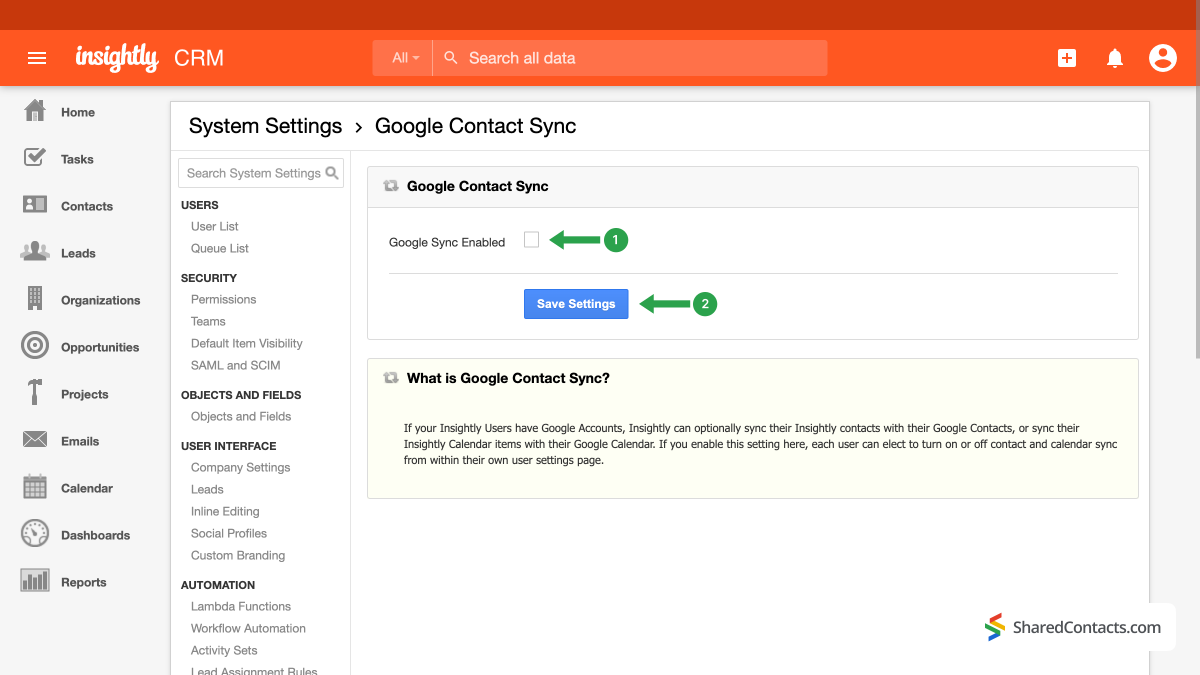
- 接下来,确保 谷歌同步复选框 被选中。
- 按下 保存设置 按钮保存配置。
让我们继续将 Insightly 与 Google 整合,将 CRM 平台与您的 Google 账户连接起来,进一步实现即时同步和简单的联系人管理。
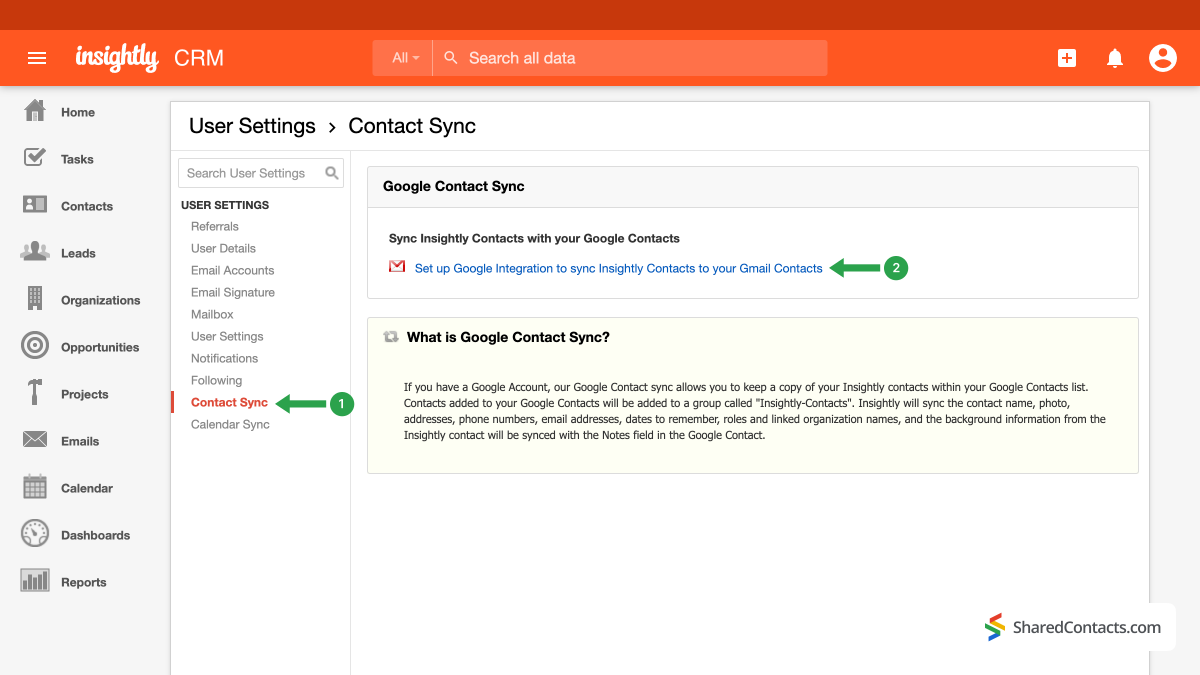
- 再次导航到您的账户图标。
- 点击 用户设置.
- 在用户设置下,选择 联系同步.
- 点击 设置谷歌集成,将 Insightly 联系人同步到您的 Gmail 联系人.
以下弹出窗口将提示您登录谷歌账户,告知您可以对联系人列表执行的操作,并请求您允许执行这些操作。
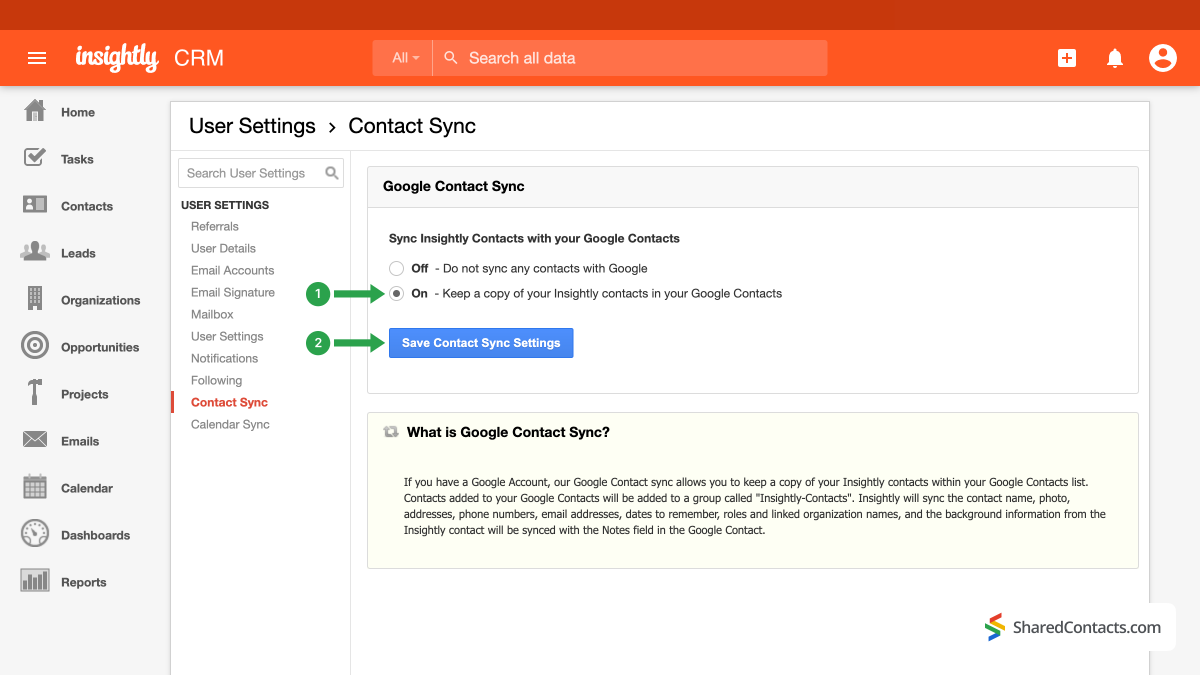
- 在下一个窗口中,按单选按钮 关于 在谷歌通讯录中保存联系人副本
- 保存更改。
请允许系统花几分钟时间应用所有更改并完成 Insightly 和 Google 联系人集成。
Use SharedContacts.com to Share Insightly Customer Contacts With Your Team Members
Everything is ready for you to share your client data with co-workers automatically and improve customer relationship management. To get started, log in to your SharedContacts.com. If you haven’t used the tool before, go 这里 进行安装。
SharedContacts.com is an extremely convenient application that uses the extensive capabilities of Google Workspace. The tool synchronizes with Google contacts, creates separate groups, such as data from Insightly, and allows contact owners to share them with anyone else within their domain or outside of it. Connect Insightly to Google, provide access to your contacts with SharedContacts.com, and start leveraging the benefits of this great tool. If you’ve ever wondered how to make the most out of Gmail 的共享联系人这就是应用程序可以成为您的重要资产的地方。
In the left-hand menu, there is now a new category of contacts that has been merged with Insightly and has all of the contact information for your leads, customers, suppliers, and other users. To share this group, select “Share.” You can do this in two ways: hover your cursor over the label name and select the “Share” symbol, or use the large button on the right side of the SharedContacts.com screen.
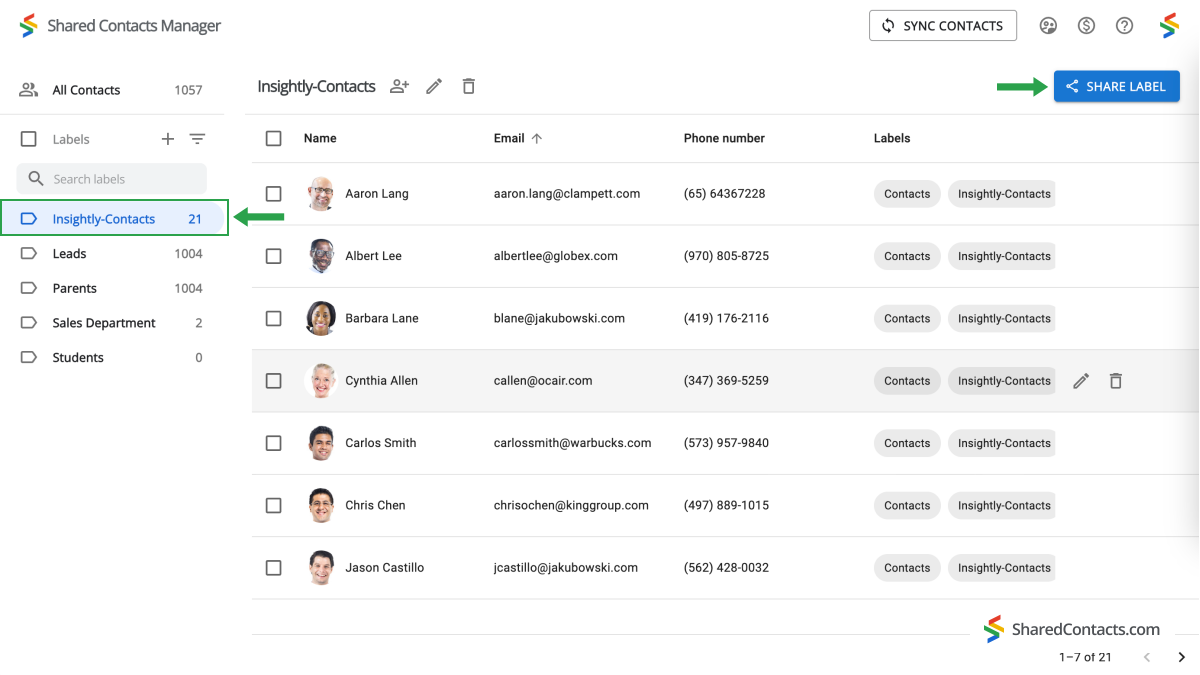
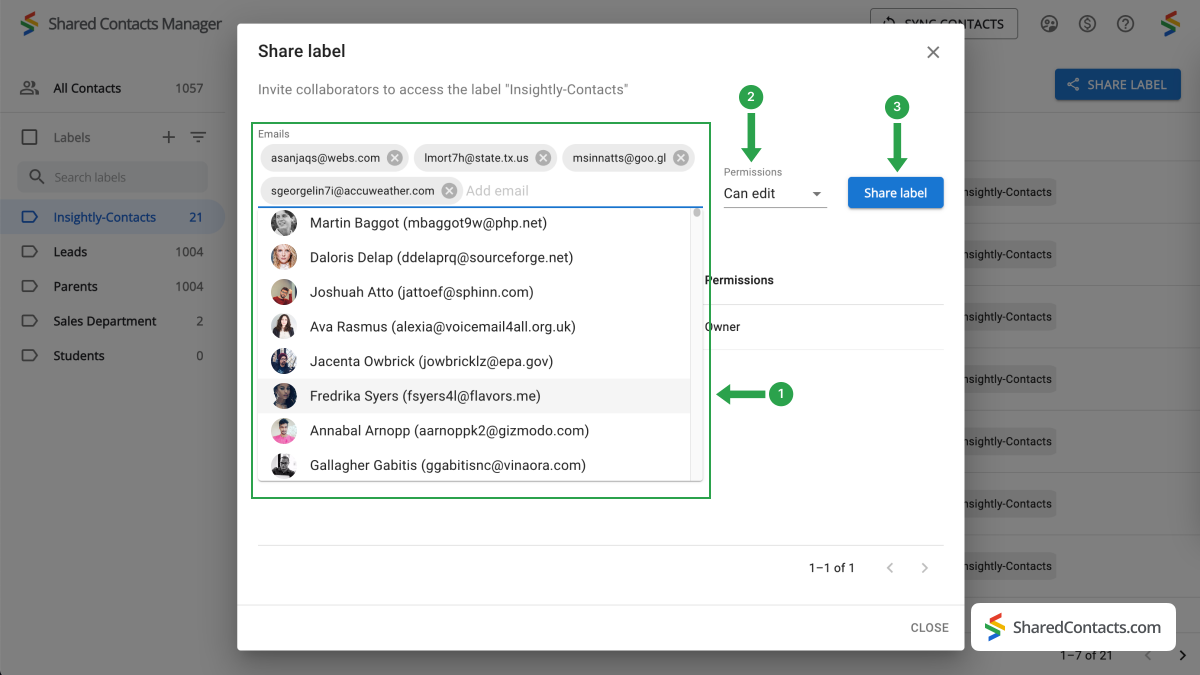
现在您将看到共享设置窗口。要授予同事访问权限,请执行以下步骤:
- 添加您希望授予访问权限的个人。您有多种选择:手动输入他们的电子邮件地址,从下拉列表中按姓名和照片选择团队成员,或直接键入他们的姓名。单击 "添加电子邮件 "部分,以上述方式之一添加人员。
- 选择好需要的所有人后,为他们提供必要的权限。编辑 "访问级别是最有用的,因为它允许任何人监控和更改联系人信息,保持列表更新。单击 "权限",选择其中一个可用选项。
- 完成所有设置后,共享标签。
关于 Insightly 联系人整合与共享的结论
Now, thanks to Google Workspace and SharedContacts.com, everyone you’ve shared the label with can easily manage and edit the Insightly contact data. This makes customer interactions super easy, promotes cooperation, increases productivity, and ensures process consistency across your team’s duties. Best of all, it offers more than an affordable opportunity compared to purchasing a full CRM license for each employee. What else would one expect from a simple and intuitive customer management solution for their business?
相关文章
没有评论