Google連絡先統合を使用して、Insightly CRMの連絡先をチームで共有する

小規模な新興企業も大企業も、業務プロセスの円滑化と最適化、チーム間のコラボレーションとコミュニケーションの促進、そして全体的な収益性の向上という共通の目標を掲げています。従来、これを達成する鍵は、Insightlyのような強力なCRMシステムを採用して、様々なチャネルを管理し、顧客とのコミュニケーションをスケジュールすることでした。しかし、このような複雑なソフトウェアには、しばしば課題がつきまとう。人材育成の必要性、サービスの複雑さ、そして、最も重要なのは ライセンス料が高い が大きな障害になる可能性がある。では、各チームメンバーにCRMシステムの余分な費用をかけずに、効果的な連絡先管理ソリューションを必要としている企業にとって、代替案はあるのだろうか?
SharedContacts.com is an extremely convenient application that uses the extensive capabilities of Google Workspace. The tool synchronizes with Google contacts, creates separate groups, such as data from Insightly, and allows contact owners to share them with anyone else within their domain or outside of it. Connect Insightly to Google, provide access to your contacts with SharedContacts.com, and start leveraging the benefits of this great tool.
Insightly CRMとGoogleコンタクトの連絡先を同期する
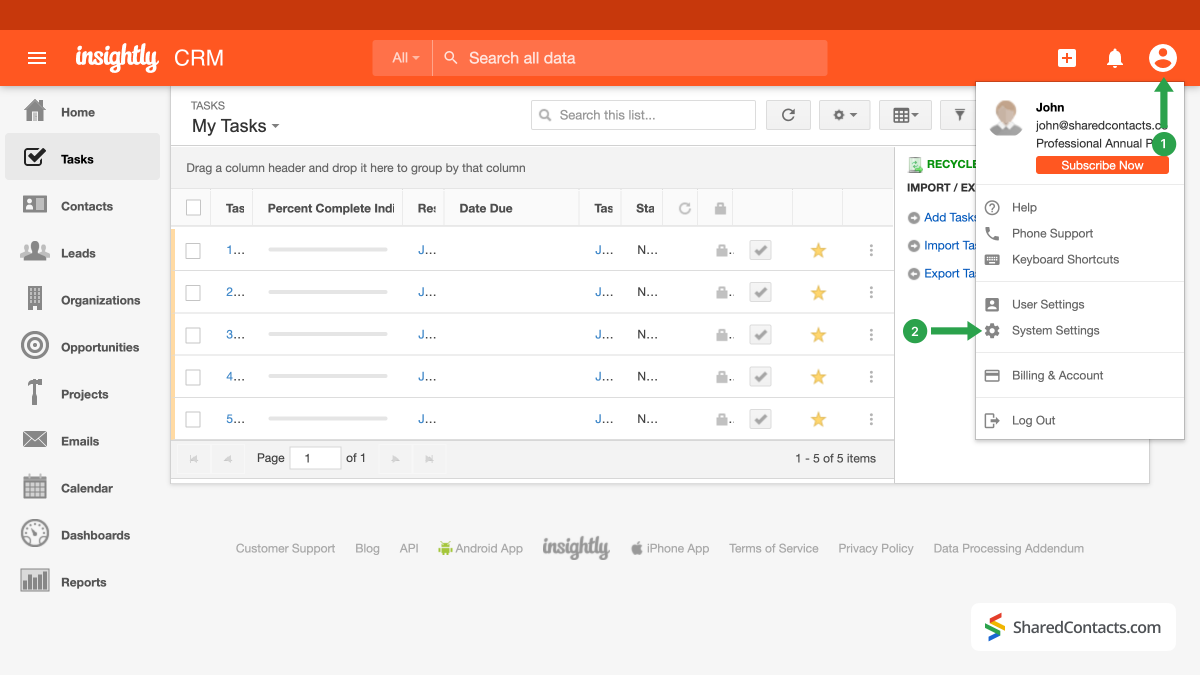
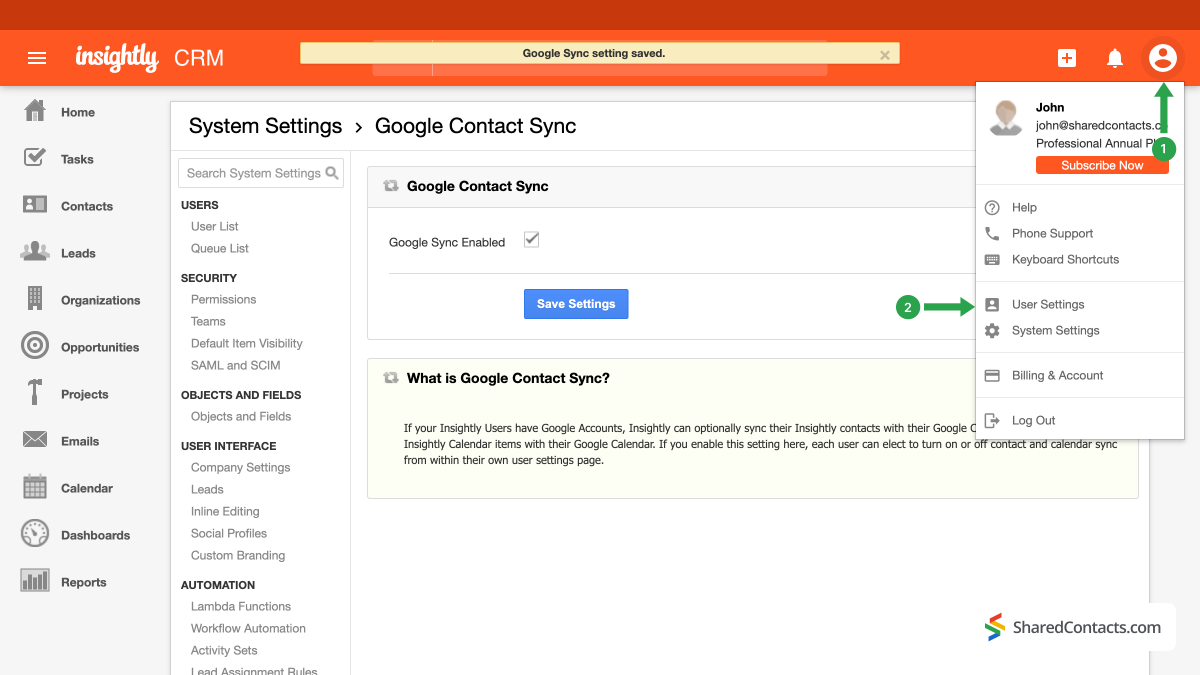
コンタクト統合を開始するには、Insightlyアカウントにログインしてください。
- アカウントのアイコンをクリックしてください。
- 選択 システム設定 をドロップダウンメニューから選択する。
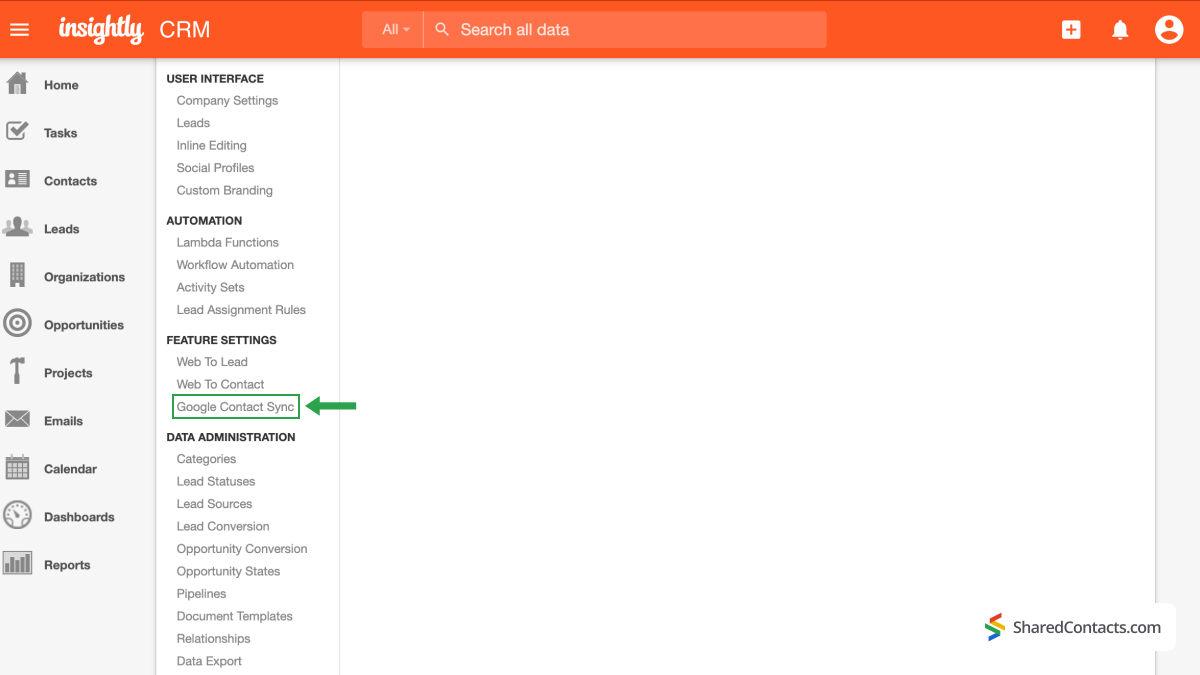
左側のメニューから Googleコンタクト同期 機能設定の下にある。
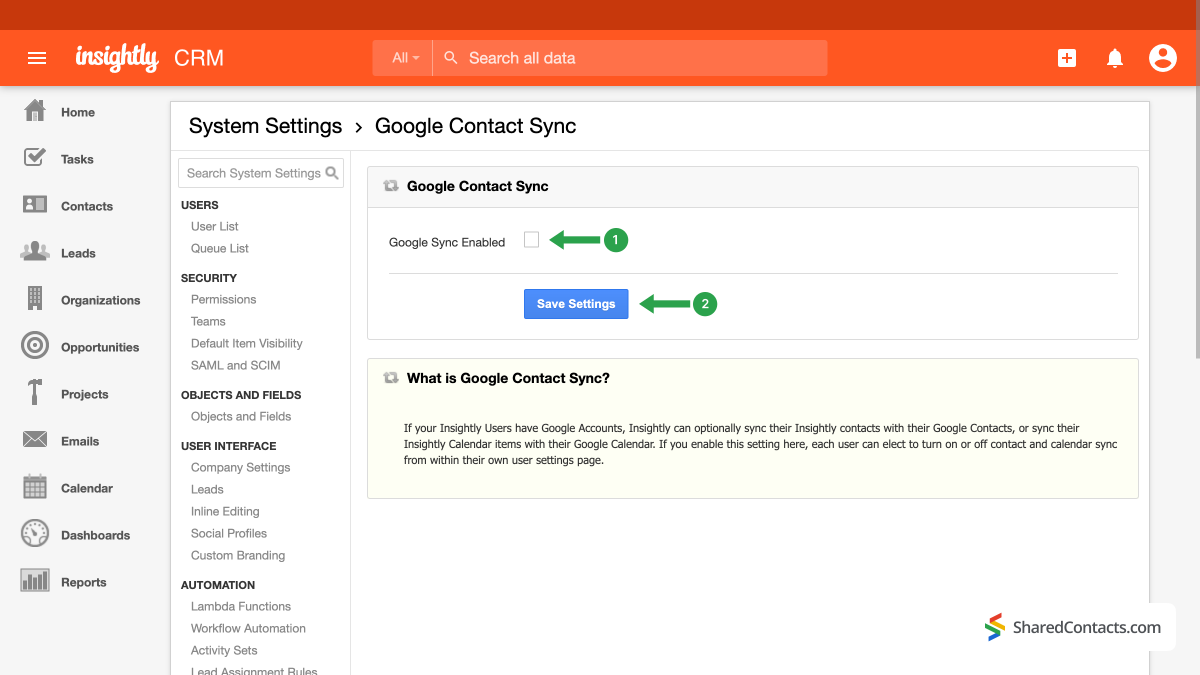
- 次に Google同期チェックボックス がチェックされる。
- を押す。 設定の保存 ボタンをクリックして設定を保存します。
InsightlyとGoogleの統合を継続し、CRMプラットフォームとGoogleアカウントを接続することで、瞬時の同期とシンプルな連絡先管理を実現しましょう。
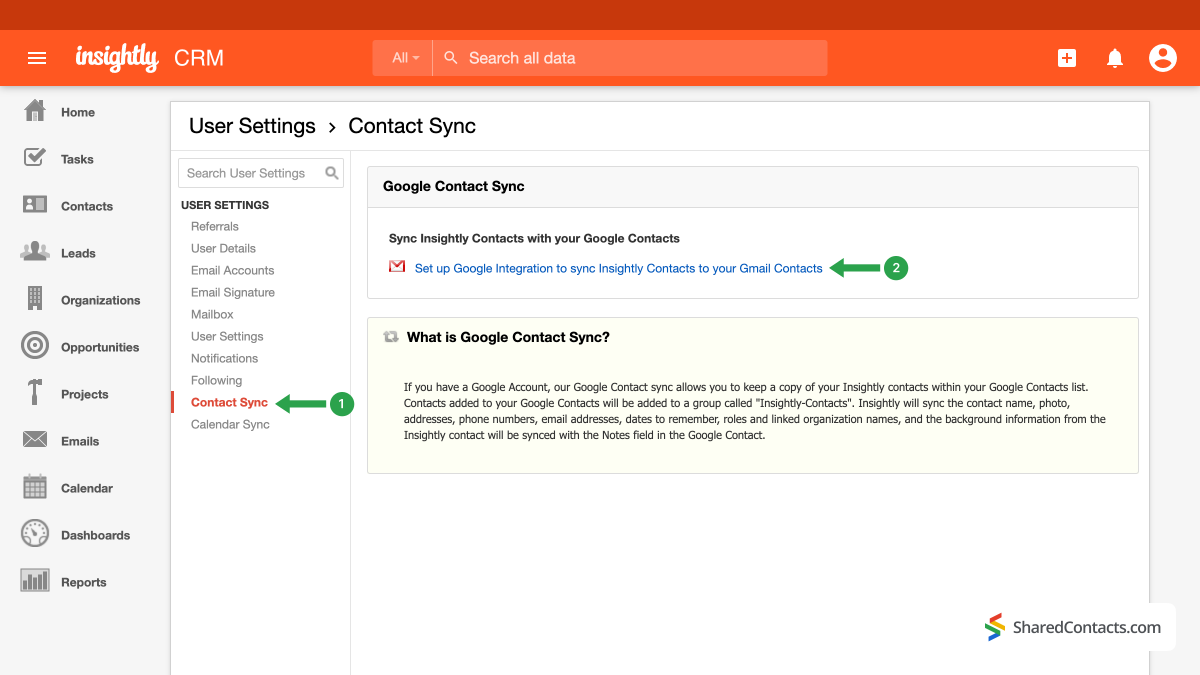
- もう一度、あなたのアカウントのアイコンに移動します。
- をクリックする。 ユーザー設定.
- ユーザー設定 連絡先同期.
- をクリックする。 Googleとの統合を設定し、Insightlyの連絡先をGmailの連絡先に同期します。.
以下のポップアップウィンドウは、Googleアカウントへのログインを促し、連絡先リストで実行可能なアクションを通知し、それらのアクションに対する許可を要求します。
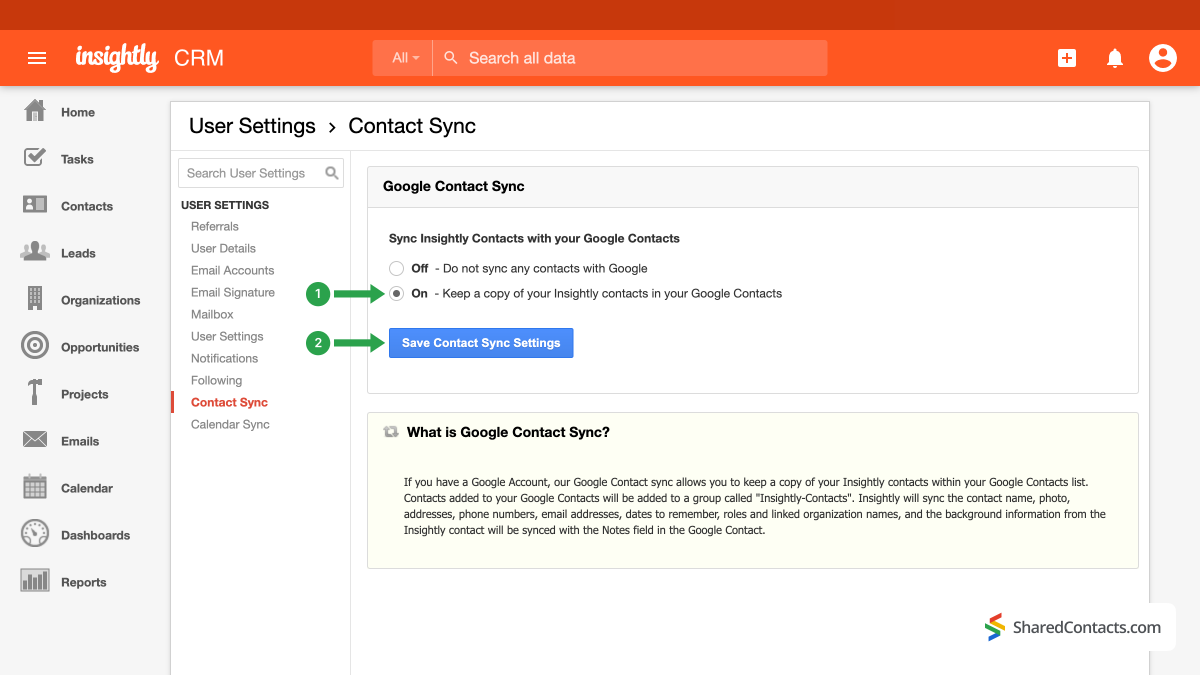
- 次のウィンドウで、ラジオボタンを押します。 オン 連絡先のコピーをGoogle連絡先に保存する
- 変更を保存する。
システムがすべての変更を適用し、InsightlyとGoogleコンタクトの統合を完了するまで数分お待ちください。
Use SharedContacts.com to Share Insightly Customer Contacts With Your Team Members
Everything is ready for you to share your client data with co-workers automatically and improve customer relationship management. To get started, log in to your SharedContacts.com. If you haven’t used the tool before, go これ をインストールする。
SharedContacts.com is an extremely convenient application that uses the extensive capabilities of Google Workspace. The tool synchronizes with Google contacts, creates separate groups, such as data from Insightly, and allows contact owners to share them with anyone else within their domain or outside of it. Connect Insightly to Google, provide access to your contacts with SharedContacts.com, and start leveraging the benefits of this great tool. If you’ve ever wondered how to make the most out of Gmailの共有連絡先, this is where the app can become your great asset.
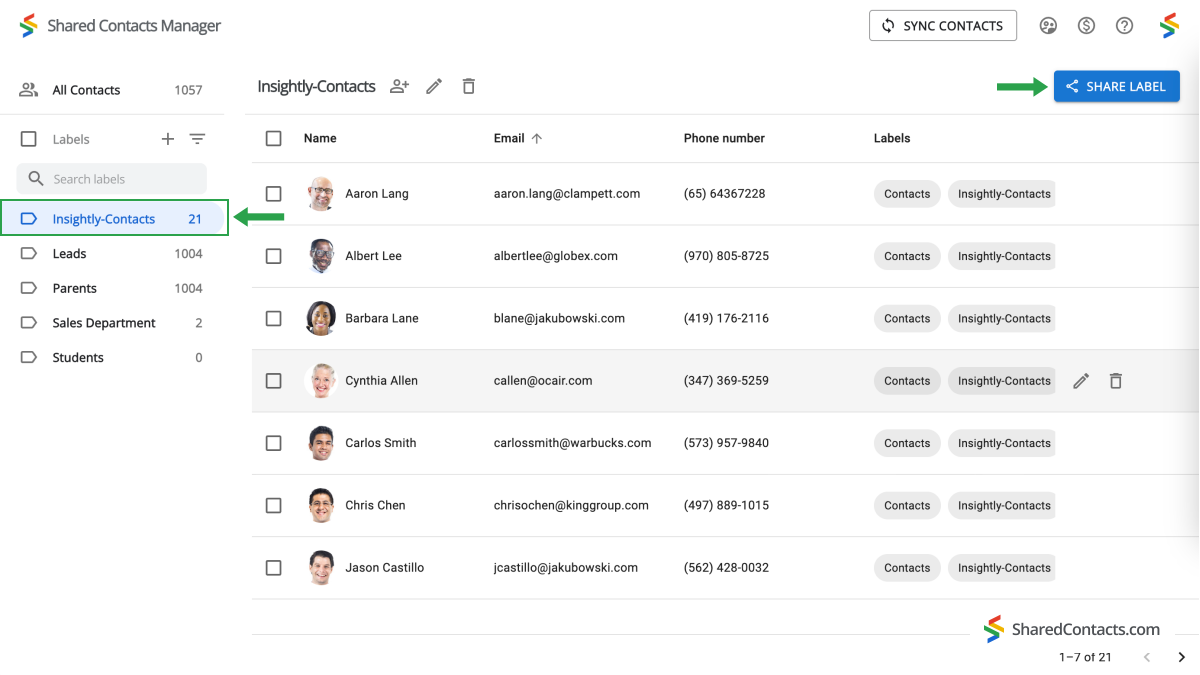
In the left-hand menu, there is now a new category of contacts that has been merged with Insightly and has all of the contact information for your leads, customers, suppliers, and other users. To share this group, select “Share.” You can do this in two ways: hover your cursor over the label name and select the “Share” symbol, or use the large button on the right side of the SharedContacts.com screen.
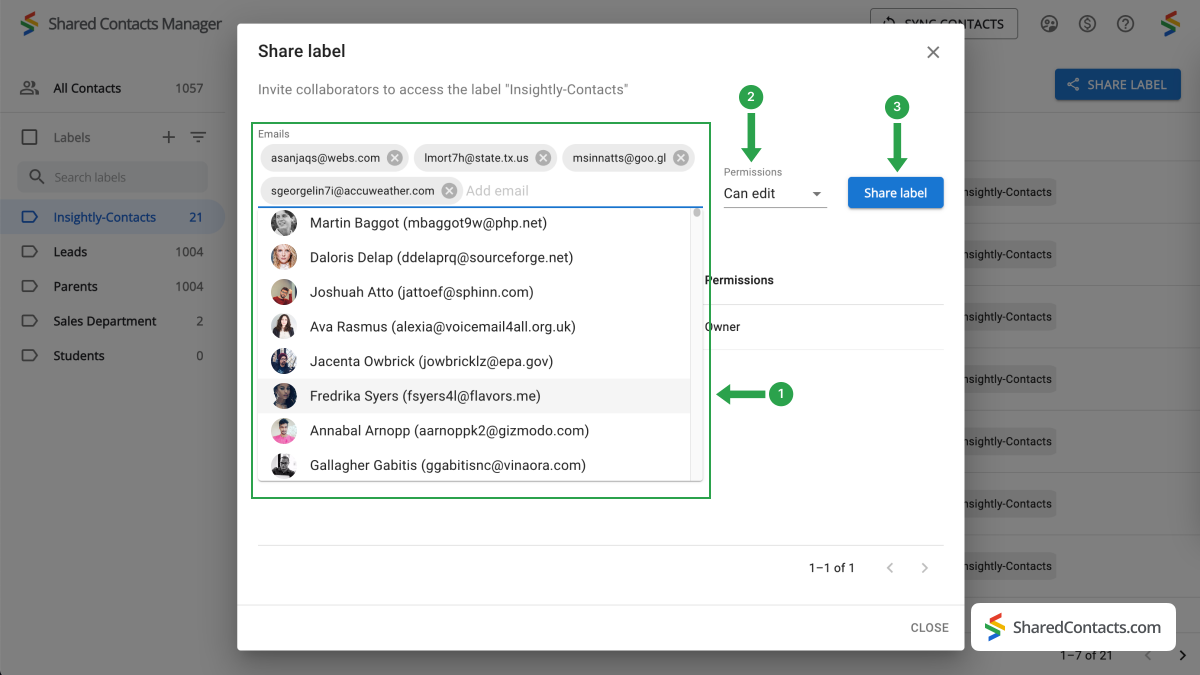
共有設定ウィンドウが表示されます。同僚にアクセス権を与えるには、以下の手順に従ってください:
- アクセス権を与えたい個人を追加します。Eメールアドレスを手入力する、ドロップダウンリストから名前と写真でチームメンバーを選択する、名前を入力するなど、さまざまな方法があります。Eメールを追加」セクションをクリックして、いずれかの方法で個人を追加してください。
- 必要な人全員を選んだら、必要なアクセス権を与えましょう。Edit(編集)アクセスレベルが最も便利で、誰でも連絡先情報を監視・変更でき、リストを常に最新の状態に保つことができます。アクセス許可]をクリックし、利用可能な選択肢のいずれかを選択します。
- すべての設定が完了したら、ラベルを共有する。
Insightlyコンタクトの統合と共有に関する結論
Now, thanks to Google Workspace and SharedContacts.com, everyone you’ve shared the label with can easily manage and edit the Insightly contact data. This makes customer interactions super easy, promotes cooperation, increases productivity, and ensures process consistency across your team’s duties. Best of all, it offers more than an affordable opportunity compared to purchasing a full CRM license for each employee. What else would one expect from a simple and intuitive customer management solution for their business?
関連記事
Pipeliner CRMの連絡先をGoogleと同期し、ほぼ無料で完璧な連絡先統合をご利用いただけます。
Zendesk の連絡先を Google Workspace で同期・共有し、CRM コストの削減とワークフローの合理化を実現
コメントなし