Zendesk の連絡先を Google Workspace で同期・共有し、CRM コストの削減とワークフローの合理化を実現

顧客との関係を効果的に管理することは、どのようなビジネスにとっても不可欠ですが、Zendesk のような従来の CRM システムは高価で複雑な場合があります。しかし、Zendeskのような従来のCRMシステムはコストが高く、複雑です。多くの企業にとって、パワフルな顧客連絡先管理機能とシンプルさ、手頃な価格のバランスが取れたソリューションを見つけることが課題となっています。Zendesk SellをGoogle Contactsと統合することで、連絡先をシームレスかつ効率的に管理・共有することができます。 高額な値札 従来のCRMシステムの
By leveraging the integration capabilities of Zendesk Sell and Google, businesses can maintain a unified contact database accessible to team members across the organization. This integration simplifies contact management and also enhances collaboration by allowing real-time sharing and updating of contact information. The SharedContacts.com further extends these capabilities, providing an intuitive interface to share contacts with colleagues, subordinates, or external partners easily.
このチュートリアルでは、Zendesk SellとGoogleを統合し、連絡先の同期を設定し、チームと連絡先を共有する簡単な手順を説明します。小規模なスタートアップ企業でも中堅企業でも、この統合により、連絡先を効率的に管理し、運用コストを削減し、組織内のコミュニケーションとコラボレーションを促進することができます。
Zendesk と Google コンタクトの統合を設定する
Zendesk SellとGoogleの統合は簡単で、わずか数ステップで完了します。
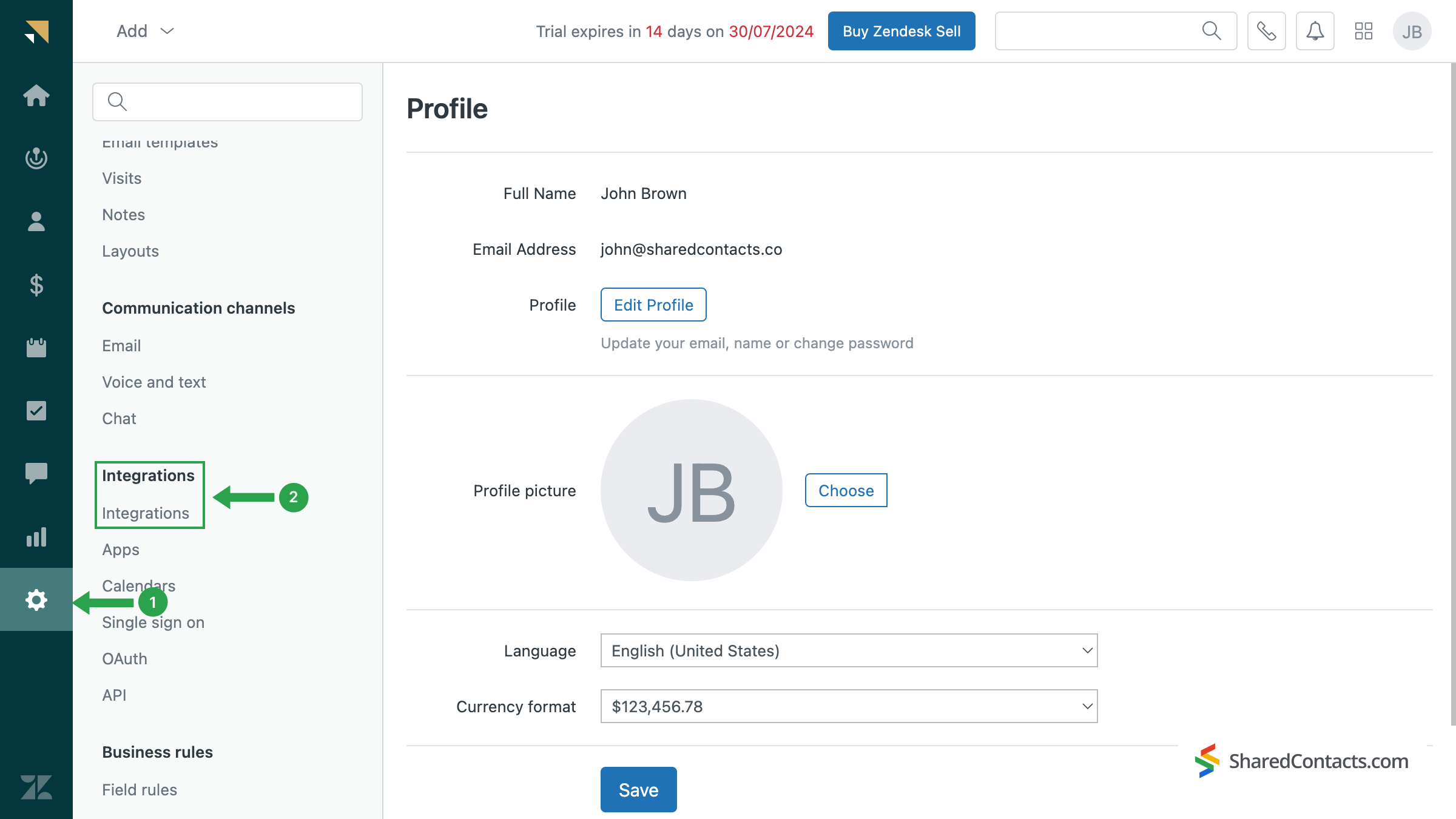
- に移動する。 設定 メニューをご覧ください。
- を見つける。 連携 サブメニューからIntegrationsをクリックする。
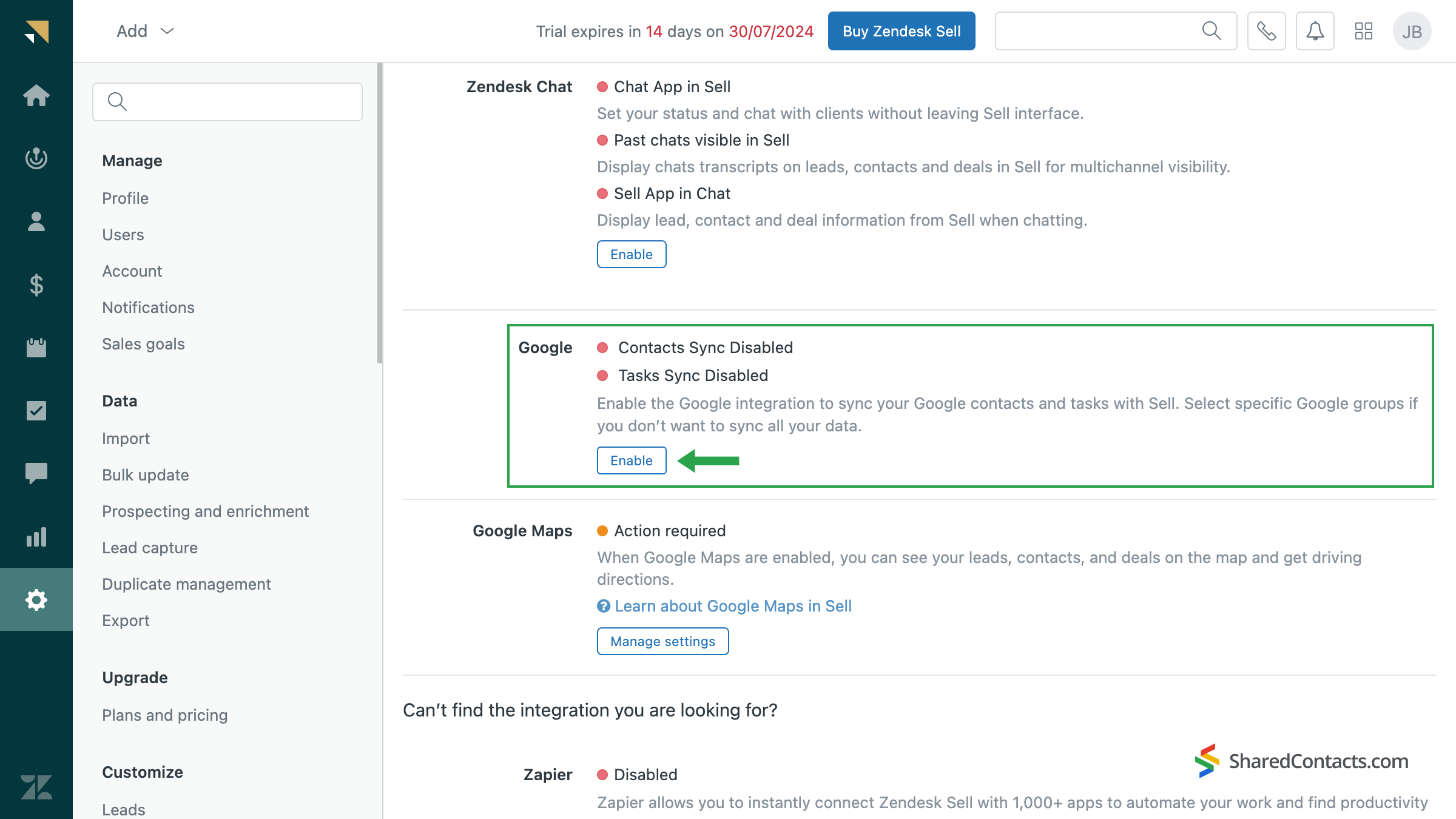
画面を一番下までスクロールし、Googleと連絡先を同期するセクションを見つけます。をクリックします。 有効にする ボタンを押して同期を有効にします。
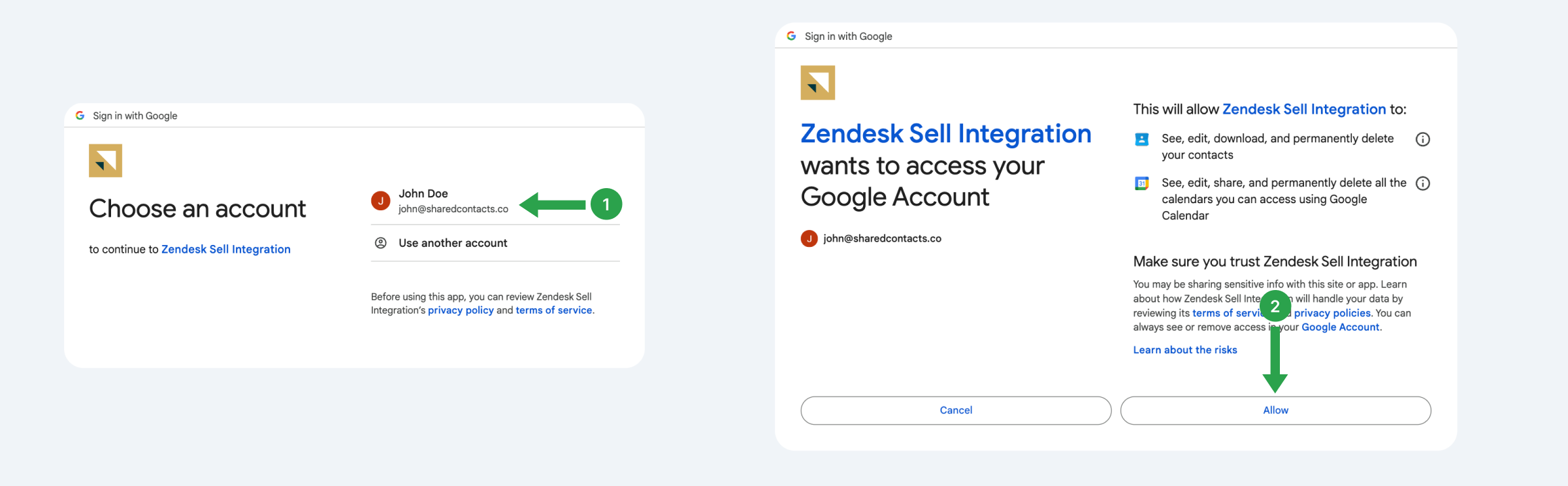
Google アカウントを選択し、Zendesk Sell に必要なアクセス権限を付与する一連の手順が表示されます。
次のウィンドウで、Zendesk SellとGoogle間で同期する連絡先を選択します。すべての連絡先を同期することも、特定のグループを同期することもできます。
- をクリックする。 応募する ボタンをクリックする。
- 選択したコンタクトグループの横にチェックマークを付けるか、または 連絡先.
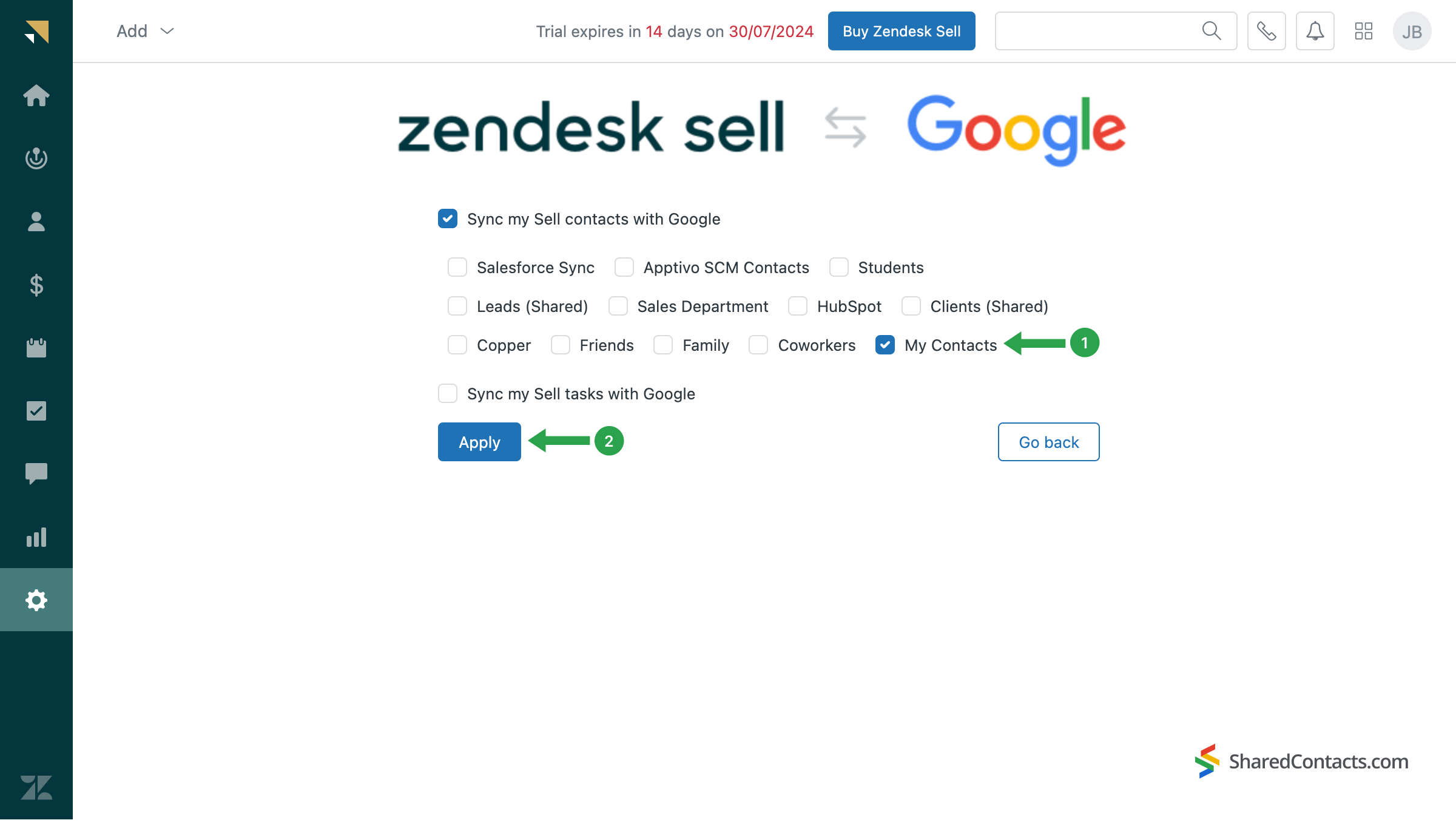
これで統合プロセスは完了です。Zendesk SellはGoogle Contactsに "Base CRM "という別のラベルを作成します。この名前はいつでも変更することができます。
同期に関する重要な詳細:
- 初期設定後、新しい連絡先のみが自動的に双方向で同期されます。
- Zendesk Sell は Google から連絡先を削除しません。Zendesk Sell で連絡先を削除しても、Google コンタクトには残ります。
- 連絡先の更新は以下のルールに従うこと:
- Googleで更新された連絡先はSellに同期されます。
- Sellで作成された連絡先がGoogleで更新されても、Sellには同期されません。
- Sellで行われた更新はGoogleに同期されません。
に接続する。 Zendeskヘルプセンター これらの制限やその他の制限に関する詳細が必要な場合は、お問い合わせください。
Share Zendesk CRM Contacts with the SharedContacts.com App
Zendesk の連絡先が Google Workspace に同期されると、その連絡先は次のようになります。 Gmailの共有連絡先 with the help of SharedContacts.com. This goes beyond simple visibility. You can set different permission levels, decide who can edit or just view, and even extend access to other Workspace domains or private Gmail accounts. With this application, Zendesk customer information becomes a living resource inside Gmail, Google Calendar, Drive, and other products, giving your whole team the confidence that they’re always working with the latest details.
ダウンロード これ もしまだなら
- ダッシュボードの左メニューで、Zendesk が同期中に作成した「ベース CRM」ラベルを見つけます。
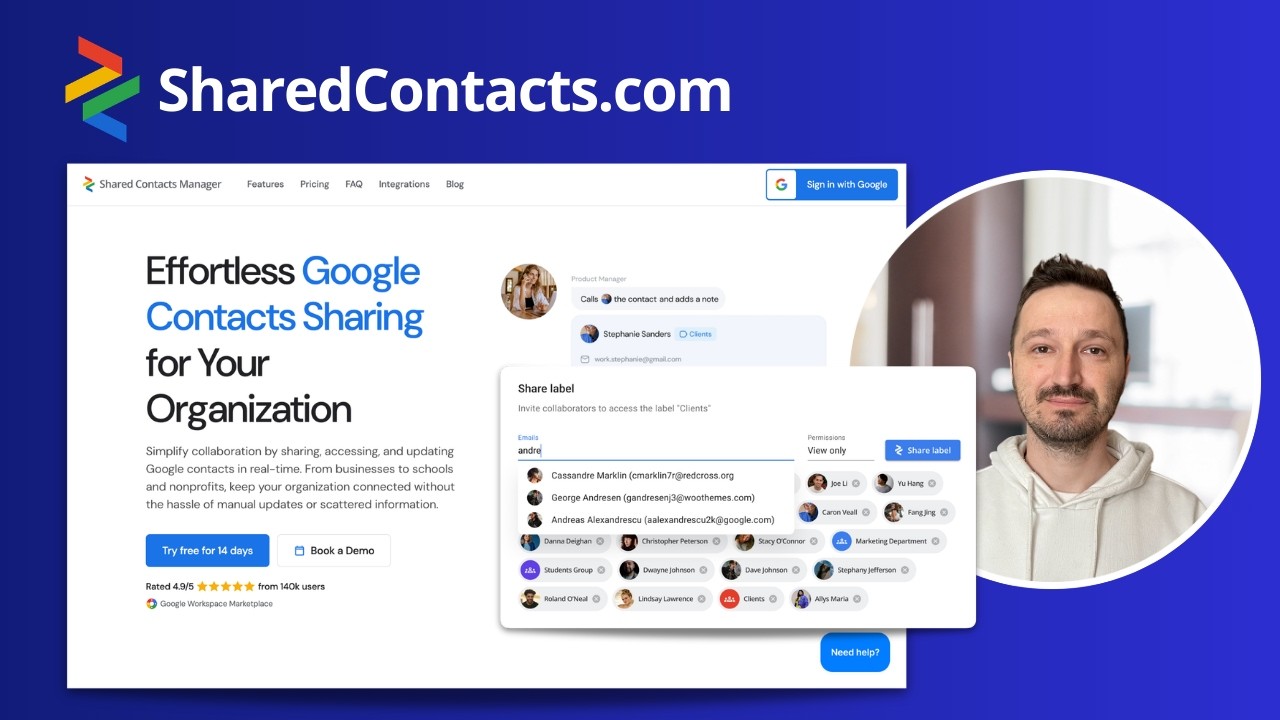
- をクリックする。 シェアラベル ボタンをクリックして、連絡先を共有したい相手を選択します。
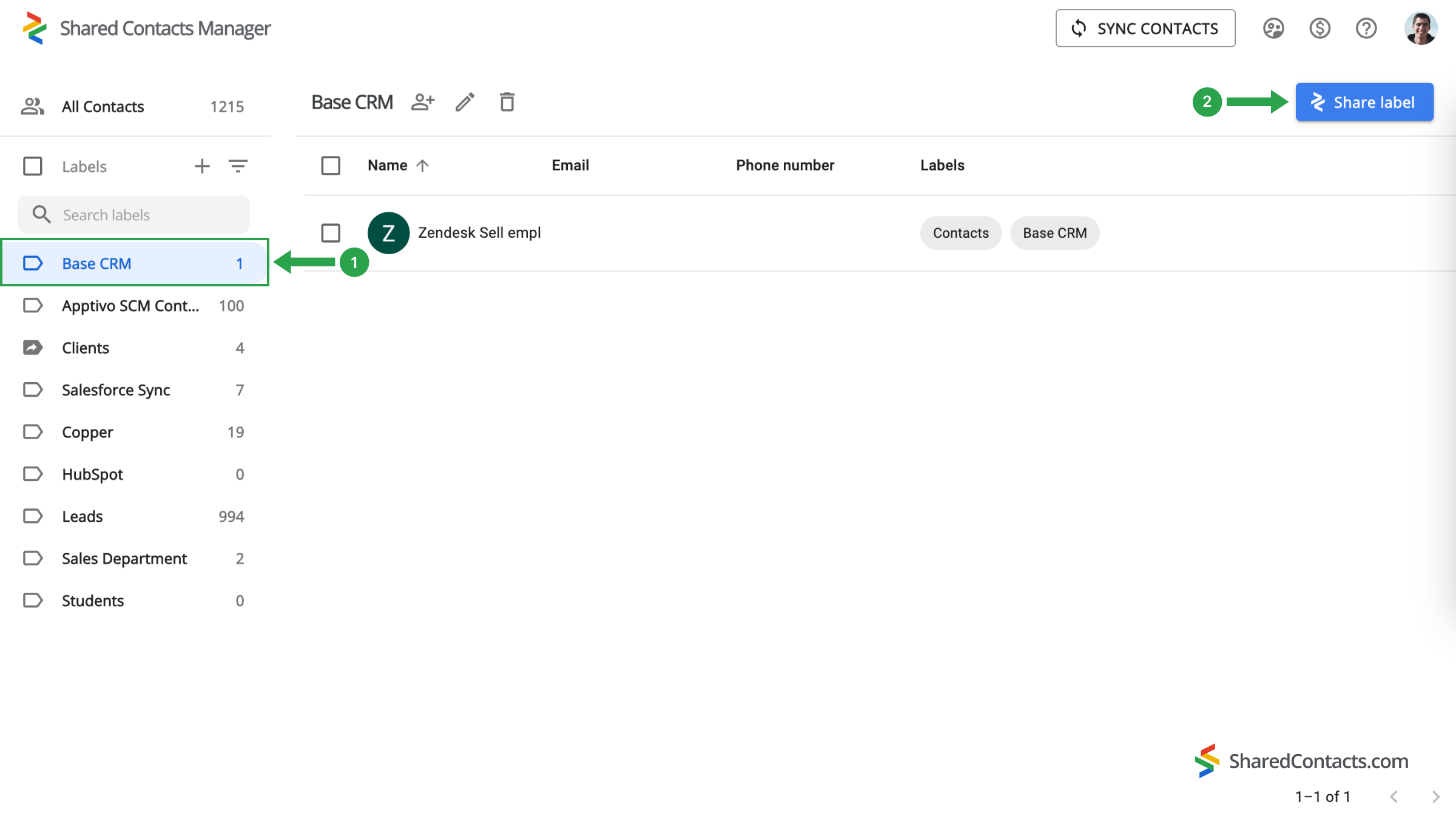
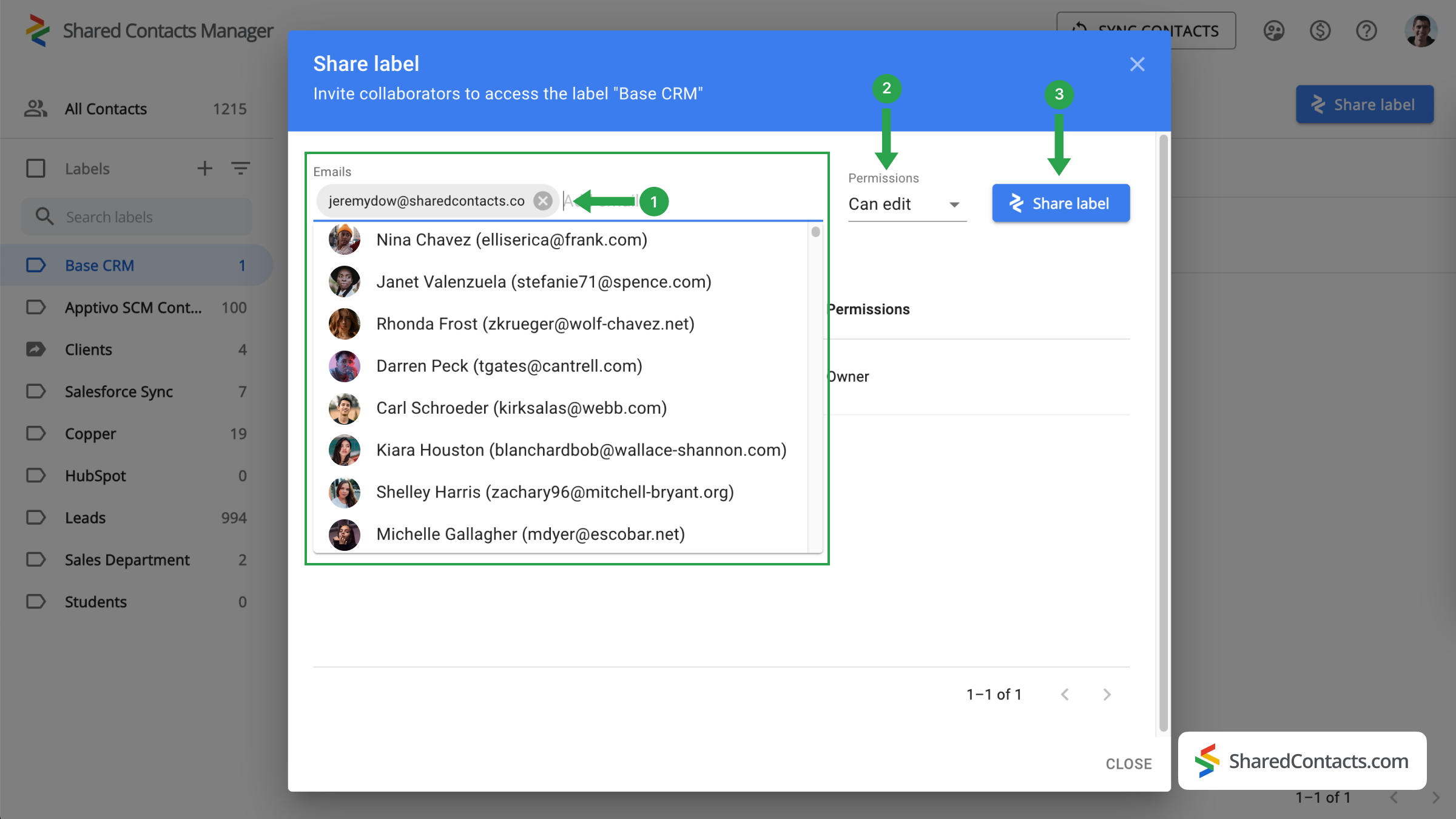
- の中で 電子メール フィールドで、Zendesk の連絡先を共有する同僚を選択します。メールアドレスを入力したり、名前で検索したり、一般的なリストから選択することができます。
- 権限レベルを選択します。その 編集 このオプションは、選択された同僚が変更を加え、それが自動的にチーム全体に同期されるため、最高の生産性を実現するために推奨されます。
- をクリックする。 シェアラベル ボタンをクリックして処理を確定する。
ZendeskとGoogleの統合に関する結論
Zendesk Sell の連絡先と Google 統合 is now complete. By integrating Zendesk Sell with Google Contacts, you can access and manage your contacts from both systems in one place. The SharedContacts.com app expands collaboration possibilities even further by providing great flexibility. You can view your Zendesk contacts directly in the Google Contacts interface and share them with subordinates, colleagues, or others both within and outside your domain who may need them for their work. Connect Zendesk Sell with Google and manage contacts efficiently with SharedContacts.com.
関連記事
Pipeliner CRMの連絡先をGoogleと同期し、ほぼ無料で完璧な連絡先統合をご利用いただけます。
Apptivoの連絡先をGoogleと同期・共有し、CRMの請求を最小限に抑える
コメントなし