Pipeliner CRMの連絡先をGoogleと同期し、ほぼ無料で完璧な連絡先統合をご利用いただけます。

Pipeliner CRM は、あらゆる規模の企業の顧客関係管理を一元化するために設計された堅牢なプラットフォームです。しかし、特に連絡先の管理に重点を置いている場合、その包括的な機能が必要以上に感じられる組織もあるかもしれません。さらに、各チームメンバー用の個別ライセンスに関連するコストはすぐにかさむため、中小企業や新興企業にとってはあまり現実的ではありません。
Fortunately, there is a much more cost-effective and efficient solution for companies that require contact management capabilities. Integrating Pipeliner CRM with SharedContacts.com within Google Workspace offers a powerful alternative. This integration enables seamless sharing and updating of contacts without the 重荷 複数のCRMライセンスに紐づく。
With SharedContacts.com, teams can effortlessly collaborate, accessing and managing Pipeliner CRM contacts collectively. セットアップはシンプルで簡単なので、企業はあまりお金をかけずに生産性と協力体制を高めることができる。
Experience the perfect blend of powerful sales CRM capabilities and affordable contact management with Pipeliner and SharedContacts.com. Transform your workflow and boost your team’s efficiency with just a few simple steps.
PipelinerでGoogleコンタクトを統合する
PipelinerはGoogle Contactsとの統合機能をネイティブで備えているため、サードパーティ製のソフトウェアを使用する必要がなく、プロセスが非常にシンプルです。セットアップは数分で完了します。
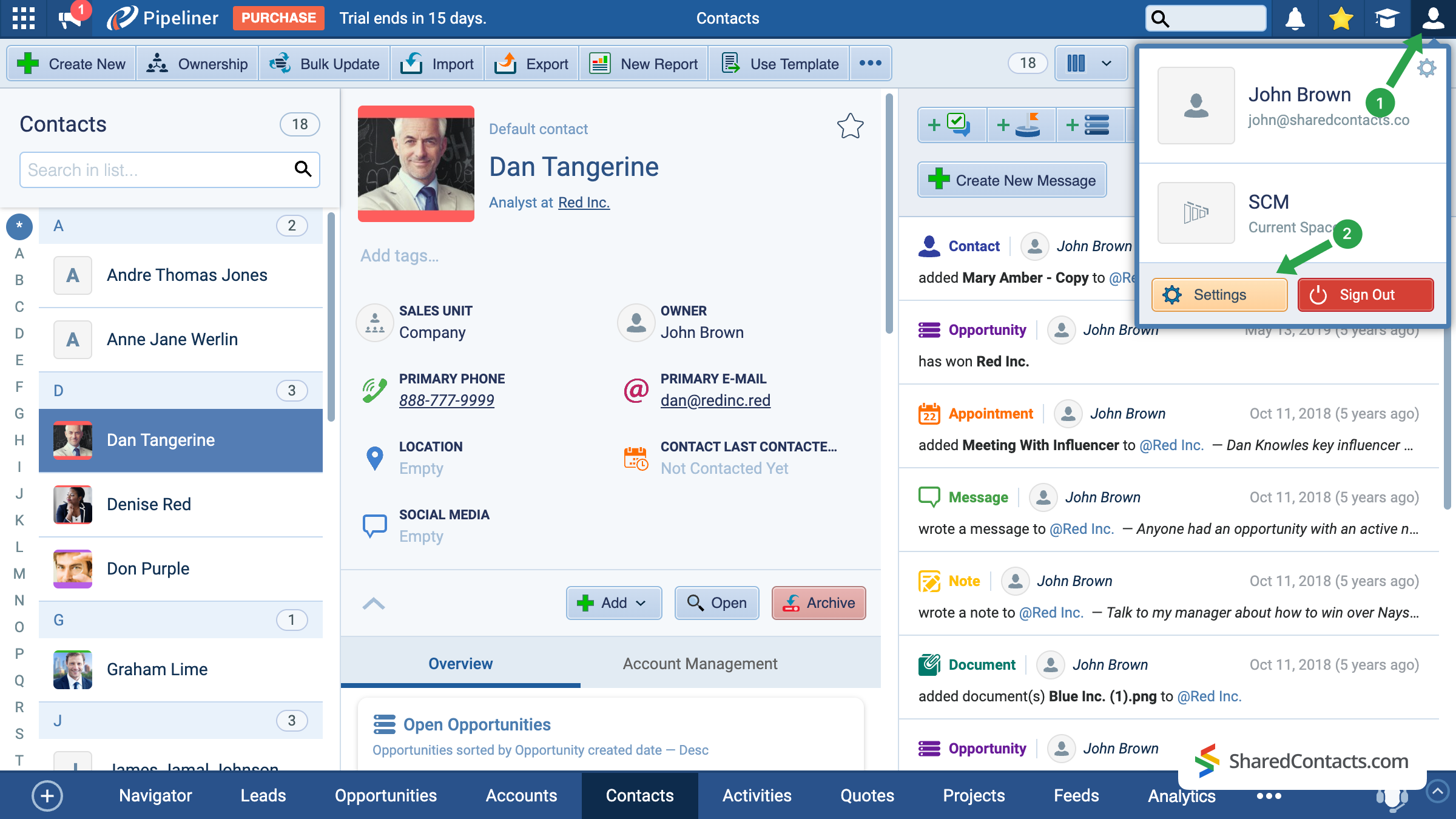
- Pipelinerのメイン画面で、右上のアカウントアイコンをクリックします。
- こちらへ 設定.
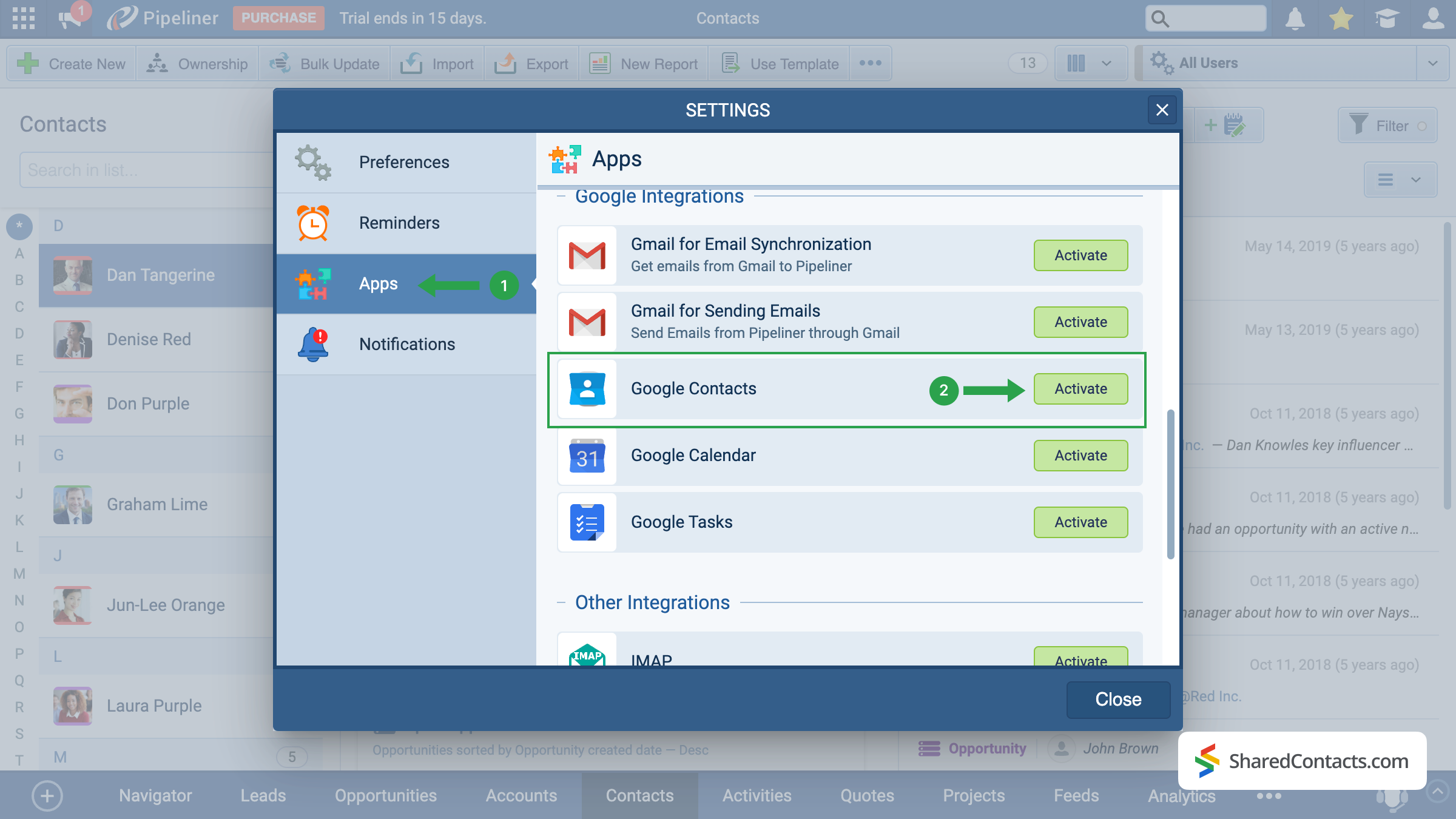
利用可能な設定セクションの中から アプリケーション 画面左側(1)のメニューオプションを下にスクロールし、次の場所を見つける。 グーグル連絡先.をクリックしてください。 アクティベート ボタン(2)。
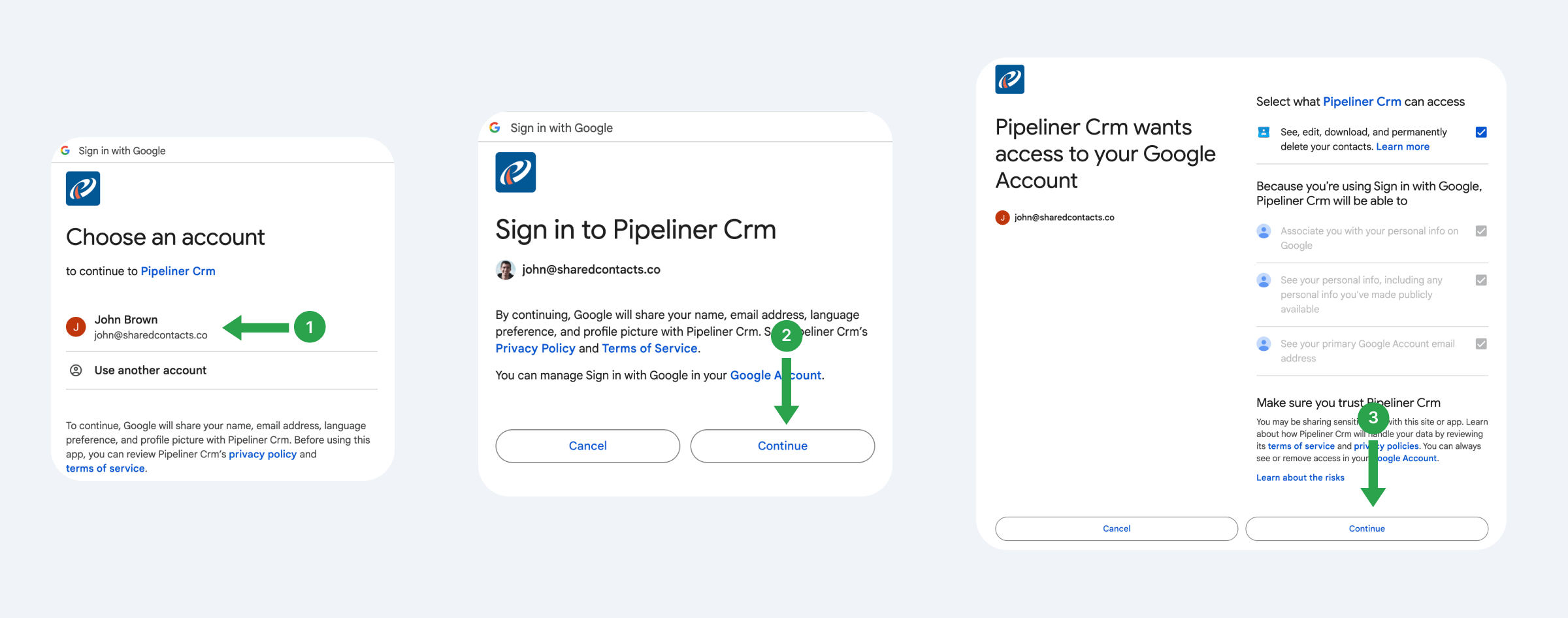
今後、連絡先を使用、追跡、共有する予定のGmailアカウントを接続することができます。
- Googleアカウントを選択します。
- 提案された条件を読み、クリックする 続ける.
- Pipelinerがアクセスできる項目を確認し、アクセス許可を与え、以下をクリックします。 続ける.
同期設定、つまりPipelinerとGoogle Contactsをどのように連携させるかを設定します。
- 同期タイプを選択します。更新が両方のプラットフォームに反映されるように、双方向同期をお勧めします。
- Pipelinerから連絡先を送信する既存のラベルを選択するか、新しいラベルを作成します。
- Save をクリックして設定を適用します。
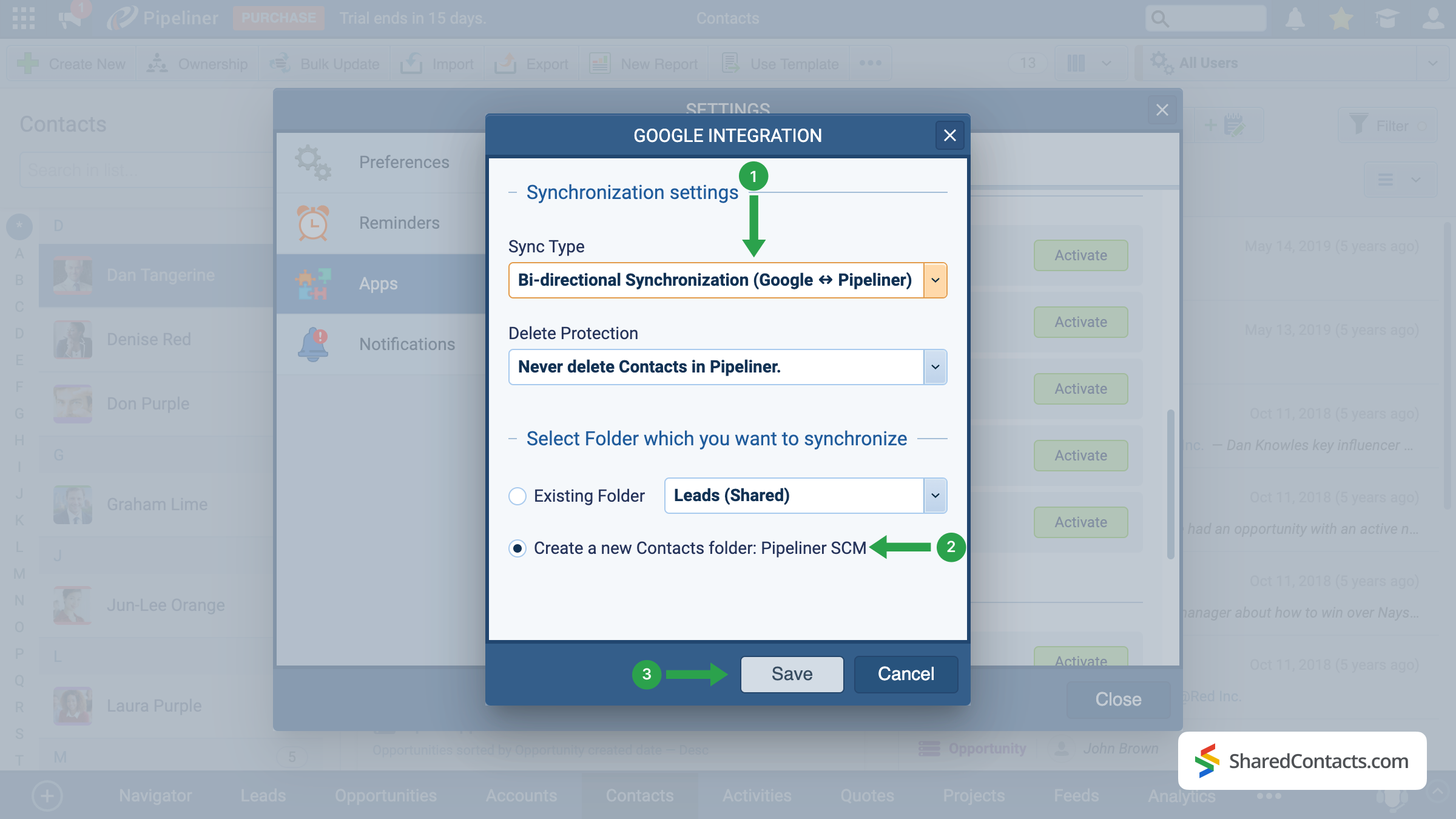
重要な注意事項 設定後に追加された新しい連絡先のみが自動的に同期されます。既存の連絡先を同期するには、エクスポートと インポート 関数を使用する。
Share Pipeliner Contacts With the SharedContacts.com App
When the integration is successfully completed, we are ready to share your Pipeline contacts with your colleagues in a few simple clicks. To do this, access your SharedContacts.com account or インストール まだの方はアプリケーションをダウンロードしてください。
この設定により、CRMデータは効果的に以下のようになります。 グーグル連絡先共有 ready — your team can work with the same up-to-date information directly in Google Workspace. Using SharedContacts.com on top of this integration means you’re not just syncing data, but actually controlling how it’s accessed. You can decide who gets view-only rights, who can edit details, and even share Pipeliner contacts with external partners. This turns a simple sync into a true collaboration tool, ensuring that everyone works from a single, accurate source of customer information without the need for extra CRM licenses.
左側のPipeliner contactフォルダ(1)を選択し、Share label(2)をクリックします。
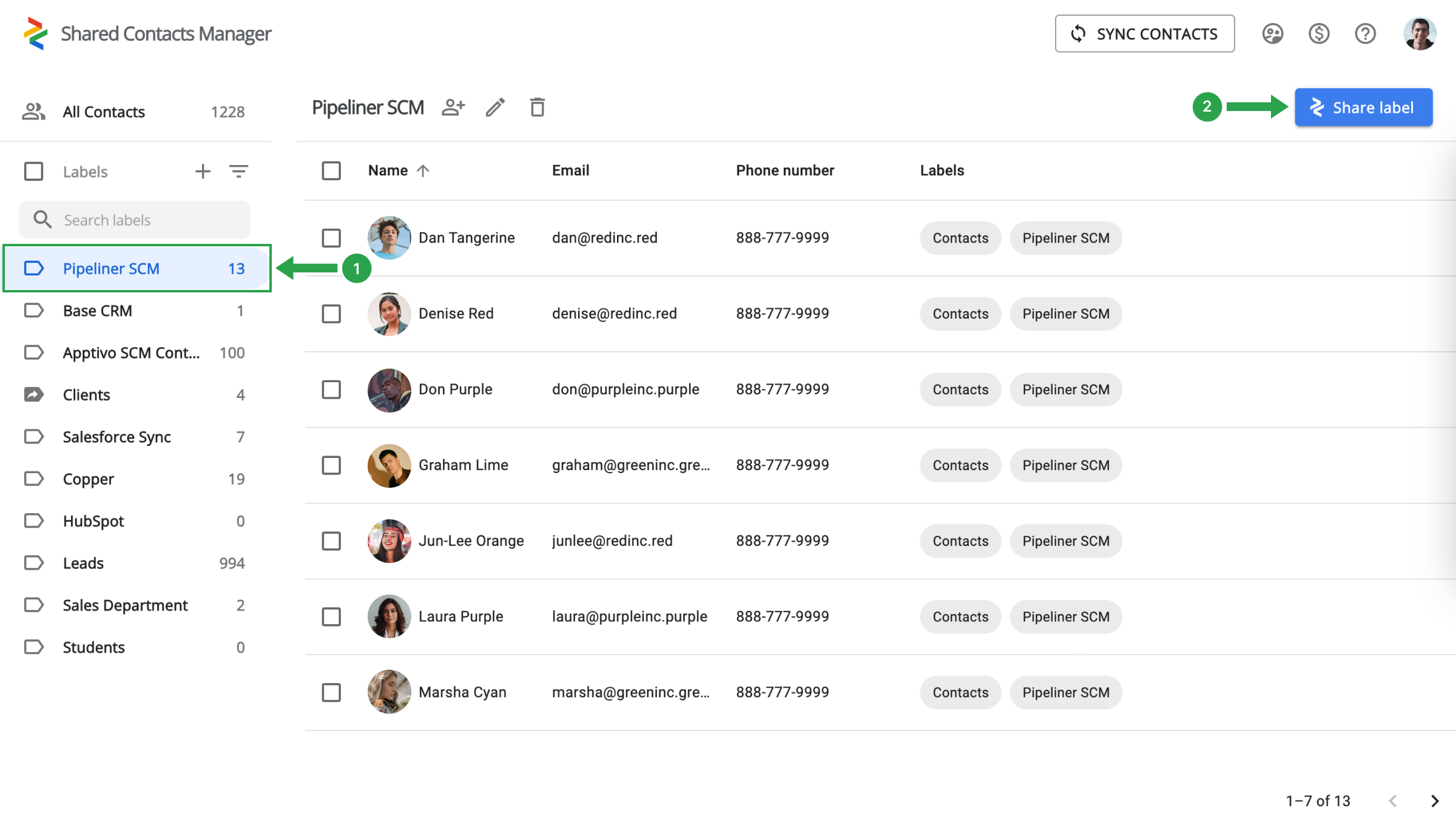
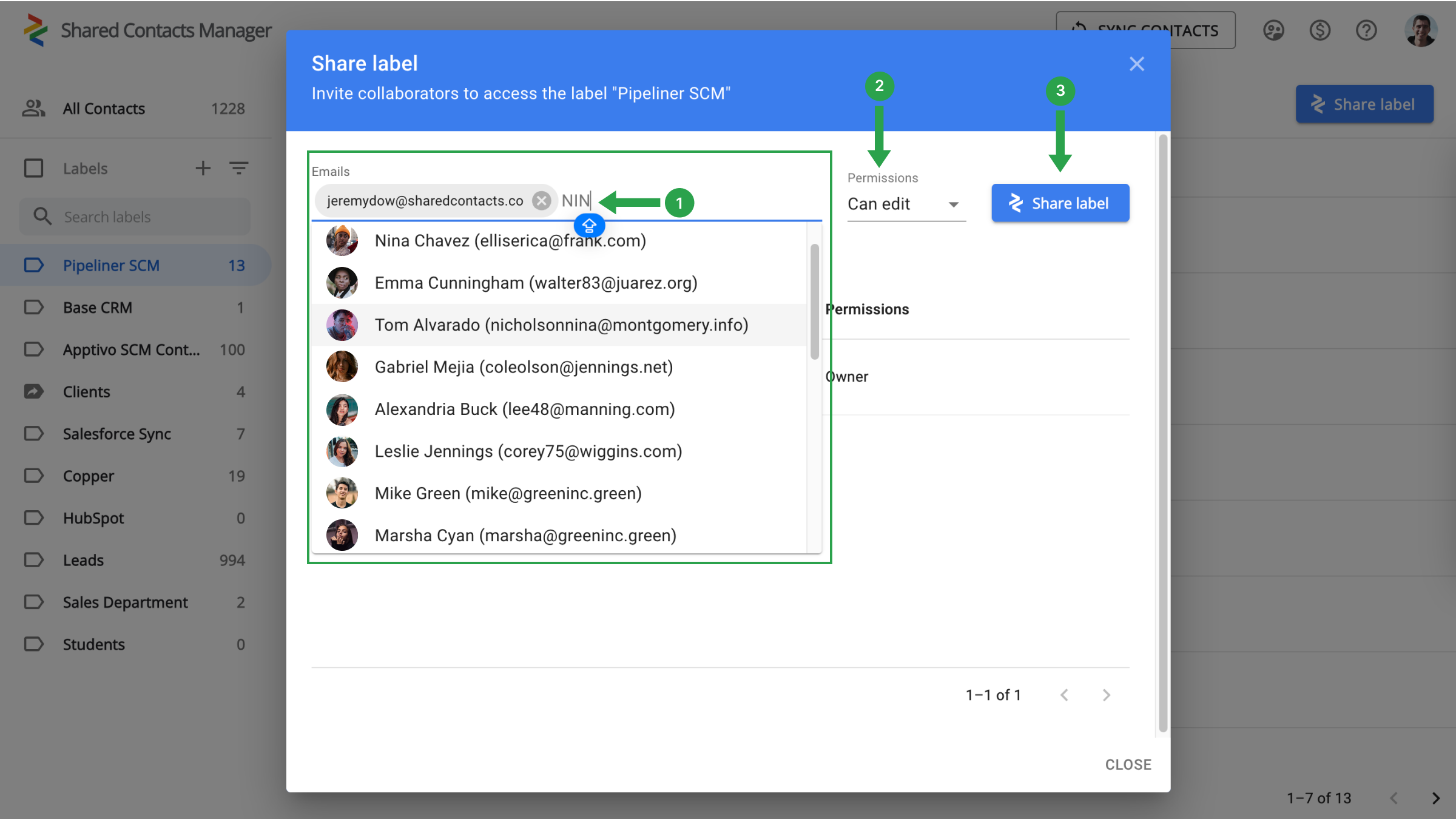
あとは、連絡先へのアクセス権を与えたい同僚を選択し、権限のレベルを定義して共有を開始するだけです。
- Eメール」フィールドでは、ドロップダウンリストから選択するか、Eメールアドレスを入力するか、名前で検索して共同作業者を選択します。
- 同僚が連絡先で実行できるアクションを指定する権限を割り当てます。
- 共有ラベルをクリックします。
GoogleとPipeliner CRMの統合に関する結論
Everything is ready for a new stage in your workflow when your team’s production will skyrocket and work efficiency will increase significantly. There is no longer a need to spend thousands on CRM payments. A single setup is sufficient, and the connection with Google and SharedContacts.com will take care of the rest. Just a quick and simple setup will help you save money, simplify contact management, and significantly increase the speed and productivity of your team.
関連記事
Zendesk の連絡先を Google Workspace で同期・共有し、CRM コストの削減とワークフローの合理化を実現
Apptivoの連絡先をGoogleと同期・共有し、CRMの請求を最小限に抑える

コメントなし