Zohoの連絡先をチームのGoogleアカウントと共有し、CRMコストを削減。

重要なポイント
- Zohoの連絡先をGoogleと同期させることで、連絡先情報を即座に共有・更新することができます。
- セットアップ・プロセスはシンプルで直感的なため、企業はすぐに設定し、統合の恩恵を受けることができる。
- SharedContacts.com provides a budget-friendly alternative to purchasing additional Zoho licenses.
- 連絡先の同期と更新を自動化することで、チームはより戦略的なタスクに集中でき、全体的な生産性が向上します。
Zohoは企業向けのクラウド・ソフトウェア・スイートであり、顧客関係管理におけるそのソリューションは印象的だ。しかし、平均的な中小企業が、Zoho CRMのサブスクリプションをチーム全体で効率的に活用することは可能だろうか? 多額の費用 for each user? With SharedContacts.com, teams can seamlessly complete a CRM to Google integration and share contacts between their members, even if they don’t have a Zoho CRM subscription for all users. By creating a SharedContacts.com account and connecting it with Google contacts, businesses can optimize their resources and reduce operational costs significantly while giving everyone in the company an opportunity to benefit from Zoho’s powerful contact management features. It takes only three short steps to get there and benefit from using Zoho business connections as Googleの共有連絡先:
- Googleコンタクトにラベルを作成する
- Zoho CRMの連絡先をGoogleの連絡先と同期する
- Share the label with your co-workers using SharedContacts.com
Googleコンタクトにラベルを作成する
Zohoと同期し、共有可能な連絡先の詳細を含む連絡先のフォルダ(以下、「ラベル」と呼ぶ)を作成してみましょう。
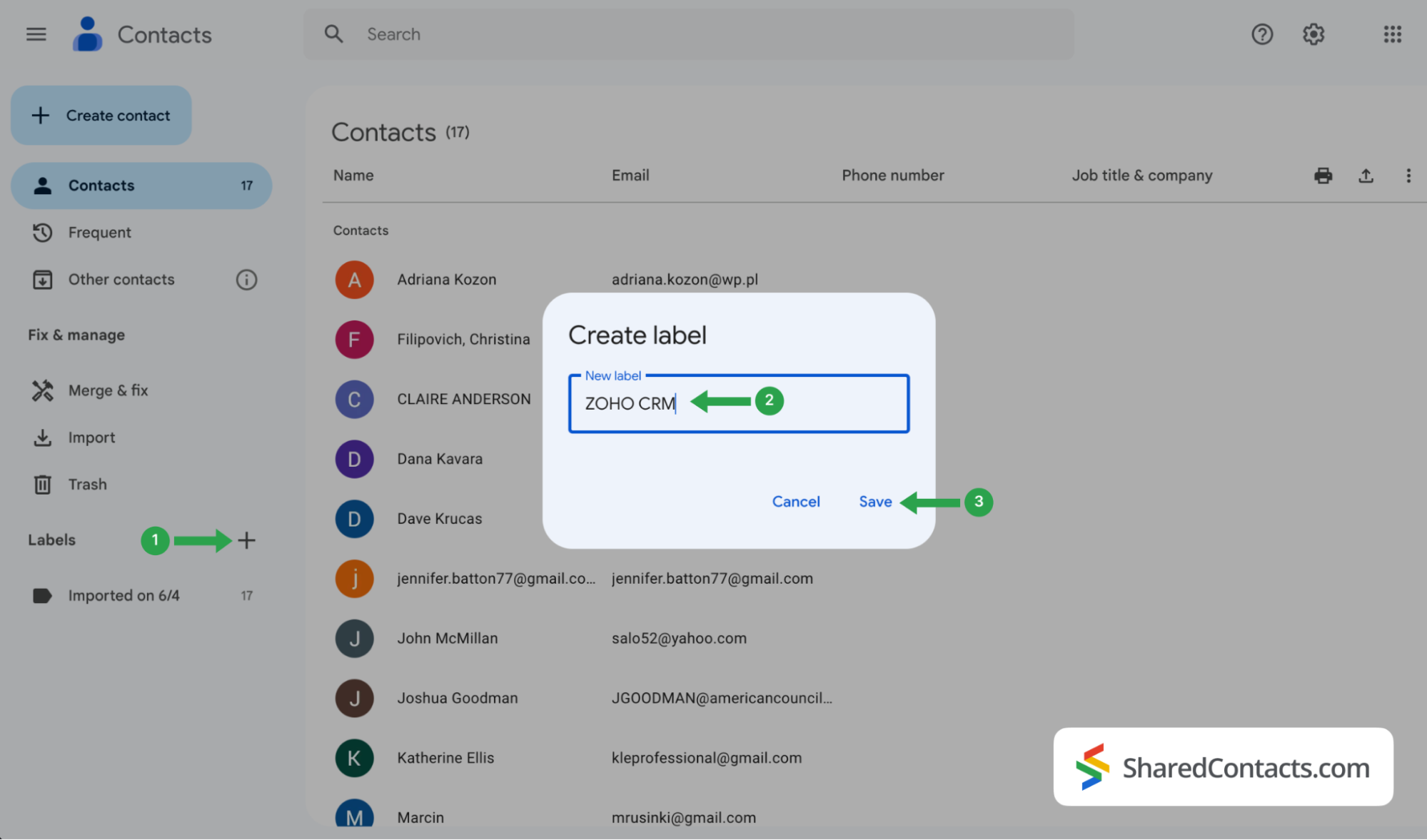
- Googleコンタクトにログインし をクリックする.
- の中で ラベル作成 ウィンドウにラベル名を入力します。簡単に参照でき、連絡先の出所がすぐに分かるように、例えばZoho CRMのような便利な名前を選んでください。
- クリック セーブ でラベルを作成する。
Zoho CRMの連絡先をGoogle連絡先と同期する
さて、CRMシステムのコンタクトリストをGoogleコンタクトに統合したい。
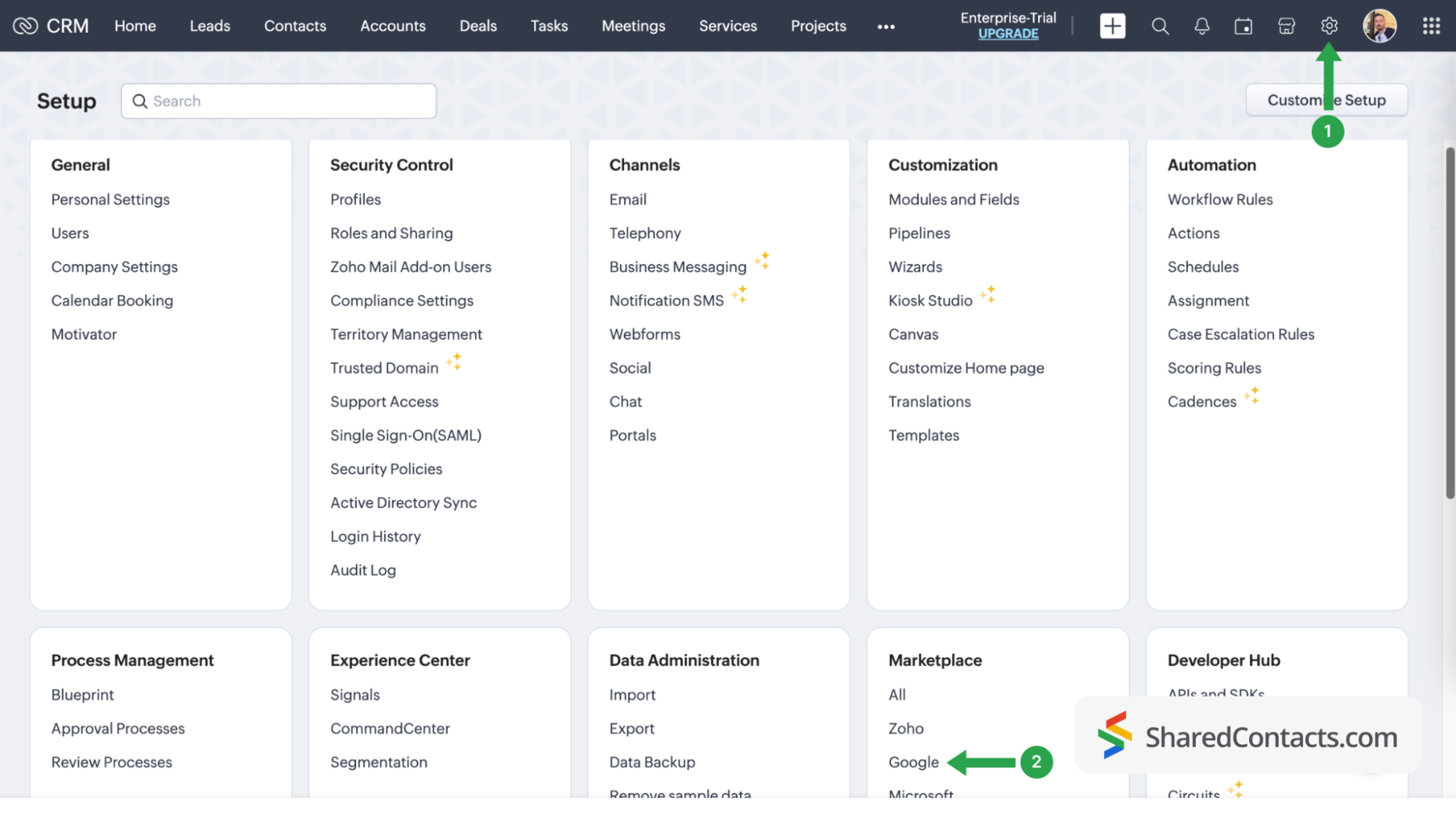
- Zohoアカウントにログインして 設定 アイコンをクリックする。
- マーケットプレイスを探して選択し グーグル.
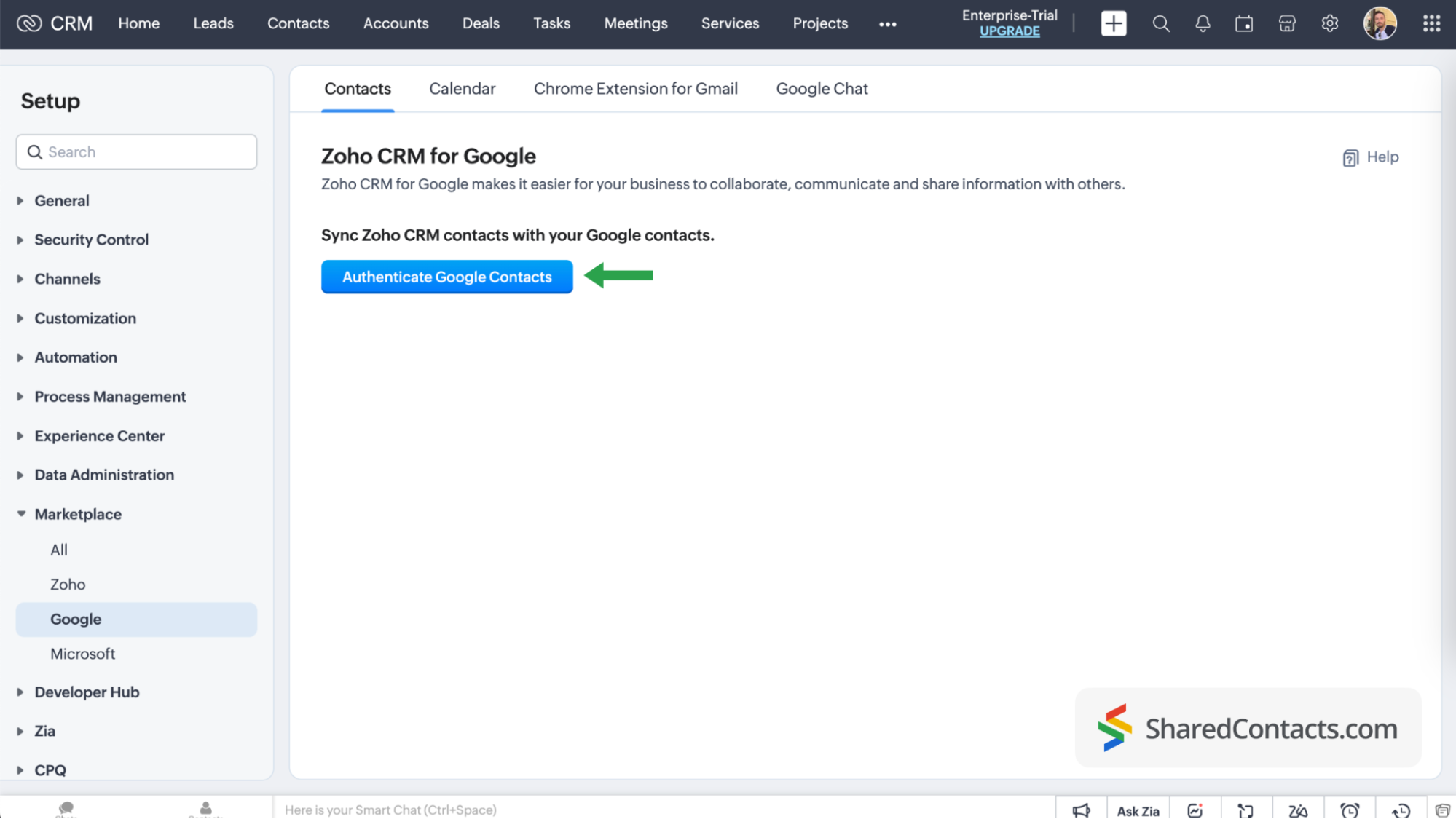
をクリックする。 Googleコンタクトの認証 をクリックし、画面に表示されるすべてのプロンプトに従って、システムに必要なアクセス許可を与えます。
連絡先同期ページで、以下のステップを続けます:
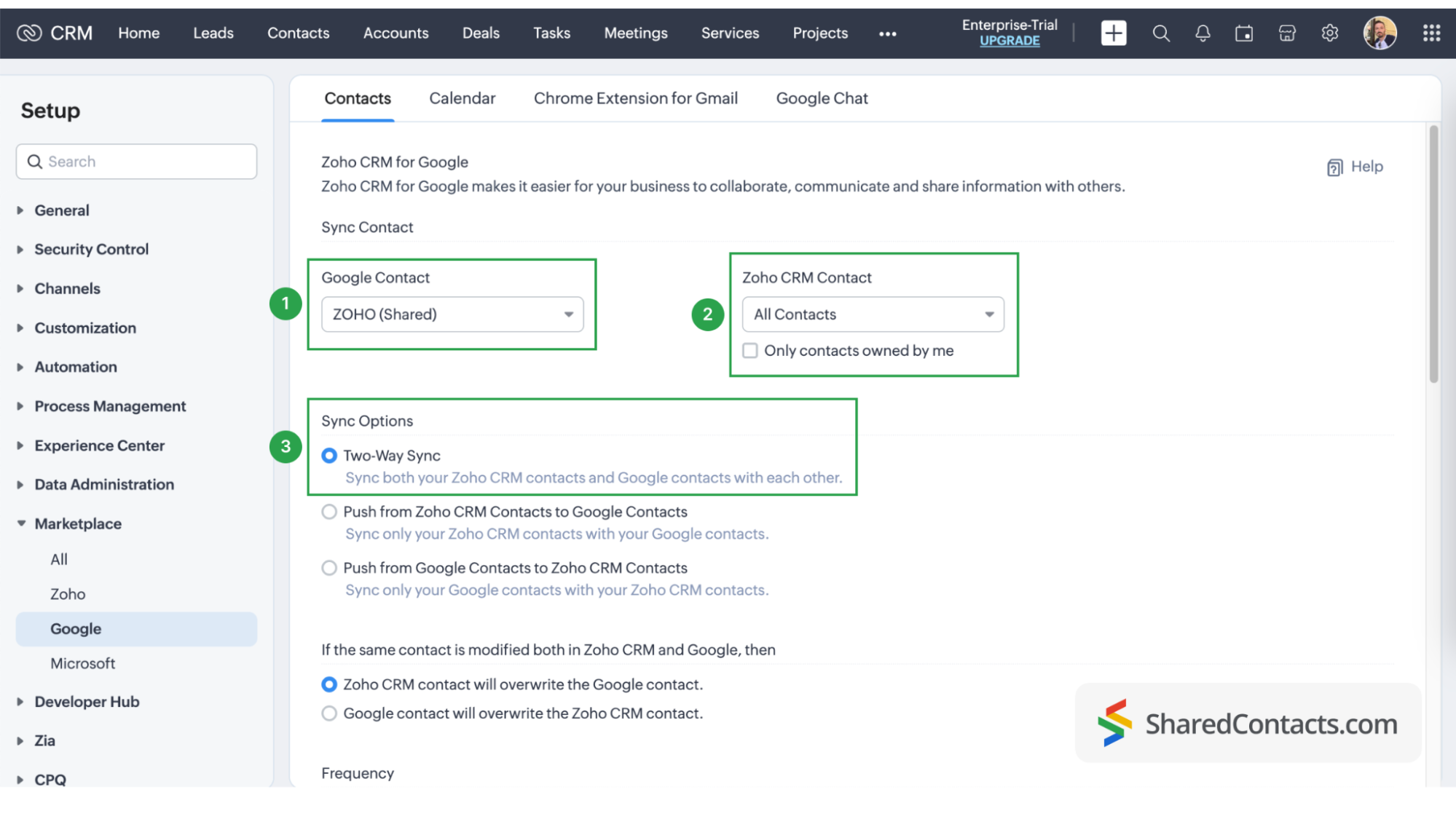
- を選択する。 ZOHO CRM Googleコンタクトの下にあります。
- Zoho CRM Contactでドロップダウンメニューをクリックし、Google Contactラベルと同期したいCRMコンタクトを選択します。選択します。 すべての連絡先 全部必要なら
- 同期オプション 双方向シンク. This is necessary if you plan to provide non-licensed users with Can Edit permission in SharedContacts.com.
The final step in your Google contacts sync process is field mapping in Google and Zoho CRM. Customizing your fields allows you to decide which data from the CRM will be pulled into specific fields in Google Contacts and SharedContacts.com. Click the ‘Map More Fields’ link to add and map additional fields.
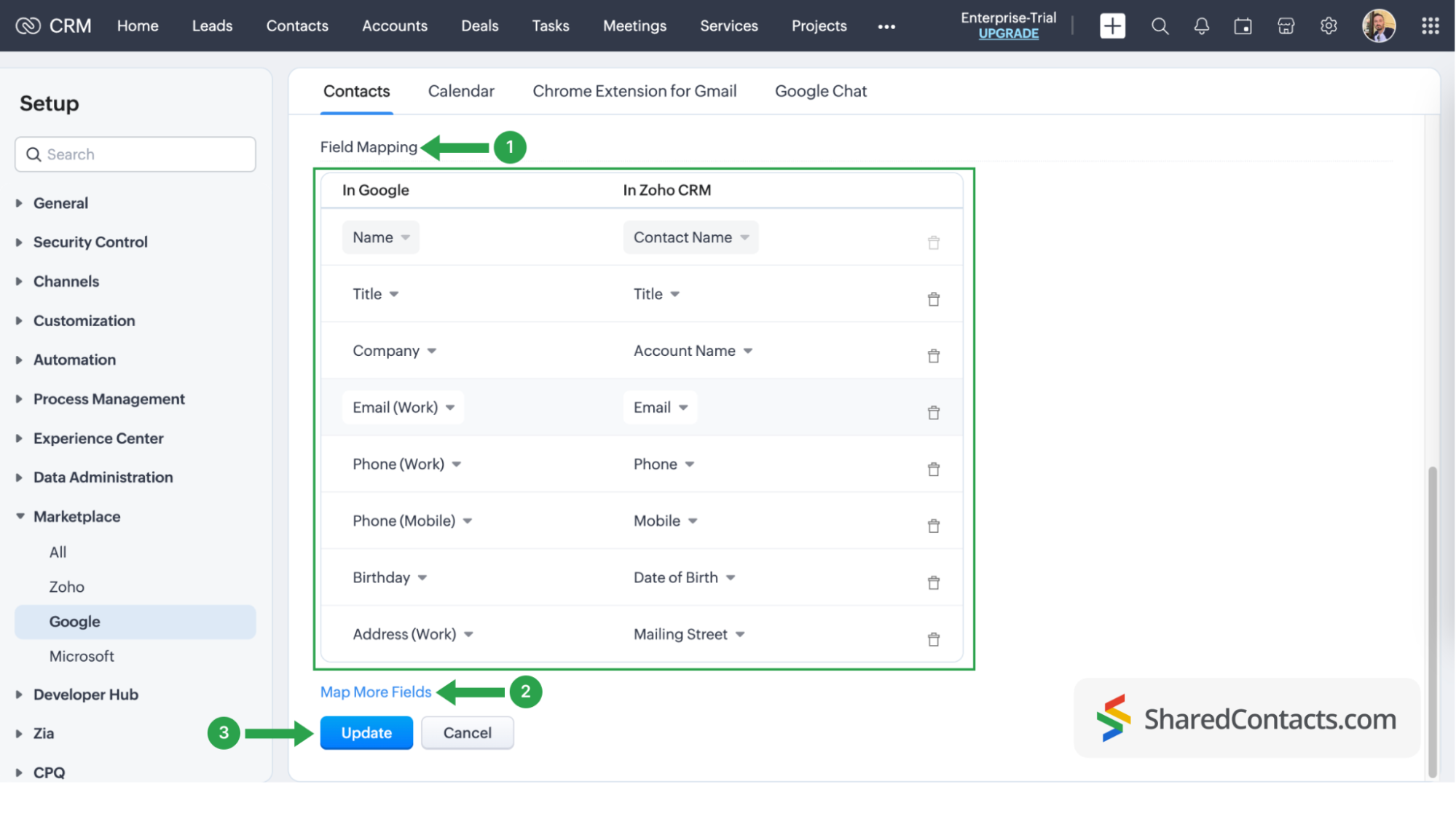
この時点で、CRMの連絡先とGoogleコンタクトが完全に統合されました。CRMシステムの設定に戻り、いつでも同期を削除したり、新しい同期を開始したり、連絡先の同期を調整することができます。
Share Your Zoho contacts using SharedContacts.com
Log into your SharedContacts.com account. If you don’t have the app yet, click これ をインストールする。
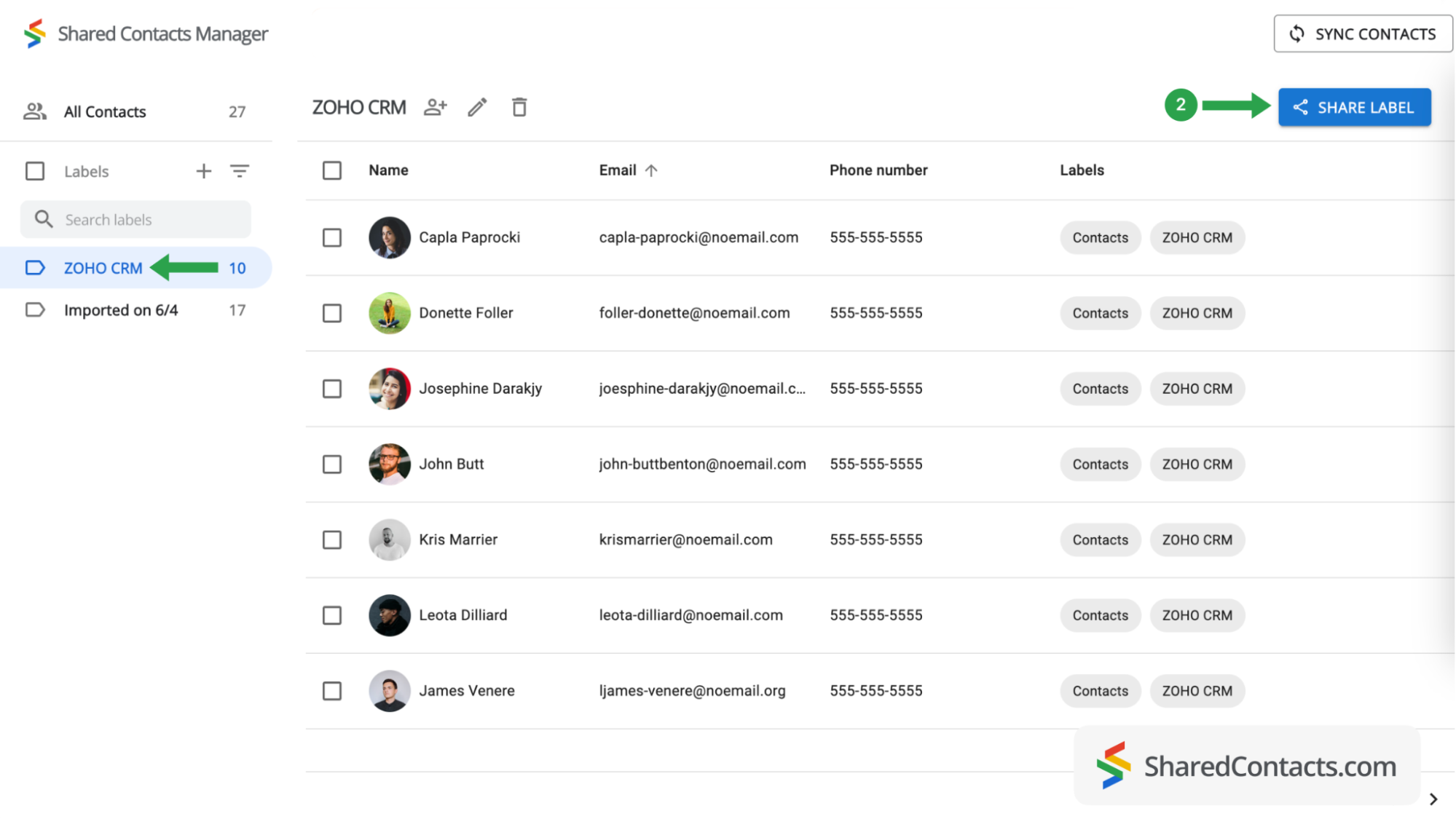
左サイドバーの連絡先リストに、Googleアカウントと統合されたZoho CRMが表示されます。あとは、連絡先へのアクセスが必要な同僚と共有するだけです。
- ZOHO CRMラベルを選択すると、その連絡先が表示されます。
- 共有ラベルをクリックする。
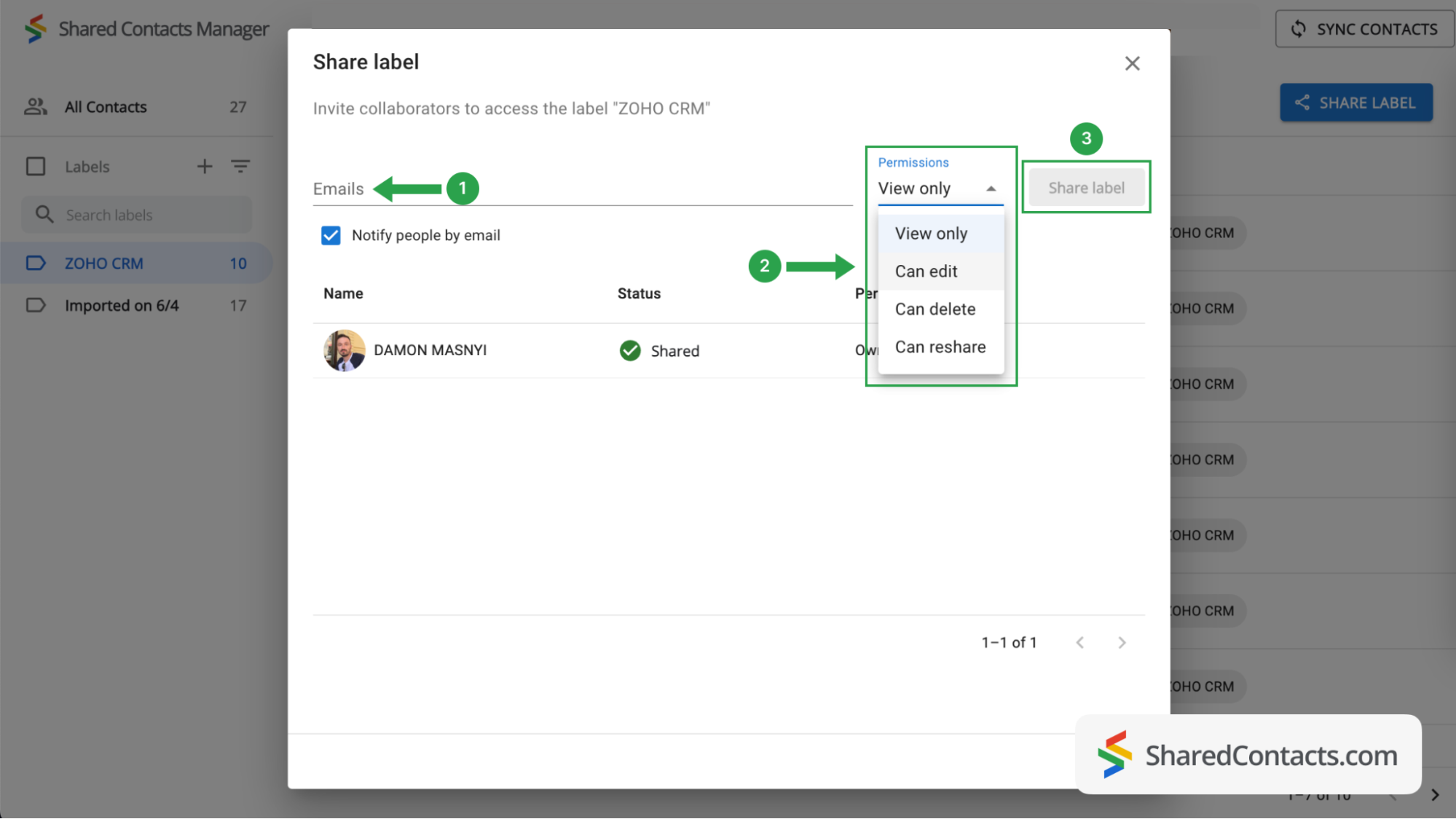
次に、そのグループ内の連絡先へのアクセス権を与えたい人とその権限レベルを選択します。
- ユーザーを選択するには、EmailフィールドにEメールアドレスを入力または貼り付けます。同僚の人数は無制限で、後からユーザーを追加することもできます。
- Set a permission level by selecting one of the choices available. To get the most out of SharedContacts.com, we recommend giving your colleagues the Edit permission, which allows them to perform various actions with contacts. Their updates will sync across all team members and display the most relevant information.
- ラベルを共有]をクリックすると、この連絡先グループへのアクセスを許可した全員に、許可された権限に基づいてラベル内の連絡先とやり取りできることを通知するメールが送信されます。 ラベルを共有」ボタンは、ラベルに共同作業者を追加すると有効になります。
Now your Zoho CRM contacts are fully integrated, and thanks to SharedContacts.com, your selected co-workers have access to them. They can edit your contacts according to their assigned permission level.
結論
Integrating Zoho CRM with SharedContacts.com offers a simple and cost-effective solution for team collaboration and productivity. This integration allows businesses to share and update contact information easily, providing everyone access to the most current data without expensive additional CRM licenses.
関連記事
Pipeliner CRMの連絡先をGoogleと同期し、ほぼ無料で完璧な連絡先統合をご利用いただけます。
Zendesk の連絡先を Google Workspace で同期・共有し、CRM コストの削減とワークフローの合理化を実現
コメントなし